
 HOME
HOME
Rotate
Function
To rotate a designated axial spin.
Syntax
Rotate rotary surface, rotary angle[, rotary center coordinates][, pose = rotary option][, motion option]
Guaranteed Entry
- Rotary surface
- Designate a rotary surface. Use any of "XY," "YZ," "ZX," "XYH," "YZH," "ZXH,"(Vector Type, Vector Type, Vector Type) for designation. Refer to "Designating rotary surface."
- Rotary angle
- Designate the rotary angle (Deg) by Single Precision Real Number Type data. Target position option can be added to the rotary angle.
The rotation direction is decided based on the relation between the approach vector and the rotary surface. For details, refer to Rotation direction. - Rotary center coordinates
- Specify the rotary center coordinates by Vector type data.
This can be omitted depending on the way of specifying the rotary surface.
For details, refer to How to specify the rotary center coordinates. - Rotary option
- Use "pose = 1" or "pose = 2" for designation. Refer to "Rotary option."
This is an optional value. This should be "pose = 2" if this is omitted. - Motion option
- A motion option can be specified.
Description
Move the tool end in an arc on the specified rotary surface by the specified rotary angle.
The axis of rotation is a line which is vertical to the rotary surface and passes through the specified rotary center coordinates.
To execute this statement, the task must acquire robot axis control.
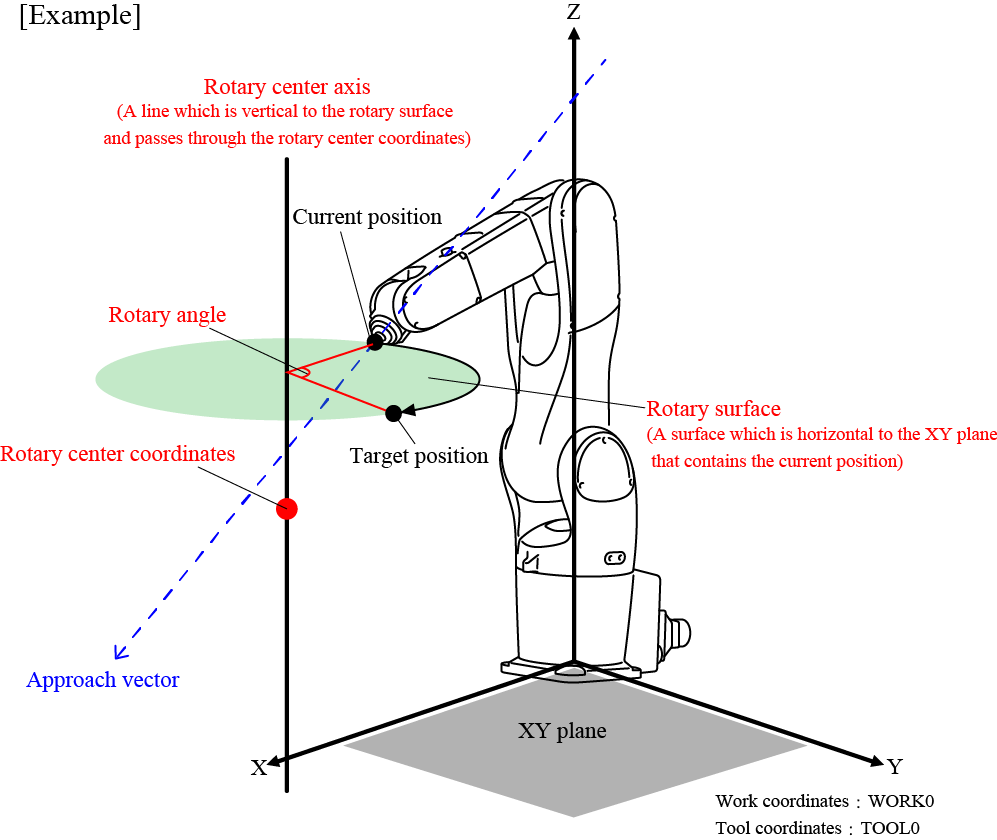
How to Specify the Rotary Surface
There are ways to designate a rotary surface as described below.
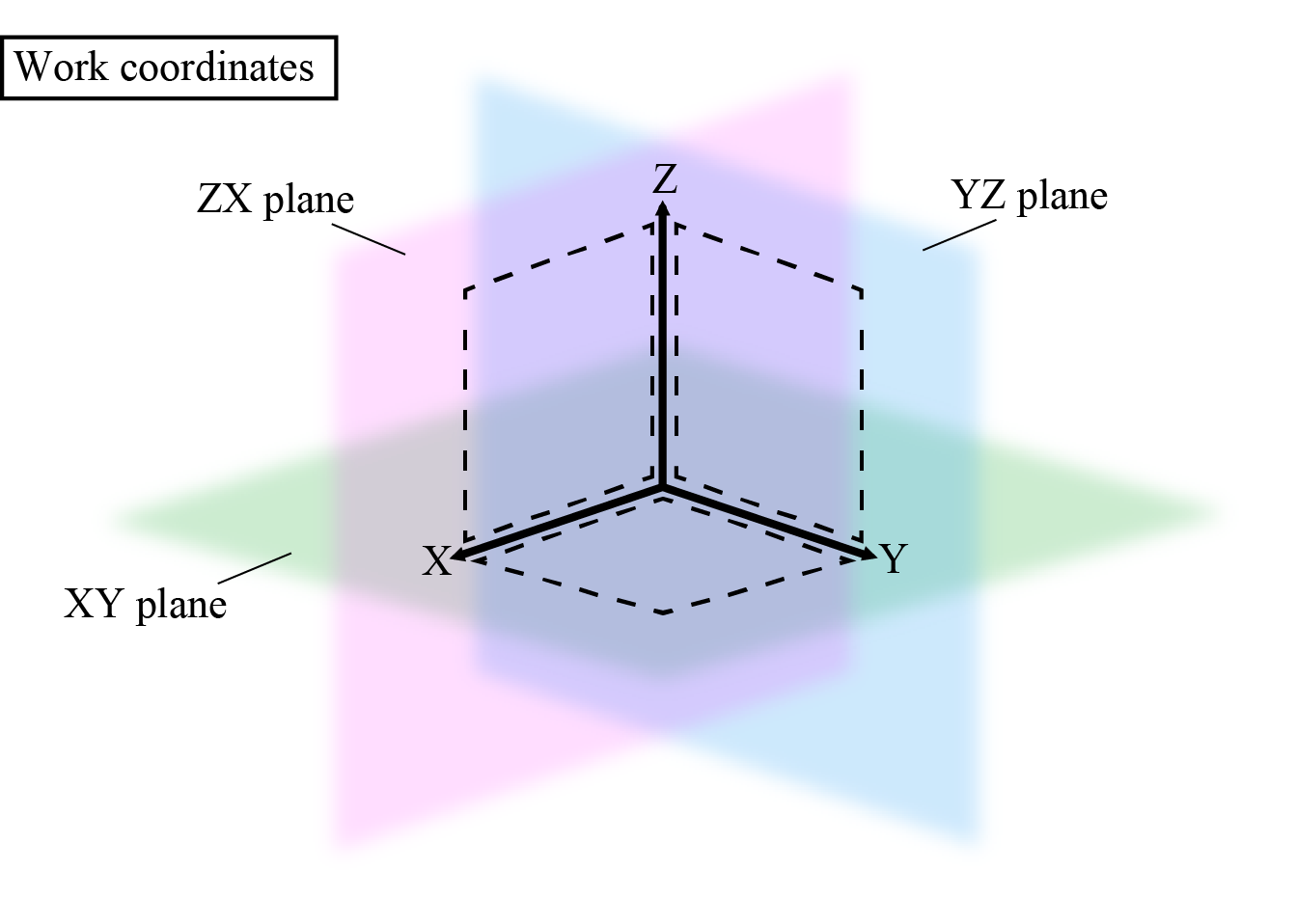
- A surface that is based on the currently selected work coordinate system: "XY", "YZ", "ZX"
- With the three axes (X, Y, and Z axis) on the current Work coordinate system, assume that a plane that consists of two of these axes is called a Plane A. The rotary surface is a plane which contains the current position and is horizontal to the Plane A.
XY represents the XY plane, YZ represents the YZ plane, and ZX represents the ZX plane.
Rotary center coordinates are omittable. This should be the origin of Work coordinate system (0,0,0) when omitted. - A surface that is based on the currently selected tool coordinate system: "XYH", "YZH", "ZXH"
- With the three axes (X, Y, and Z axis) on the current Work coordinate system, assume that a plane that consists of two of these axes is called a Plane A. The rotary surface is a plane which contains the current position and is horizontal to the Plane A.
XYH represents the XY plane, YZH represents the YZ plane, and ZXH represents the ZX plane.
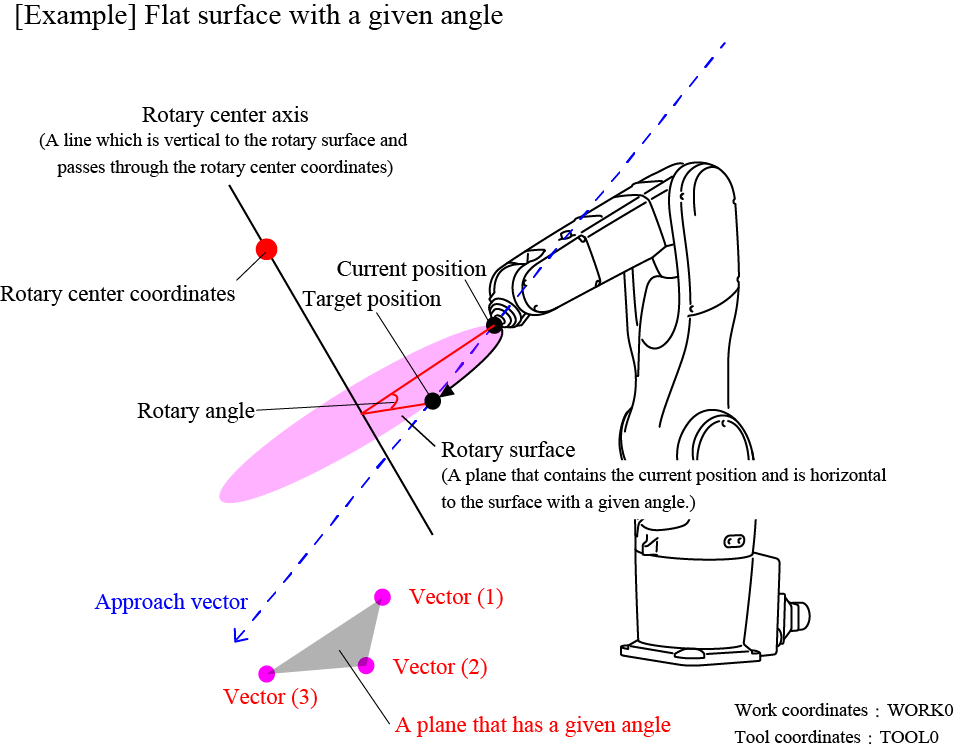
You cannot omit the rotary center coordinates. - Flat surface with a given angle: (Vector Type, Vector Type, Vector Type)
- On the current Work coordinate system, specify three points by Vector type data. Assume that a plane that consists of the three points is called a Plane A. The rotary surface is a plane which contains the current position and is horizontal to the Plane A.
Rotary center coordinates are omittable. The first vector value in vector type data that designate the rotary surface is assigned when omitted.
Rotation Direction
The rotation direction is clockwise to the rotary center axis vector.
A rotary center axis has two vector directions. The effective vector direction is determined by the direction of the approach vector to the rotary surface.
For example, in the figure below, the rotary center axis has two vector directions; a direction A and a direction B.
In this case, if the current position is P1, the rotation direction is the rotation direction A because the approach vector faces to the direction A, viewing from the rotary surface P1.
On the other hand, if the current position is P2, the rotation direction is the rotation direction B because the approach vector faces to the direction B, viewing from the rotary surface P2.
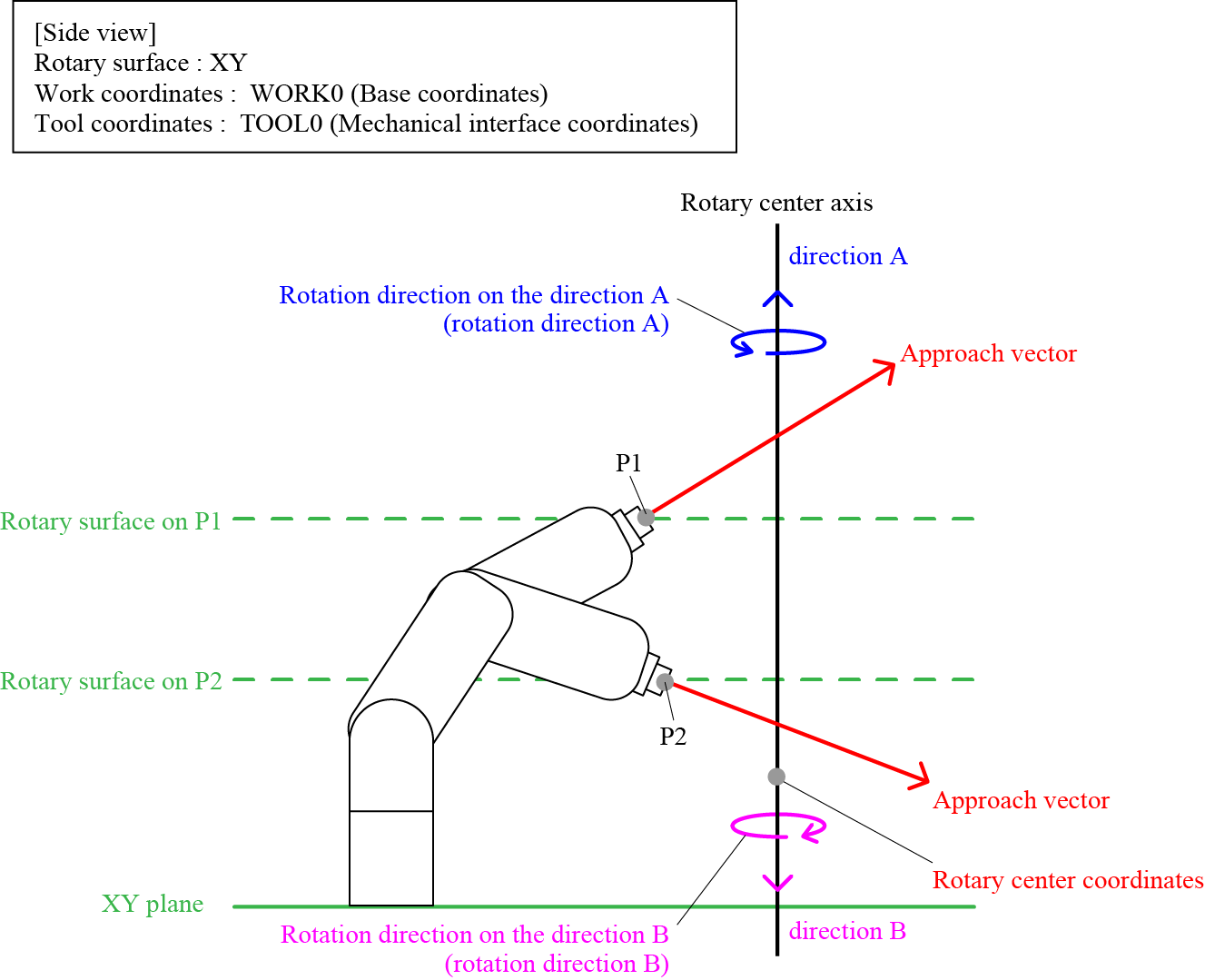
If the approach vector on the current position is horizontal to the rotary surface, it is impossible to determine the rotation direction. As a result, a robot may move in different direction even if the same motion is performed. In this case, change the current position and/or the condition of the rotary surface.
How to Specify the Rotary Center Coordinates
The coordinate system of the rotary center coordinates differs depending on the rotary surface specified. Refer to the following table.
| Rotary surface to specify | Coordinate system | Omission of rotary surface entry |
|---|---|---|
XY、YZ、ZX |
Specify the coordinates on the current Work coordinate system. | Omittable. If the rotary surface is not specified, the origin of the current Work coordinate system will be the rotary center coordinate. |
XYH、YZH、ZXH |
Specify a coordinate on the current Tool coordinate system. | Not omittable |
| A plane with a given angle | Specify a coordinate on the current Tool coordinate system. | Omittable. If the plane is not specified, the first point (vector 1) on the given rotary surface that is expressed by the vector type data will be the rotary center coordinate. |
Designating Rotary Option
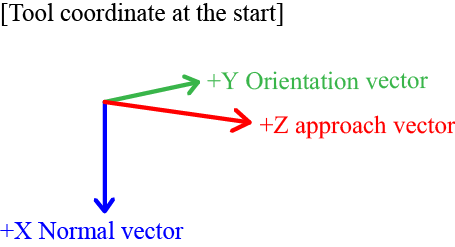
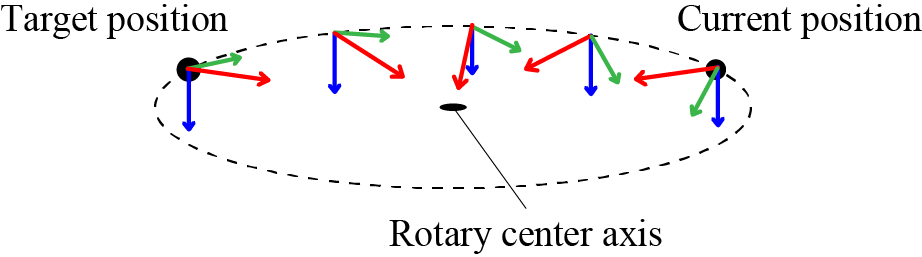
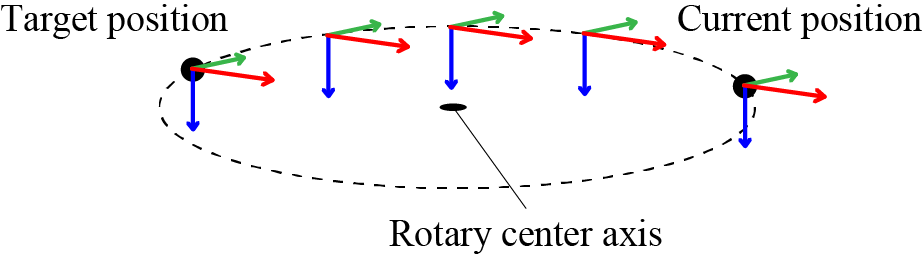
Rotary option specifies whether or not the posture is maintained according to the rotation. When "Pose = 1" is specified, the posture changes along with rotation. When "Pose = 2" is specified, the posture at the current position (start point) is maintained and rotation motion is performed for the track only.
- Pose = 1
 |
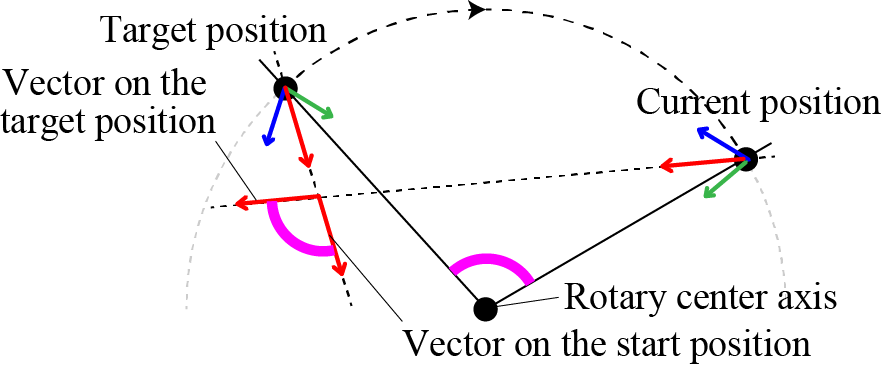 |
The above figure shows the left figure that is viewed from above the rotary surface. |
- Pose = 2
 |
Related Terms
Attention
Depending on the current robot position, an error may occur because some points on the motion path are not available.
In this case, change the current position and/or the condition of the rotary surface.
Example
'!TITLE "Rotary Motion of Axial Spin"
' Rotation motion by the angle value specified for axial spin perpendicular to the rotary surface
Sub Sample_Rotate

  Dim aaa As Position
  Dim bbb As Position

  TakeArm Keep = 1

  ' Assign the current position to aaa
  aaa = CurPos

  ' Rotate by 45 degrees on the axial spin perpendicular to the XY flat surface crossing the V[1] point
  Rotate XY, 45, V[1]

  ' Assign the current position to bbb
  bbb = CurPos

  ' Display initial position on the message output window
  PrintDbg aaa

  ' Display current position on the message output window
  PrintDbg bbb

End Sub