
 HOME
HOME
Displaying and Setting Work Coordinates
Operation path : [F2 Arm] - [F6 Aux] - [F4 Work]
Define work coordinate. The maximum of 7 work coordinates can be registered.
Press [F4 Work] to display the following [Define Work Coordinate] window.
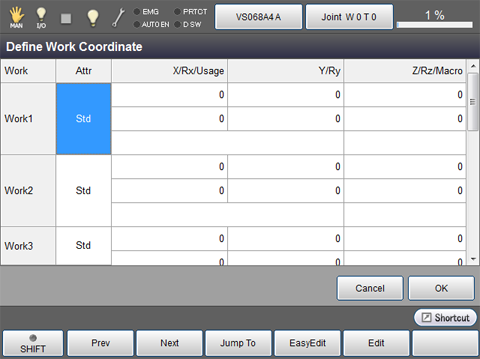
| Available function keys | |
|---|---|
| [F1 Prev] | Move to the previous page of the currently displayed work coordinates. |
| [F2 Next] | Move to the next page of the currently displayed work coordinates. |
| [F3 Jump To] |
Displays ten key. Enter the work coordinates number to display with ten key, and press [OK] to display the work coordinates of the specified number. |
| [F4 Easy Edit] | Work coordinates can be set by teaching three points with robot. |
| [F5 Edit] |
Select the work number and coordinate element to change, and press [Edit] to display ten key. Enter the value with ten key, and press [OK] on the ten key to confirm. |
- Related Information
- Setting Work Coordinates by Easy Teaching