
 HOME
HOME
Advanced Settings of Monitoring
Operation path : Basic screen - [F2 Arm] - [F6 Aux] - [F2 Collision/Interference]
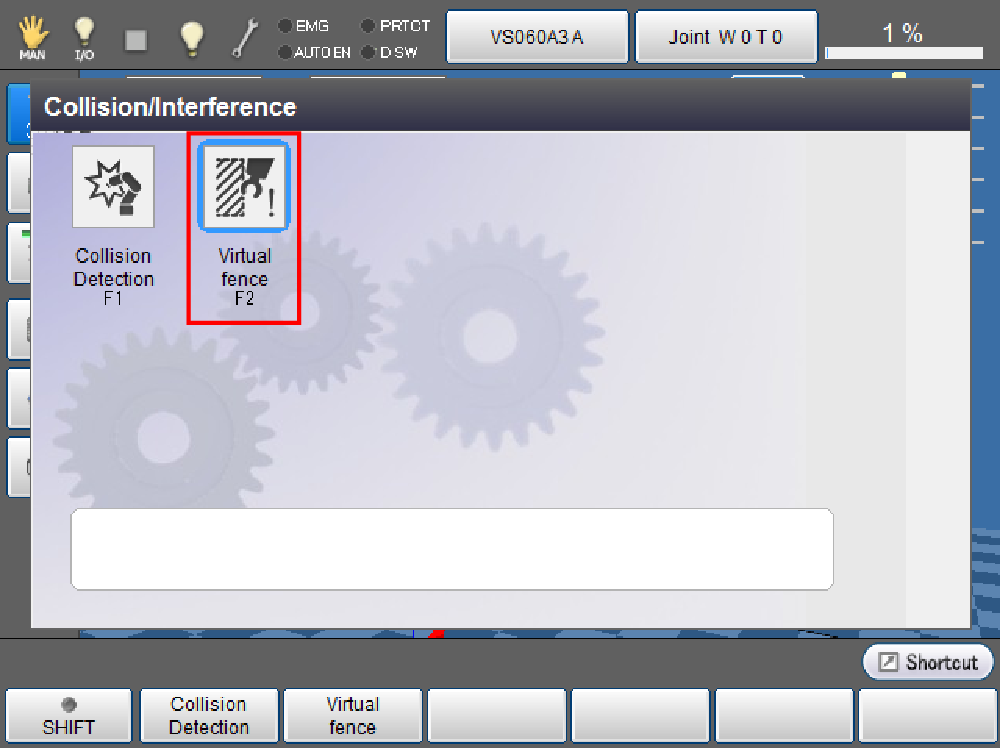
Press [F2 Virtual fence] to open the screen.
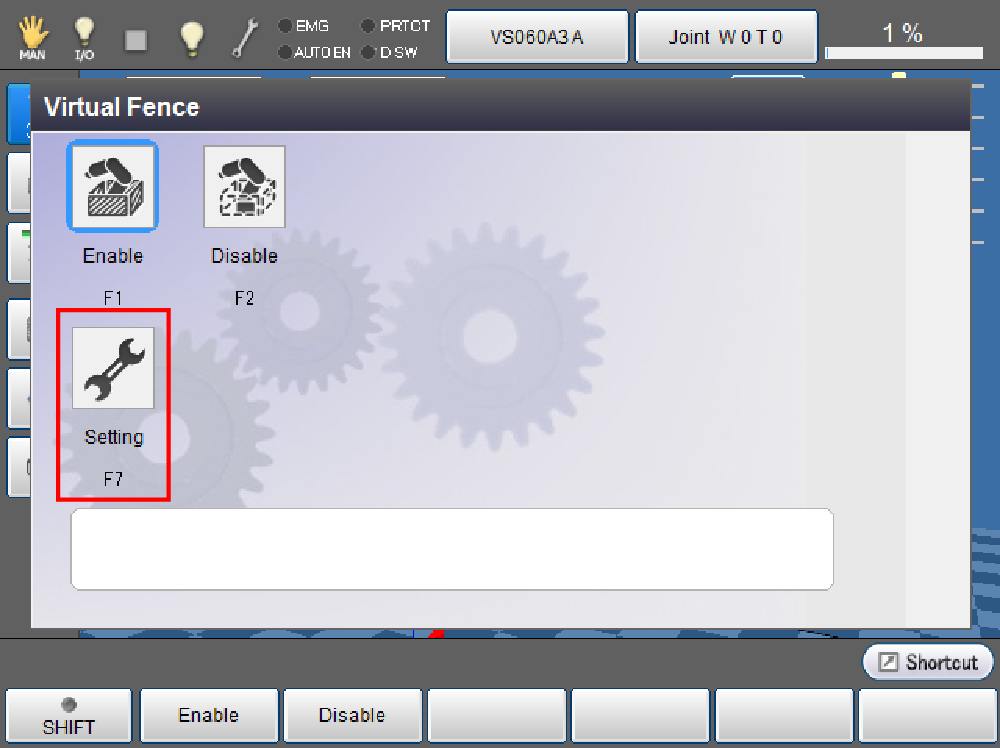
Perform the monitoring settings. Press [F7 Setting]. Once the parameter list appears, enable [366: Virtual fence setting]. Change the default values of other parameters, if necessary. To change a value, press [F5 Edit]
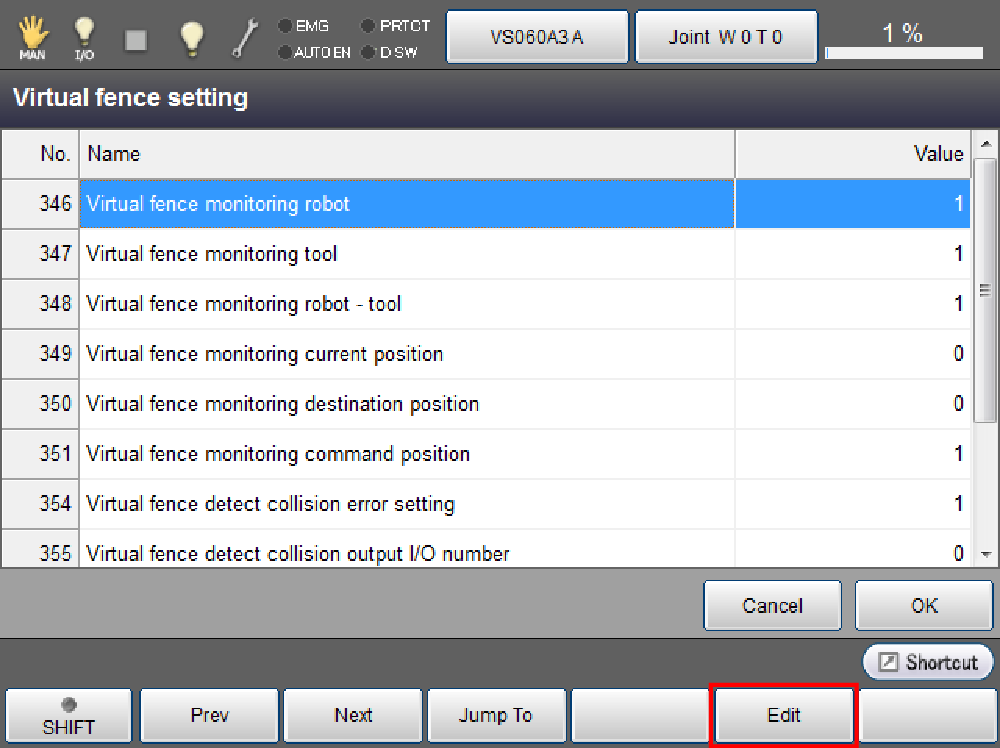
Parameter List
The robot stops when an error occurs. When [354 : Virtual fence detect collision error setting] is not enabled, it does not stop even if collision is detected.
| Number | Item | Unit | Default | Description |
|---|---|---|---|---|
| 346 | Virtual fence monitoring robot | - | 1 | Monitor robot and equipment 0: Disable 1: Enable |
| 347 | Virtual fence monitoring tool | - | 1 | Monitor tool and equipment 0: Disable 1: Enable |
| 348 | Virtual fence monitoring robot - tool | - | 1 | Monitor robot and tool 0: Disable 1: Enable |
| 349 | Virtual fence monitoring current position | - | 0 | Monitor the current value 0: Disable 1: Enable |
| 350 | Virtual fence monitoring destination position | - | 0 | Monitor the target position With set to 1: Enable, decide whether or not the robot collides with the target on its startup. |
| 351 | Virtual fence monitoring command position | - | 1 | Monitor the command position With set to 1: Enable, decide whether or not the robot collides with the target while running. |
| 354 | Virtual fence detect collision error setting | - | 1 | Specify whether to issue an error at the collision detection. 0: Disable 1: Enable |
| 355 | Virtual fence detect collision output I/O number | - | 0 | Specify I/O number to output(available only for the collision detection of the current value.) |
| 356 | Virtual fence monitoring robots | - | 1 | Monitor between robots(available only for the cooperative control function is enabled) 0: Disable 1: Enable |
| 366 | Virtual fence setting | - | 0 | Specify the virtual fence setting. 0: Disable The setting becomes effective after reboot. |