
 HOME
HOME
Function Description
This function prevents a robot from entering an exclusive area if another robot already exists in the area. If a robot is going to enter an exclusive area while another robot is working there, a robot outside the area will start deceleration or stop its motion so as not to enter the exclusive area.
A master controller controls information. Based on the information, each slave controller controls own robot.
If the motion start position of a robot is too close to the exclusive area or if the motion speed is too fast, the monitoring does not catch up with the actual robot motion, as a result, the robot might enter the exclusive area and stop with an error.
Neither the cooperative control function nor the conveyor tracking can be used with the exclusive control function.
Monitoring Objects
You can set the following items as monitoring objects.
- Robot, Tool
- Robot and exclusive area
- Tool and exclusive area - Target position
These items are set by parameters.
Current values and instruction position are always monitored.
Exclusive Area
The shape of an exclusive area is a rectangular cuboid. Up to 32 cuboids can be registered.
To specify an exclusive area, use the world coordinate system. Monitoring is enabled/disabled by WINCAPSIII, teach pendant, or programming.
To make the world coordinate system enable, you need to perform base settings on each controller.
Colors of Exclusive Area
The exclusive area in 3D display is light blue when there is no robot in the exclusive area. It turns yellow when other robot enters, and turns purple when own robot enters the exclusive area.
Starting/Changing When Other Robot Exists in Exclusive Area
When a robot monitoring model or a tool monitoring model exists in the exclusive model, if the monitor is started or the monitoring state is changed by one of the following ways, an error [0x83201564 : Detected a position current collision in exclusive area(Auto mode).] will occur.
- Rebooting the controller
- Changing the exclusive area state from the invalid to valid(in Auto mode or Teach mode)
- Changing the definition of exclusive area(in Auto mode or Teach mode)
Monitoring Validity State
Exclusive control is available only in Auto mode or Teach mode.
When the state is switched to one of the following, the state before switch is retained.
- When switching to Manual mode
- When disabling the exclusive area
- When disabling the monitoring
Motion Examples to Be Noted
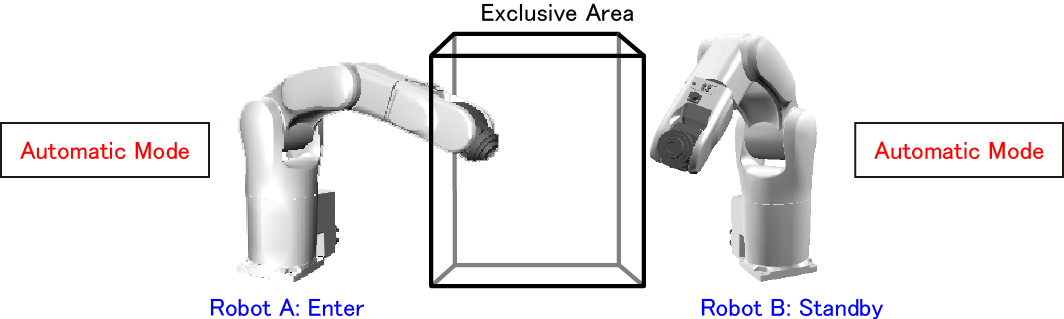
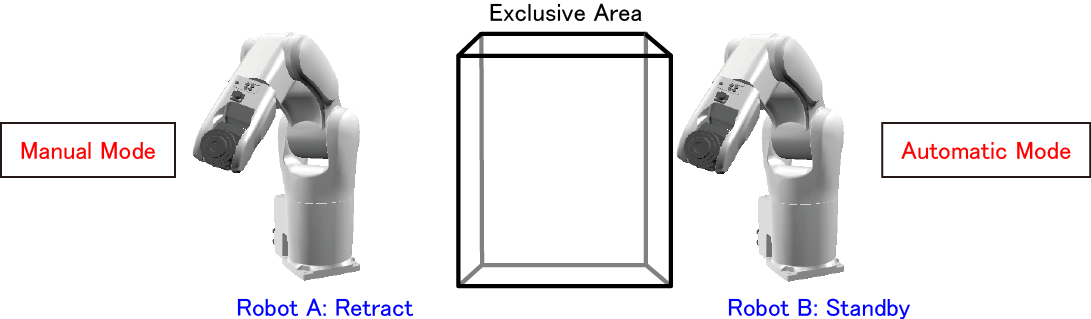
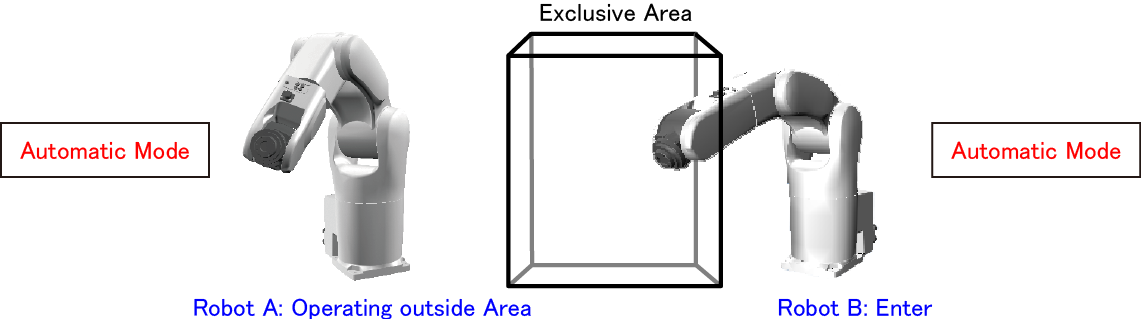
If you move the robot out of the area using Manual mode as shown below, note that waiting other robot may start moving on its own.
1
Robot A enters and Robot B is waiting.
2
Switch Robot A to Manual mode and move it out of the area.At this time, since Robot A retains the state before switch, Robot B continues to be waiting.
3
Switch Robot A from Manual mode to Auto mode.At this time, Robot A goes out of the area, and Robot B starts entering.
Precautions for Overlapping Exclusive Areas
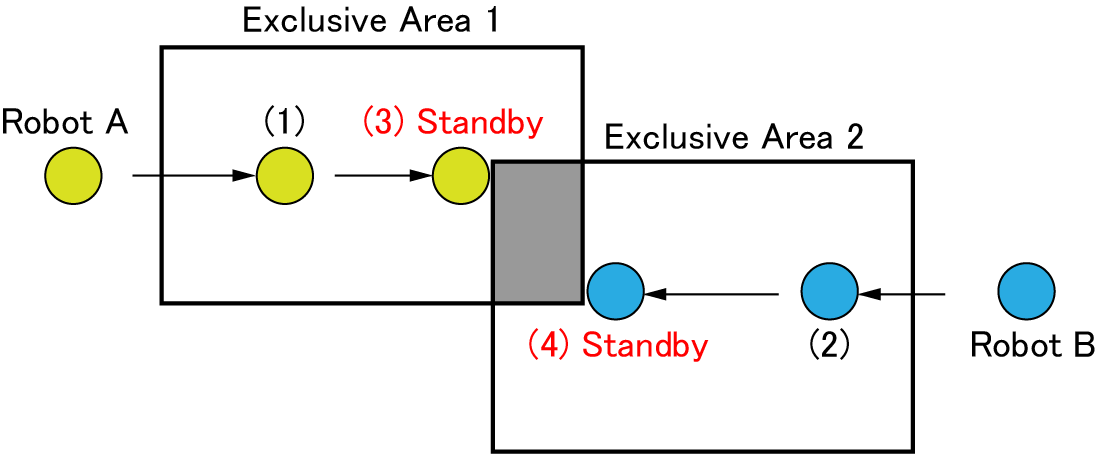
If exclusive areas are overlapped, both robots become waiting and do not move.
Even if exclusive areas are close to each other, robots may not move.
Examples of Not Moving
(1) Robot A enters Exclusive Area 1.
(2) Robot B enters Exclusive Area 2.
(3) Robot A tries to enter Exclusive Area 2. However, since Robot B exists in the area, Robot A becomes waiting.
(4) Robot B tries to enter Exclusive Area 1. However, since Robot A exists in the area, Robot B becomes waiting.
How to Reset When Wait Timeout Occurs
Move a robot entering the exclusive area out of the area using Manual mode and switch it to Auto mode to clear information where the robot exists in the exclusive area. Then, switch a robot you want to move to Auto mode and move it.
- A robot which is stopped with a wait timeout error can be moved only using the Manual mode.
- If you only move a robot which is stopped with a wait timeout error out of the area, the robots do not start moving.
- Even if you switch a robot which is stopped with a wait timeout error to another program, the robots do not start moving.