
 HOME
HOME
Communication Setting with the Robot Controller
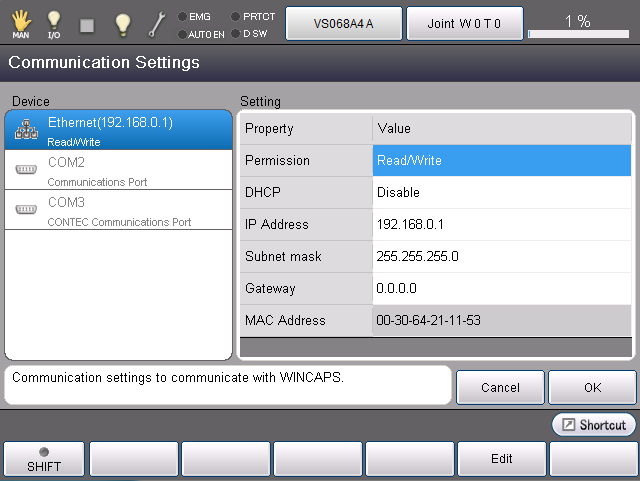
When the robot controller and the force sensor communicate through EtherNet , the robot controller is assigned to server, the force sensor is assigned to client. This is set by the IP address setting on the robot controller.
Controller IP Address Setting
From the top screen, press [F6 Setting]-[F5 Communication and Token]-[F2 Network and Permission]
Set IP address and a subnet mask so that the robot controller and the sensor belongs to the identical subnet mask.
IP Address Setting of the Force Sensor
When the robot controller is connected to the force sensor, change the IP address of force sensor in the following ways. To change the sensor's IP address without using the teach pendant, refer to the operation manual of the force sensor.
1
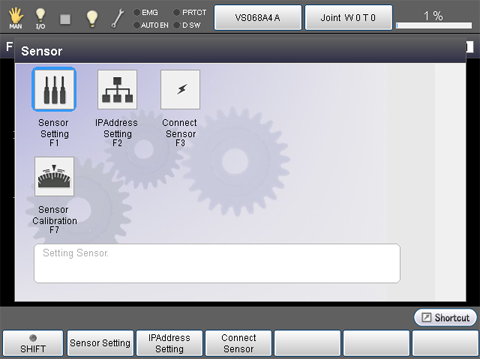
From the top screen, press [F2 Arm]-[F2 Force Control]-[F5 Sensor]
Arm auxiliary functions window will be displayed. Press [F2 IP Address Setting]
2
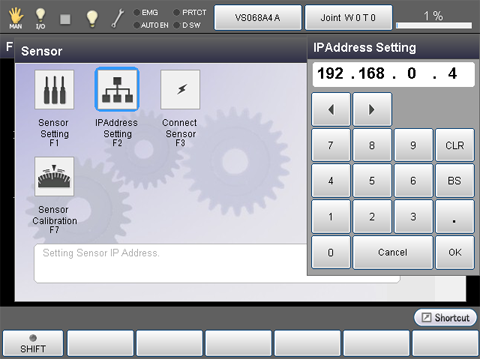
Enter IP address of the force sensor and then press [OK ] button.
For about IP address of the force sensor, refer to the operation manual of the force sensor.
Confirmation of IP address and port number
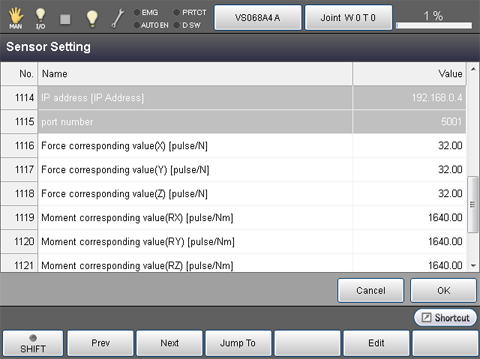
Press [F1 Sensor Setting] to display [Sensor Setting] window.
Check whether displayed IP address and port number is correct.
Reconnection of the force sensor
When the connection between the robot controller and the force sensor is interrupted, press [F3 Connect Sensor] in the [Sensor] window.