
 HOME
HOME
Connection with the Rockwell Automation PLC
Connecting the PLC manufactured by Rockwell Automation and the RC8 controller through EtherNet/IP may require special settings. If the RC8 cannot connect with the PLC, try the setting shown below.
This example shows how to set the size of input/output areas to 500 bytes each from the Rockwell Automation PLC.
Setting for the RC8-side
Setting with WINCAPS3
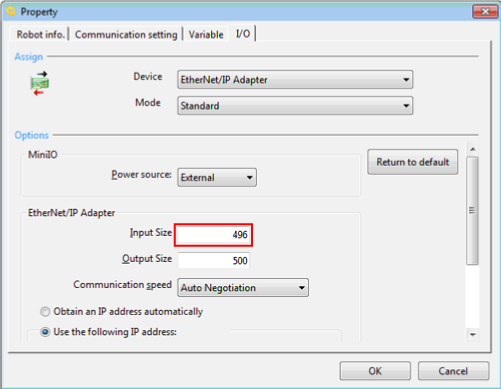
Set the input value on the RC8-side by four byte lower value than that of the PLC-side.
To change the input size, use WINCAPS3.
1
Select [Project] [Property] from the WINCAPS3 menu, then set the input size to "496", which is four byte lower than that of PLC-side.
2
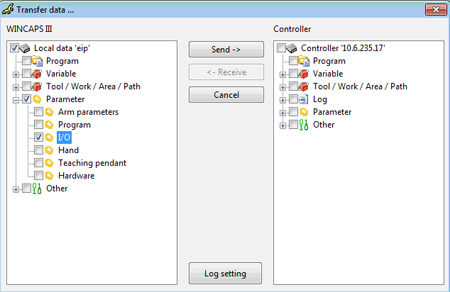
Once the setting is complete, check [Local data]-[Parameter]-[Digital I/O] to transmit data to the RC8.
Setting with the Teach Pendant
1
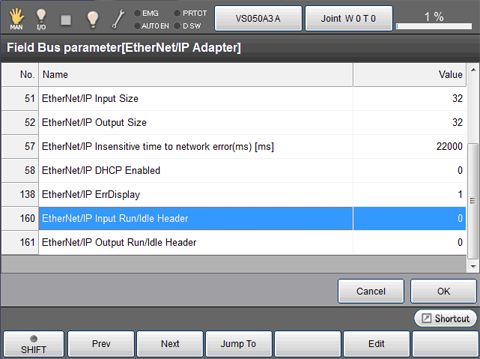
Select [I/O] [Aux] [Field Bus parameter] from the teach pendant screen.
2
Select [160:EtherNet/IP Input Run/Idle Header] then press [Edit].
3
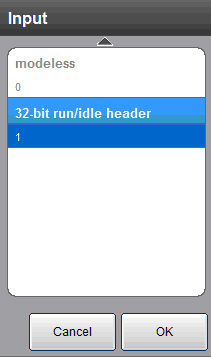
Select [32-bit run/idle header] then press [OK].
4
Go back to the previous screen, then press [OK].
5
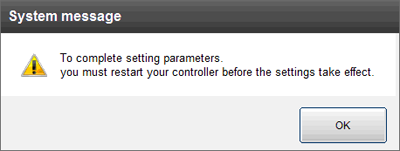
Once the following message appears, reboot the RC8 controller.
Setting for the Rockwell Automation PLC-side
1
With the Rockwell Automation PLC, set the parameters of Input, Output and Configuration in the RC8 as shown below. For IP address, set the IP address of the EtherNet/IP Adapter of the RC8.
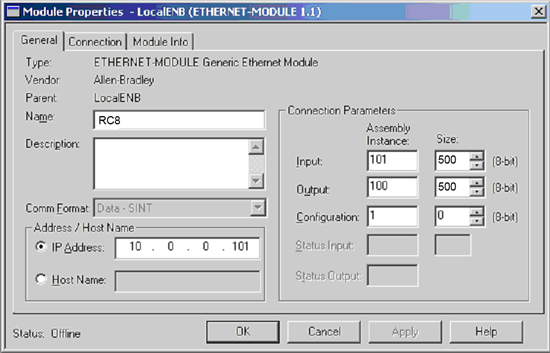
While input size was set to "496 bytes" in the RC8 side, input size in the PLC side is set to "500 bytes". Some PLCs use 32-bit units to set the input/output size, but this example uses 8-bit units. If 32-bit units is used, enter "125".
2
Apply this setting to the PLC to check whether the connection establishes.
This completes the setting process.