
 HOME
HOME
Displaying and Operating the Built-in Vision
Display an image of the built-in vision.
This window enables you to switch images, save image data, and start or stop the built-in vision function.
When the magnification of the display size is 100% or larger, if you touch the screen, the display will move to the direction you touched.
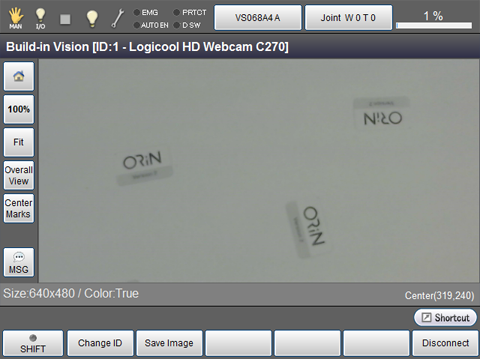
| Keys other than function keys | |
|---|---|
 |
Move the focus to the center of the image. |
 |
Specify the display size of image with numerical input. The value of the current display size (%) is displayed in the button. |
| [Fit] or [Full] |
Touching the button will switch the display size between "Fit" and "Full".
|
| [Overall View] |
Display a small window that displays an entire image with small magnification. The displayed position changes every time the button is pressed.
|
| [Center Marks] | Display a mark on the center of the window. |
| [MSG] | Output a message. |
| Available function keys | |
|---|---|
| [F1 Change ID] | Display an image by specifying an image ID. Pressing a button will display a ten key. Enter an image ID with the ten key and then press [OK] on the ten key to switch the image. |
| [F2 Save Image] |
Save the display image. Pressing the button will display a text input window. Enter given image name and then press [OK] to save the image file. |
| [F6 Connect/Disconnect] | Pressing [F6 Connect] will start the built-in vision function. To end the function, press [F6 Disconnect]. |
- Do not turn off the power supply during connection setting. Doing so will damage the data stored in the robot controller.