
 HOME
HOME
Teaching
This section describes the method to teach robot the position variables P1 and P2 in manual mode.
Teaching Robot Position (P1)
Press [F2 Arm] on the teach pendant to display information on each axis of the arm.
Press moving direction keys as required while pressing the deadman switch to move robot to the position to be set as P1.
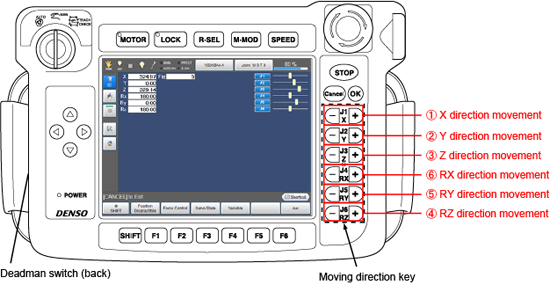
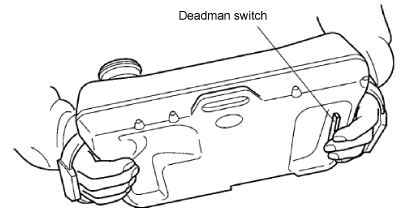
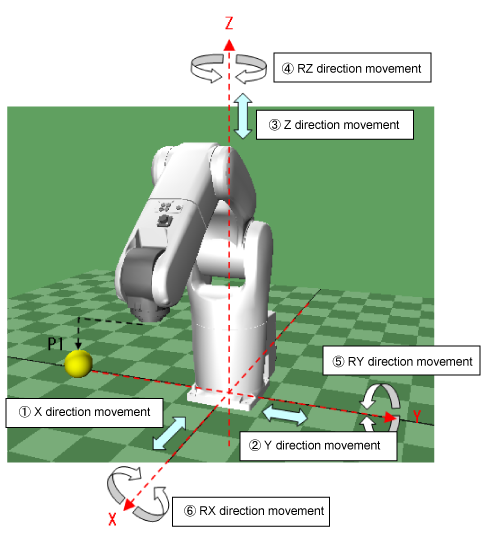
Saving the Teaching Value in Variable P1.
Follow the procedure below to save the teaching value in [VarName P1].
1
Press [F4 Variable].
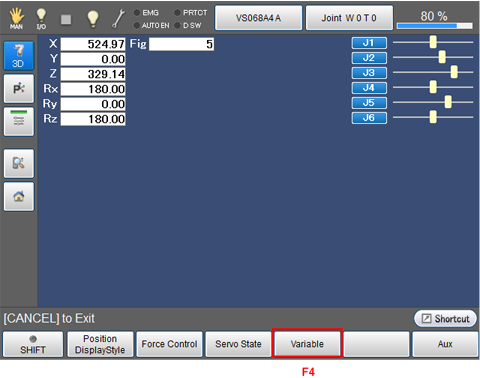
Display the screen as shown in the next procedure.
2
Select variable type in the variable window.
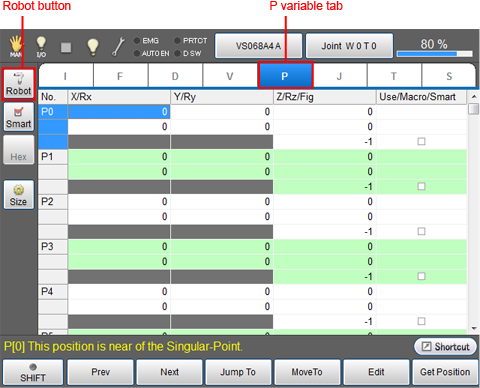
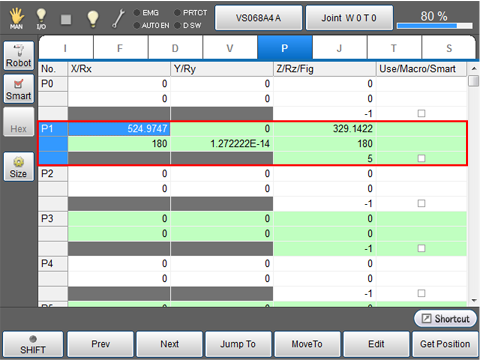
This procedure is for saving position in P variable; hence, press [P variable tab] on the screen.
3
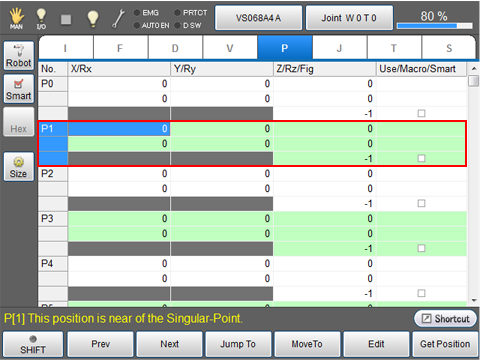
Select the field of [VarName P1] by using cursor key or jog dial.
This can be also selected by directly pressing any of data field for variable name P1 on the screen.
12 types of data per one variable will be displayed in P variable screen as shown in the figure.
If one of 12 types of data is highlighted when selecting [VarName P1], this means that [VarName P1] is selected.
4
Confirm that [VarName P1] is selected.
5
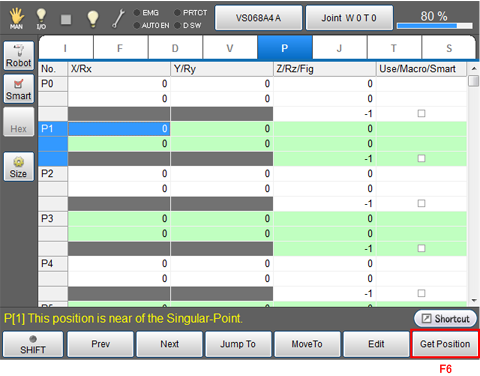
Press [F6 Get Position].
6
Check the system message, and press [OK] if it is correct.
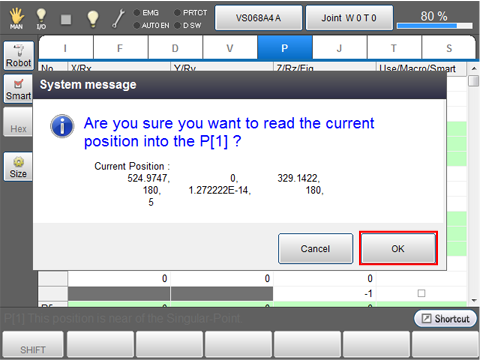
The current position is loaded as variable P1.
Teaching Robot Position (P2) and Saving it to [VarName P2]
1
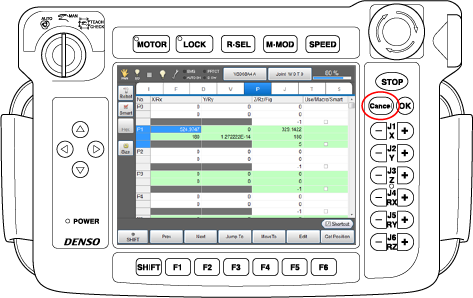
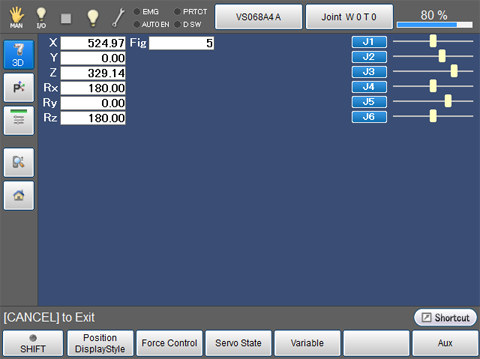
Press [Cancel] button once to go back to [Current Robot Position] window.
2
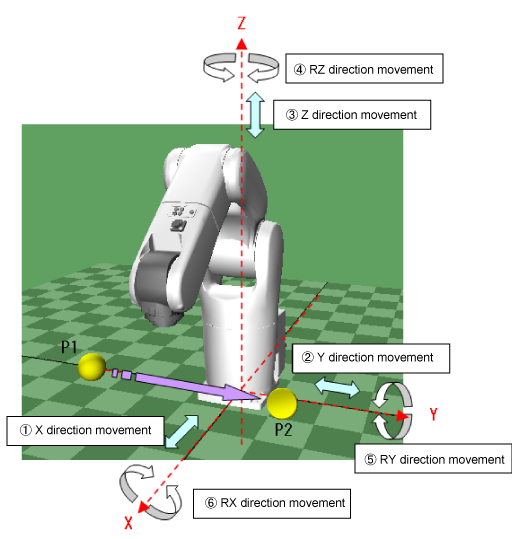
Press moving direction keys as required while pressing the deadman switch to move robot to the position to be set as P1.
3
Follow the procedure described in STEP 2 "Saving the teaching value in [VarName P1]" to save the value of P2 in [VarName P2].
Now, teaching of P1 and P2 is completed.