
 HOME
HOME
Editing Contents of Folder and Program
Operation path : [F1 Program] - [F5 Edit] or [Display key on the screen]
Display contents of folder and program.
Also edit contents of the program.
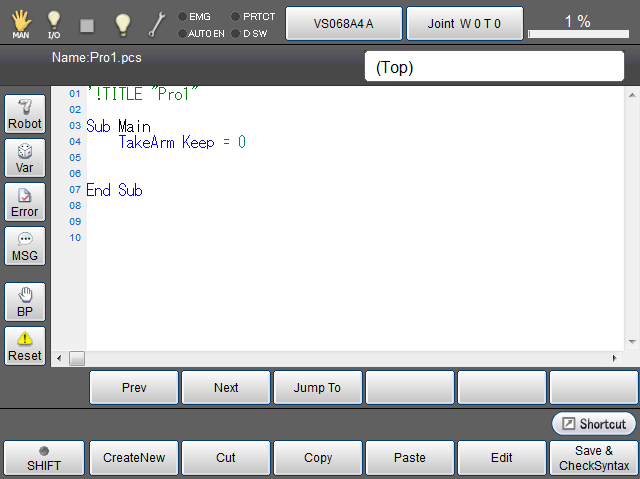
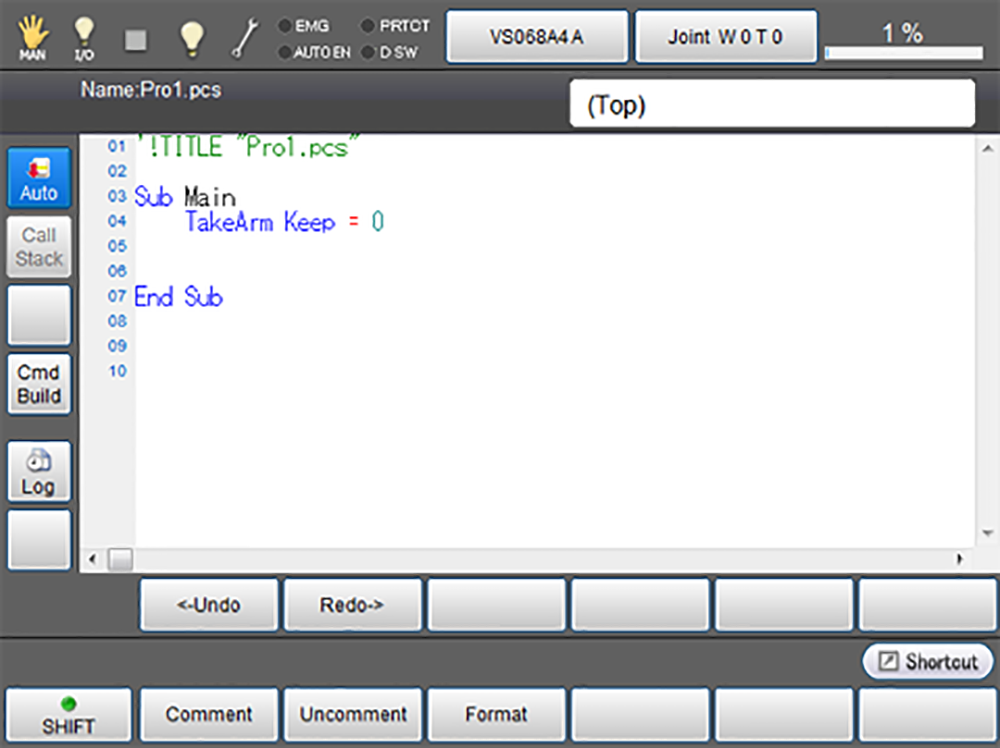
Press [F5 Edit] or [Display key on the screen] to display contents of folder or the following contents of program.
When [Shift] is not pressed.
When [Shift] is pressed.
| Keys other than function keys | |
|---|---|
| Robot |
Display 3D image of the robot during the machine lock. Button turns blue while robot button is pressed. |
| Var | Monitor variables in the program. |
| Error | Display syntax error log information. |
| MSG | Output message. |
| BP |
Set breakpoint. [BreakPoint Setting] system message will be displayed. Select one of "Set BreakPoint", "Clear all BreakPoint in a file", and "Clear all BreakPoint in the project" in the message, and press [OK] to set or cancel the break point. If the breakpoint is set in null line, proess does not stop at the breakpoint. |
| Reset | [Program reset] window opens. Select either "Only this program" or "All programs", and press [OK] to reset the target program. |
| Call Stack |
Display a history of program call. This item is available in Auto mode and in Teach-check mode. |
| Cmd Build | With this function, some commands are automatically entered. You can enter necessary parameters at a time. This item is available in Auto mode. | Log |
In this button, start, stop and clear of trace log, control log and servo log are available. To set the log, choose one of the items below and click [OK]
|
| Prev | Display the previous page of the currently displayed program. |
| Next | Display the next page of the currently displayed program. |
| Jump To |
Move to the specified line. Ten key will be displayed. Enter the line number with ten key, and press [OK] to move to the specified line. |
| Undo | Cancel an operation executed immediately before, and return as it was. |
| Redo | Execute again the operation that has been cancelled by Undo. |
| Available function keys | |
|---|---|
| [F1 CreateNew] |
Add new line to program. Select location for the line to be added in advance. Ten key will be displayed. Enter the program to add, and press [OK] to move to the entered line. |
| [F2 Cut] |
Cut the selected lines. Select lines to cut, and the press [F2:Cut]. The lines will be able to be pasted to a specified position. |
| [F3 Copy] |
Copy the selected line. Select the line to copy, and press [Copy] to copy the selected line. |
| [F4 Paste] | Paste the cut/copied lines. To paste, select a line, and press [F4:Paste]. The cut/copied lines will be inserted below the selected line. |
| [F5 Edit] |
Select line to edit, and press [F5 Edit] to display the line editing window. Enter item to edit, and press [OK] to reflect the edited contents. |
| [F6 Save & CheckSyntax] |
Save the program. Press [Save] to display the change confirmation dialog, and then press [OK] to save it. Error message will be displayed if there is syntax error when saving the program. Correct the error, and save the program again. |
| [F7 Comment] | Select the line to comment out in the program, and press [Comment] to comment out the selected line. |
| [F8 Uncomment] |
Cancel to comment out for the line that is commented out in the program. Select the line to cancel to comment out, and press [Uncomment] to cancel it. |
| [F9 Format] |
Perform code formatting on the entire file. Indent width becomes consistent by code formatting if indent width is not consistent in each line. |
Please be sure to backup your data when you edit programs or teach robot.