
 HOME
HOME
IDS Camera setting
This section explains the setting of IDS camera.
Using IDS Camera Manager, set a camera ID and trigger mode.
Camera ID setting
1
Start IDS Camera Manager
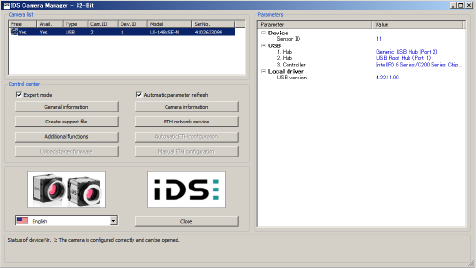
2
Select a camera to set ID from the camera list.
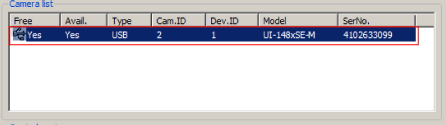
3
Click Camera information.
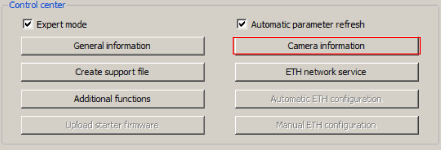
"Camera information" dialog box is displayed.
4
Enter an arbitrary Camera ID, and then click OK.
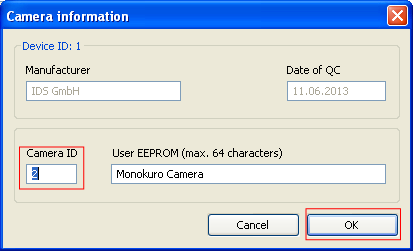
User ID 1 to 5 correspond to ID 206 to 210 of the RC8 image storage area.
Do not use duplicate Camera ID when multiple cameras are used.
Trigger mode setting
1
Double-click the model of a camera that you intend to set the shooting condition.
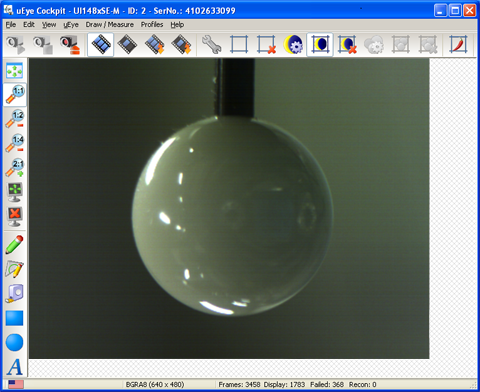
"uEye Cockpit", which is a window to process images, is displayed as shown below.
2
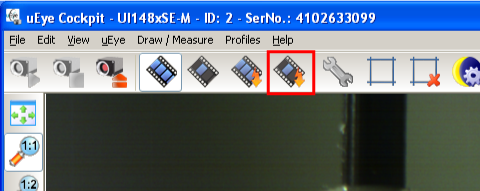
Click a button shown below. This button is used to capture a single flame by the trigger mode. Continuous mode is finished.
3
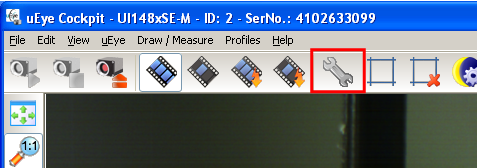
Click the Camera Properties button shown below.
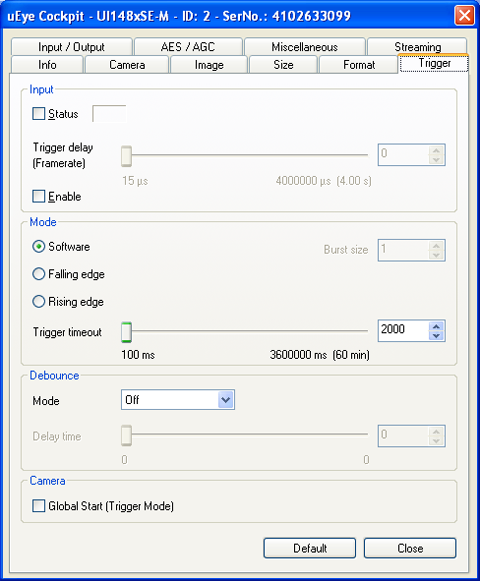
uEye camera parameter setting window is displayed.
4
Select [Trigger] tab.

5
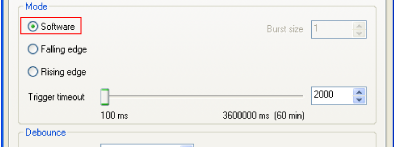
In the Mode area, select "Software".
(If hardware-trigger is used, select either "Falling edge" or "Rising edge".)
6
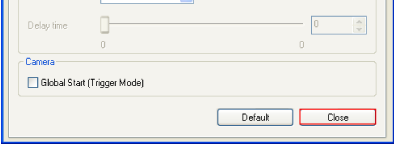
Click Close to finish the uEye camera parameter setting window.
7
Click File>Save Parameters>Parameter set to save the setting into the camera.
For details, refer to the camera setting manual of IDS.