
 HOME
HOME
Enable/Disable Setting
Use the teach pendant or command to enable/disable the collision detection function for each axis.
The settings made with the teach pendant is kept after the controller power is turned OFF. The settings made with the command returns to the original settings after the controller power is turned OFF. The initial value is set to "disabled."
For details of the command, refer to CollisionDetection.
Setting Procedure During Automatic Operation
This page contains a description of setting procedure with the teach pendant operation during an automatic operation. The settings cannot be changed while the robot is running.
1
From the top screen, press [F2 Arm] - [F6 Auxiliary function] - [F2 Collision/Interference] - [F1 Collision Detection].
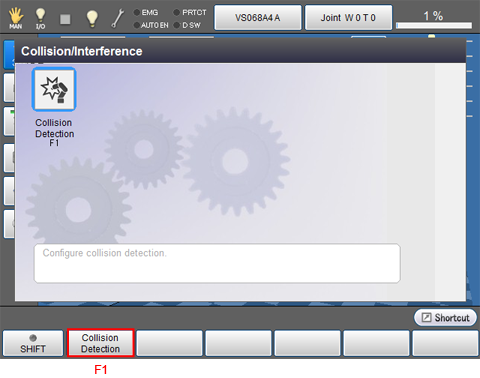
[Collision detection setting] screen appears.
2
Select the axis numbers for which to enable the collision detection function and press [Enable] or [F5 Edit] for each axis number.
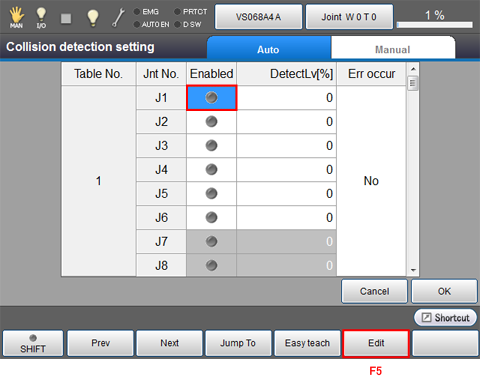
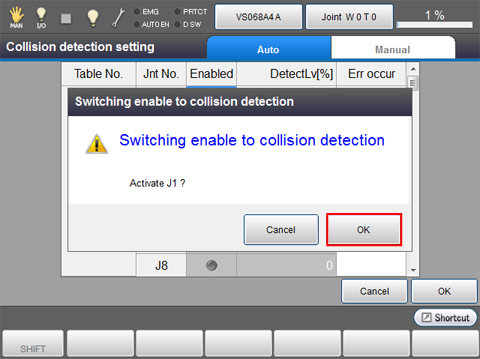
A system message is displayed. Press [OK] to confirm it.
Press [Cancel] to stop changing the settings.
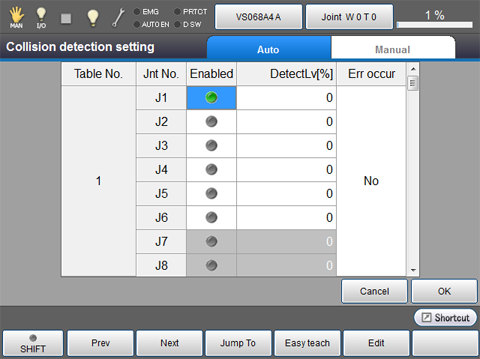
If J1 is enabled, a green mark is displayed as follows.
3
Enable axes requiring setting according to STEP 2.
4
When you have completed setting all the axes, press [OK].
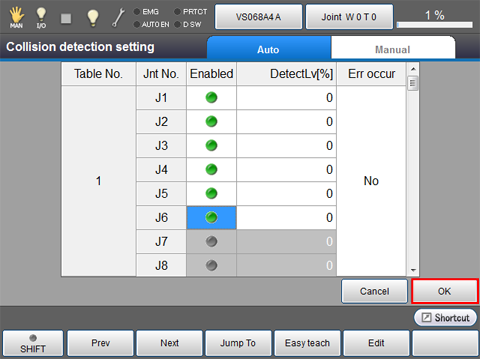
The settings are saved, and the screen returns to the [Collision detection setting] screen.
Setting Procedure During Manual Operation
This page contains a description of setting procedure with the teach pendant operation during a manual operation.
1
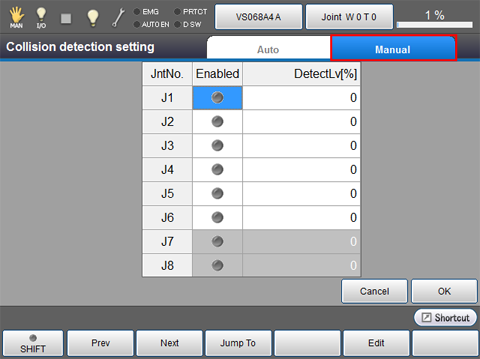
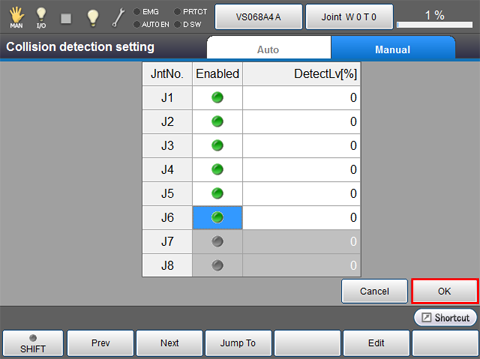
From the top screen, select [F2 Arm] - [F6 Auxiliary function] - [F2 Collision Detection] - [Manual] tab.
The following screen appears.
2
Select the axis numbers for which to enable the collision detection function and press [Enable] or [F5 Edit] for each axis number.
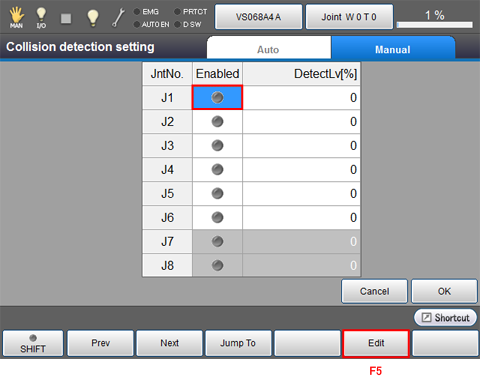
A system message is displayed. Press [OK] to confirm it.
Press [Cancel] to stop changing the settings.

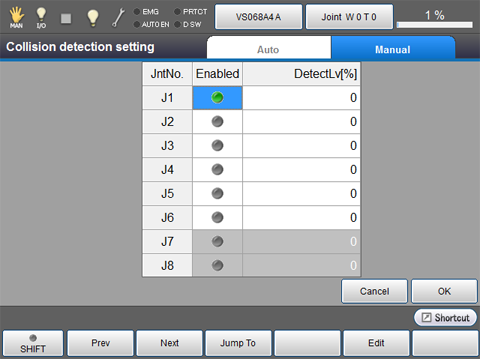
If J1 is enabled, a green mark is displayed as follows.
3
Enable axes requiring setting according to STEP 2.
4
When you have completed setting all the axes, press [OK].
The settings are saved, and the screen returns to the [Collision detection setting] screen.