
 HOME
HOME
ID : 9651
External Speed Settings
The speed of robot is determined by internal speed and external speed.
The internal speed is the speed determined by the commands in the program.
External speed is the speed to be set using the Smart TP for teaching or test run, and the unit is expressed in percentage (%) of the maximum speed (internal speed).
Note on Speed Setting
- The initial value of the external speed is 1% when power is turned on.
- Once the external speed is set, it is valid until the controller is turned off or the setting is updated.
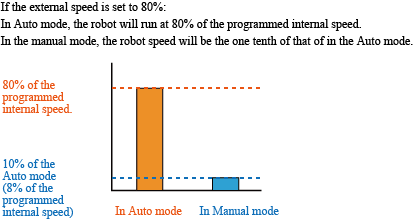
- Actual robot moves at [internal speed x external speed (%)] when in Auto mode. For example, if the external speed is set at 80%, the robot moves at internal speed x 80%.
It moves at 10% of the internal speed in manual mode. For example, if the external speed is set at 80%, it moves at 10% x 80% (i.e. 8%). The example of actual operating speed is given in the figure below. - When speed is set, acceleration and deceleration will be automatically calculated by the following equation.
Acceleration (%) = ((Speed) /100)2 x 100
Deceleration (%) = ((Speed) /100)2 x 100
(Calculation example) Assuming that speed is 20% :
Acceleration (Deceleration) = (20 / 100)2 x 100 = 4 %
These automatically calculated values can be modified by the Smart TP. In that case, the latest modified value will be valid. - The minimum tolerance for the setting is 0.1%, and the respective external acceleration and external deceleration are 0.0001%. If external speed of 1% or less is set, the displayed speed of bar graph on the status bar of the Smart TP will be 1%.
Operation Procedures
Set the external speed at 20% or less for starting robot operation. If you manually operate the robot at high speed when you are not familiar with the operation, robot may collide with the surrounding structures.
The external speed, acceleration, and deceleration can be set while robot is operated by the program. However, this change in the setting becomes effective immediately, and robot also changes the speed immediately. Please note that this is dangerous.
1
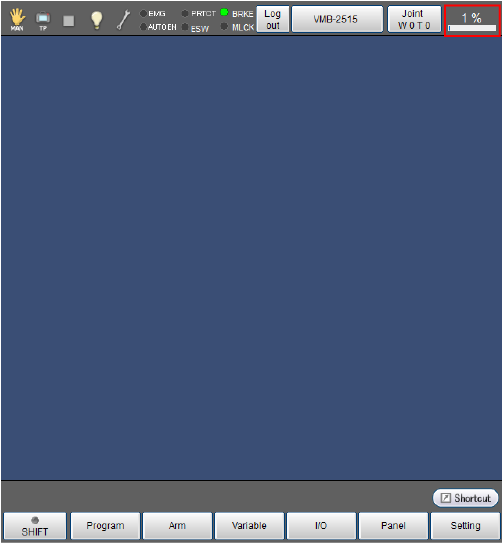
Tap the speed button on the status bar.
2
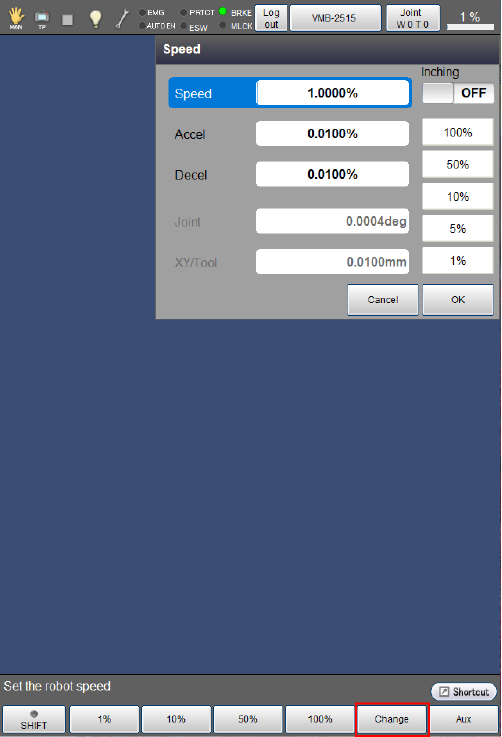
Check if [SPEED] is selected on the external speed setting window, and tap [F5 Change].
This value can be increased/decreased with an increment of 5% by using right and left cursor keys.
3
Use numeric keypad displayed on the screen to enter any value. Press [CLR] or [BS] key to cancel the entered value. Check the entered value, and press [OK] key if it is correct.
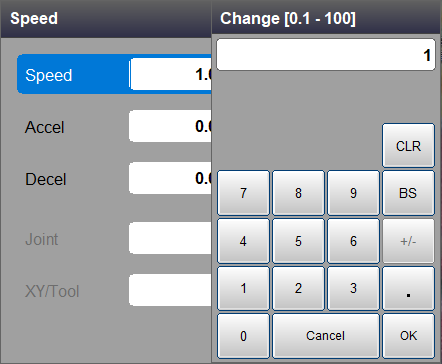
Numeric keypad is disappeared, and the external speed is updated with the entered value as shown below. Press [Cancel] key to cancel updating. Screen will be back to normal.
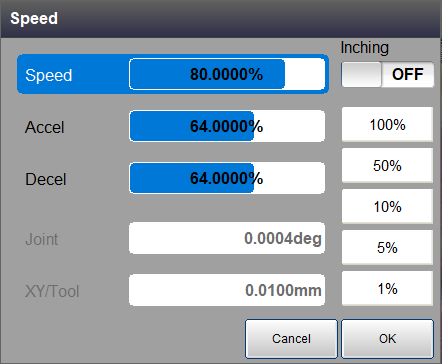
4
Check the automatically calculated acceleration that is displayed on the external speed settings screen.
- If this value is correct, skip the following procedures to go to STEP 6.
- To change these values manually, select [ACCEL], and tap [F5 Change]. Numeric keypad shown in STEP 5 will be displayed.
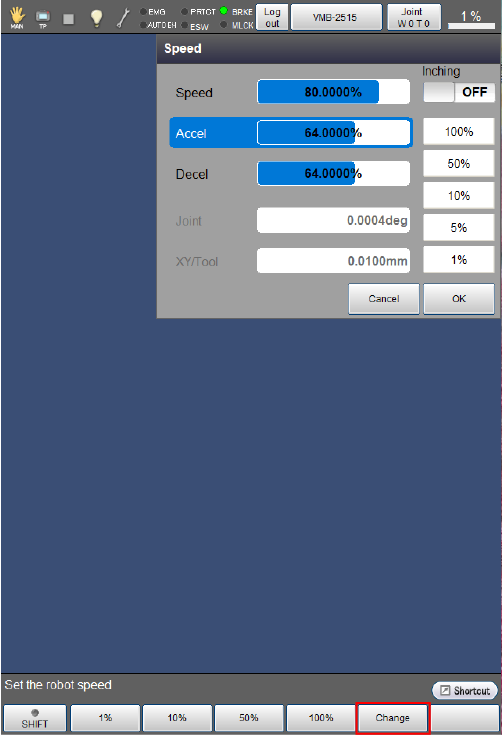
5
Use numeric keypad displayed on the screen to enter any value. Press [CLR] or [BS] key to cancel the entered value. Check the entered value, and press [OK] key if it is correct.
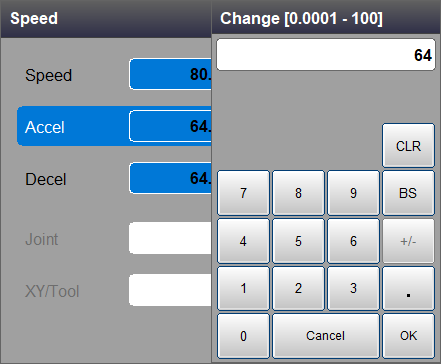
Numeric keypad is disappeared, and the acceleration is updated with the entered value as shown below. Press [Cancel] key to cancel updating. Screen will be back to normal. If [Cancel] is pressed here, then the updated external speed will be also back to the original state.
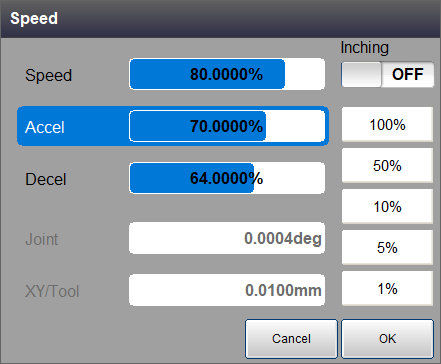
6
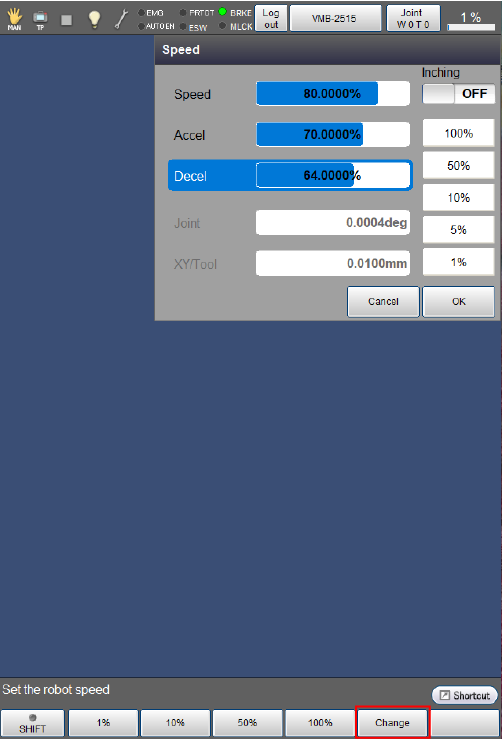
Check the automatically calculated deceleration that is displayed on the external speed settings screen.
- Press [OK] button to confirm this value if it is correct. Then, skip the following procedures to go to STEP 8.
- To change these values manually, select [DECEL], and tap [F5 Change]. Numeric keypad shown in STEP 7 will be displayed.
7
Use numeric keypad displayed on the screen to enter any value. Press [CLR] or [BS] key to cancel the entered value. Check the entered value, and press [OK] key if it is correct.
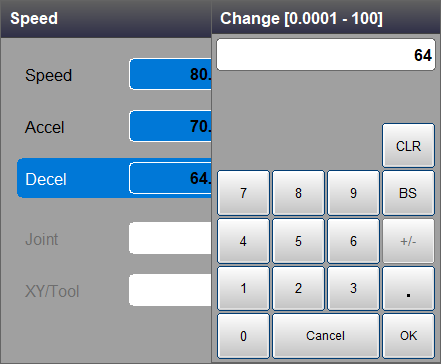
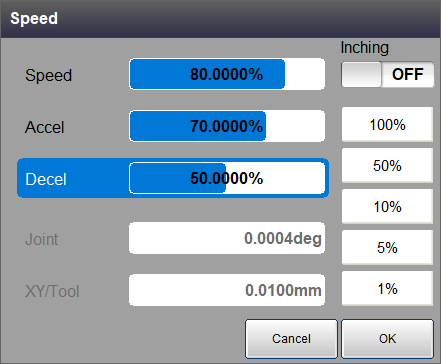
Numeric keypad is disappeared, and the deceleration is updated with the entered value as shown below. Press [OK] to confirm this value.
Press [Cancel] key to cancel. Screen will be back to normal. If [Cancel] is pressed here, then the updated external speed and acceleration will be also back to the original state.
8
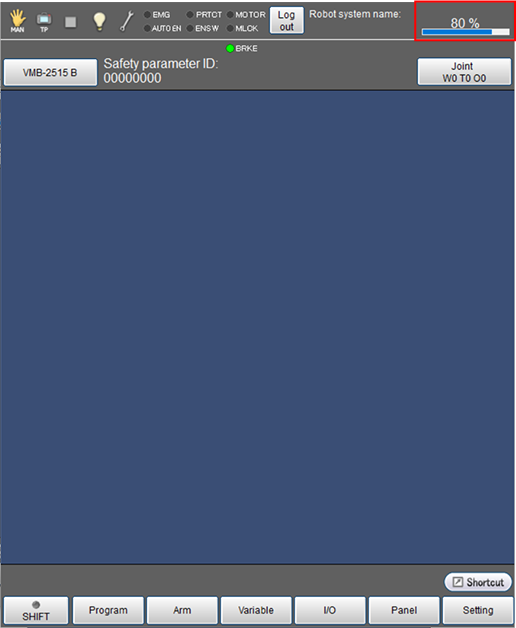
The display of the Smart TP shifts to the top window. Please make sure that the displayed speed of the right side of status bar is updated to the speed that is set by following the above procedures.
ID : 9651