
 HOME
HOME
ID : 10065
Starting a Program in Auto Mode
For programs that will be executed for the first time in Auto mode, set the reduced ratio of the programmed speed at 10% or less. In Auto mode, the robot may run at full speed, while in Manual mode the robot speed is automatically reduced to 10% of the full speed.
Placing the Robot in Auto Mode
1
Press the icon in the leftmost area of the status bar.

2
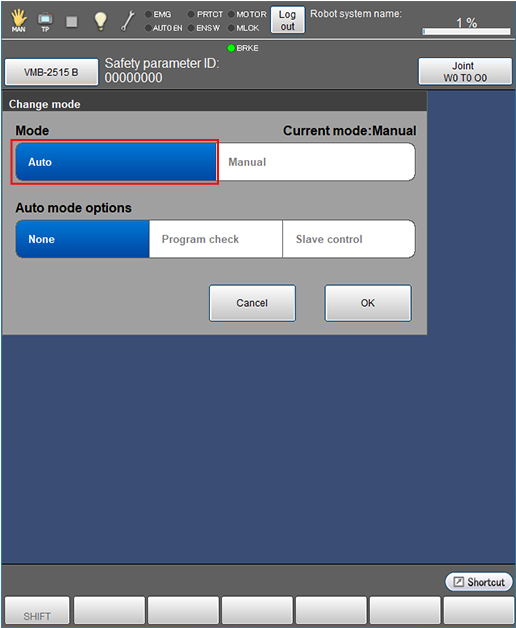
Select [Auto] in Mode, press [OK].
3
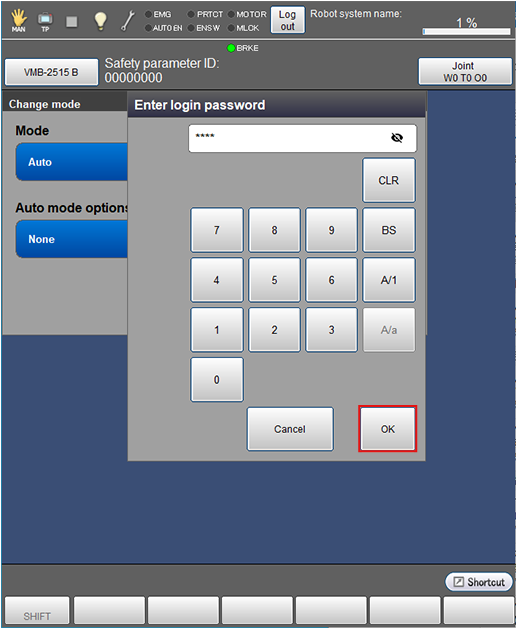
After login, if you switch the operation mode for the first time, you need to enter a login password.
Enter a login password, press [OK].
Selecting the Program to be Executed
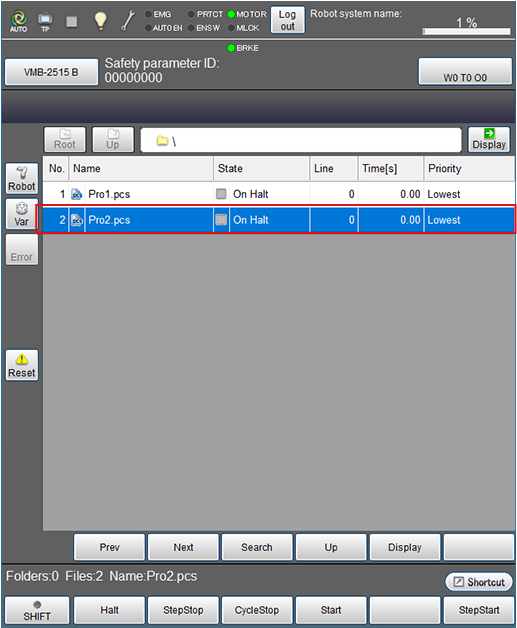
In the [Program List] window, select the program to be run in Auto mode.
Starting a Program
During program checking, always keep one hand free and ready to press the emergency stop button.
Step Start
The following shows how to run the Step start.
If you want to display the program during a Step start, press [F11 Display] beforehand.
1
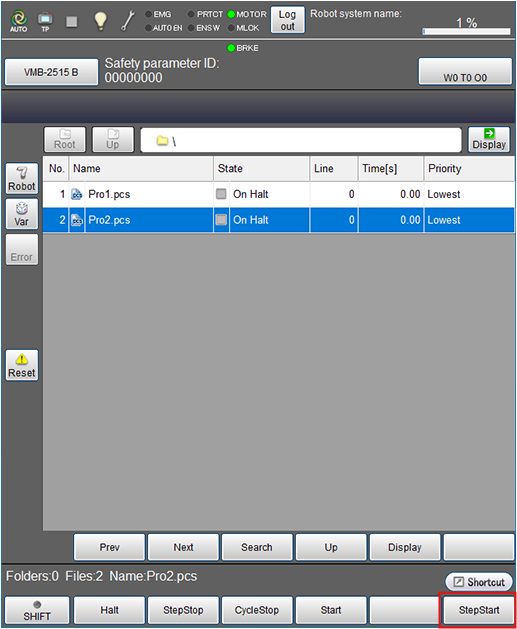
Press [F6 StepStart].
2
The message will appear. Press [FWD].
When the program is displayed, the following items are displayed.
- Step Into : Run into the procedure called from current program.
- Step Over : Run over the procedure called from current program.
- Repeat : If this option is [ON], the [StepStart] window will appear after a cycle of StepStart completes. This option is practical when executing the StepStart repeatedly.
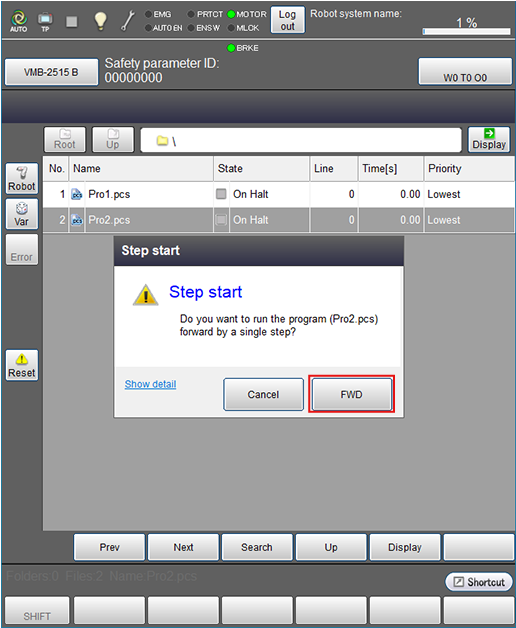
The program will run the step start.
Execute the procedure above repeatedly to the end of the program, with checking each motion.
Cycle Start
Execute the cycle start by following procedures below.
1
Press [F4 Start].
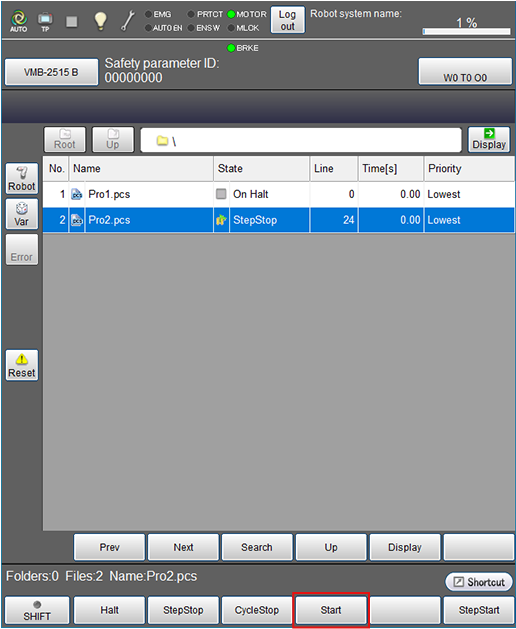
2
Select [Single-cycle], press [FWD].
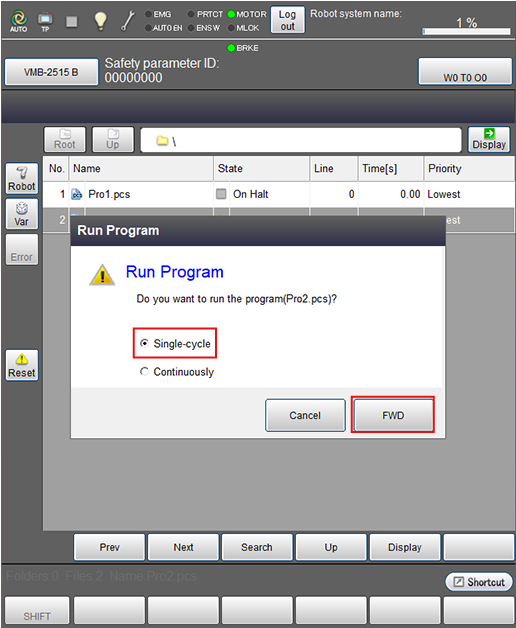
The program will run the cycle start.
Once the program has been executed to the end, it will stop.
The elapsed time on the display refers to the length of time from the start to the end of the program including temporary stop time caused by the step stop or the halt.
Continuous Start
Execute the continuous start by following procedures below.
1
Press [F4 Start].
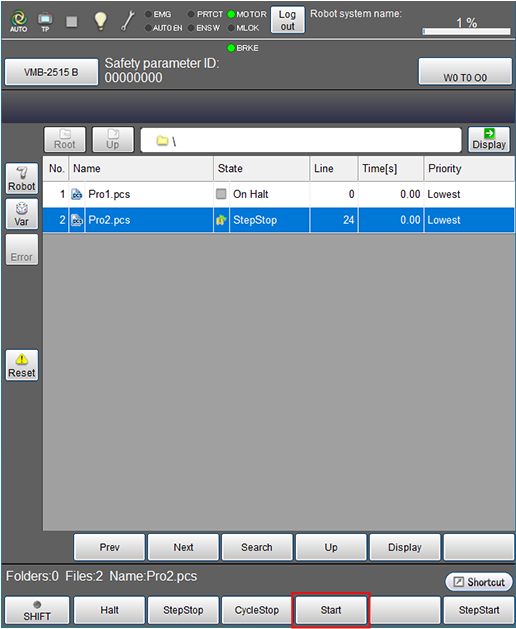
2
Select [Continuously], press [FWD].

The program will run the continuous start.
The program will be executed continuously.
Robot Stop
To stop the robot, there are the following four ways.
This section describes each meaning and operation.
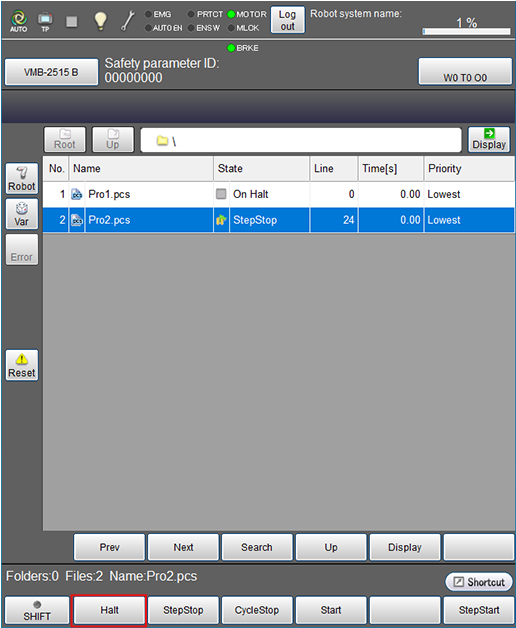
Halt
Executing the halt immediately stops the running program.
This operation does not turn the motor power off.
If the robot is restarted as it is after halt, it will execute the step from where it was stopped.
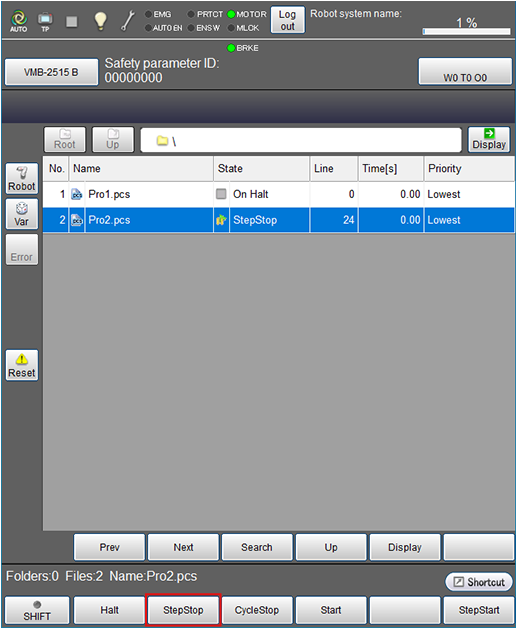
Step Stop
Executing the step stop interrupts the running program midway after executing the step in which the step stop key is pressed.
This operation does not turn the motor power off.
If the robot is restarted as it is after step stop, it will immediately start the operation from the next execution step of the step currently displayed on the smart TP.
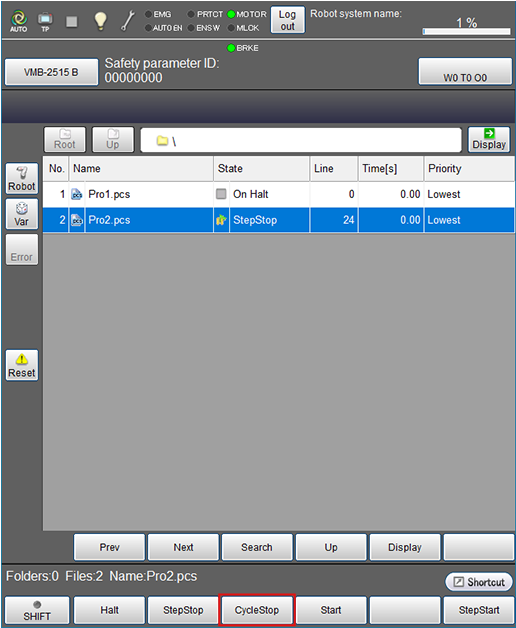
Cycle Stop
Executing the cycle stop stops the robot after executing the last step of the task program. This is used when the robot is continuously started.
This operation does not turn the motor power off.
Emergency Stop
Pressing the emergency stop button of the smart TP / mini-pendant immediately stops the robot. In this case, this operation turns the motor power off.
This is used when you want to stop the robot urgently.
If the robot is restarted as it is after the emergency stop, it will be executed from the first line of the selected program.
To restart the robot, first turn the motor power on, then execute any of the "step start", "cycle start", or "continuous start".
ID : 10065