
 HOME
HOME
ID : 10619
Registering License
If you purchase a robot controller (built-in with license), you do not need to register a license.
The following describes the procedure for registering the license to the robot controller.
You can register the license with the smart TP or WINCAPSIII.
Registering with Smart TP
This operation is available only when the currently logged-in account is granted user permission for "Maintenance" or "Programming".
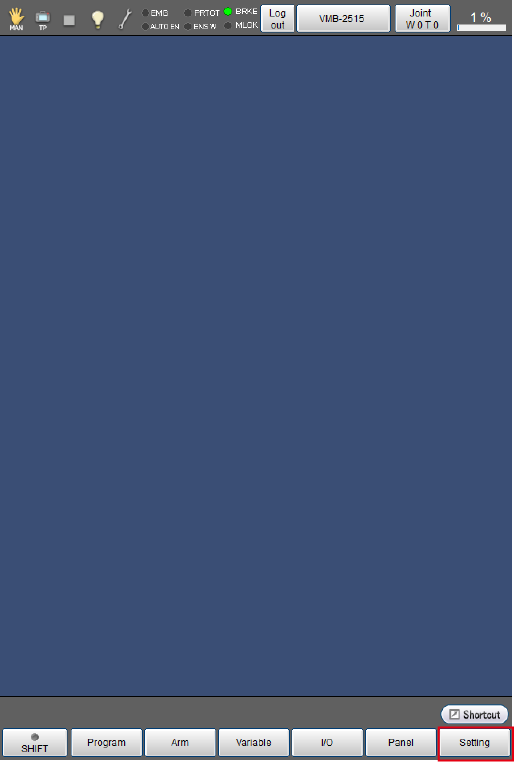
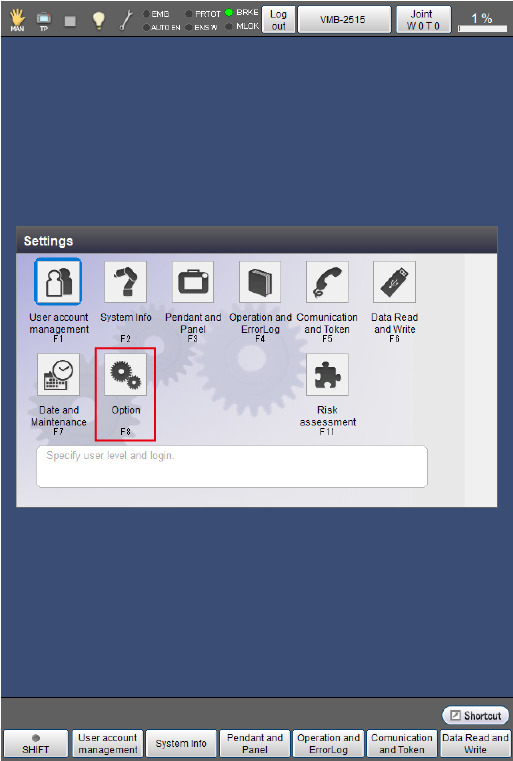
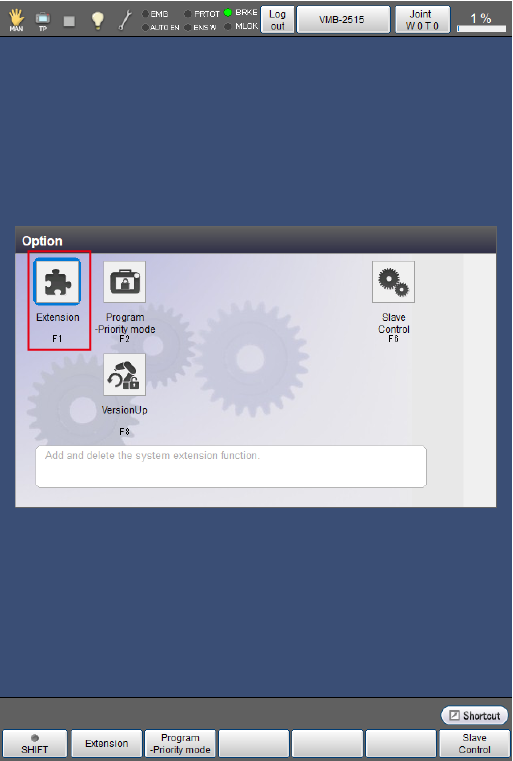
Operation path: top screen - [F6 Setting] - [F8 Option] - [F1 Extension]
1
Tap [F6 Setting].
2
Tap [F8 Option].
3
Tap [F1 Extension].
4
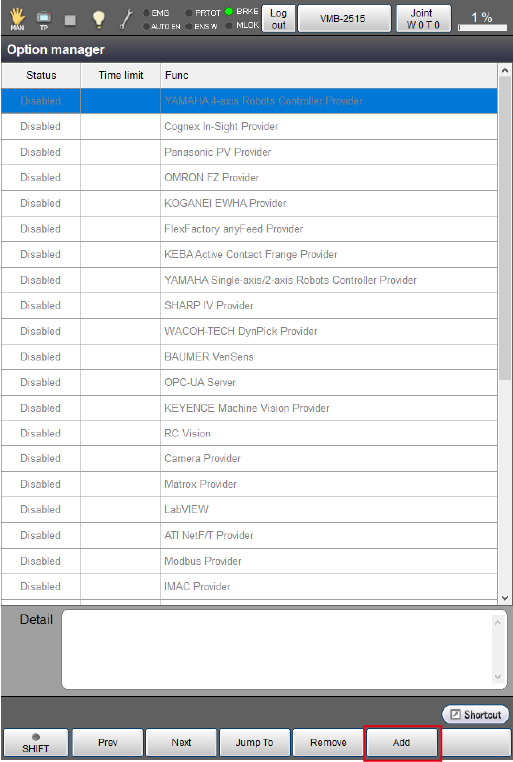
Tap [F5 Add].
5
The additional license window will appear. Enter the license key printed on the license certificate.
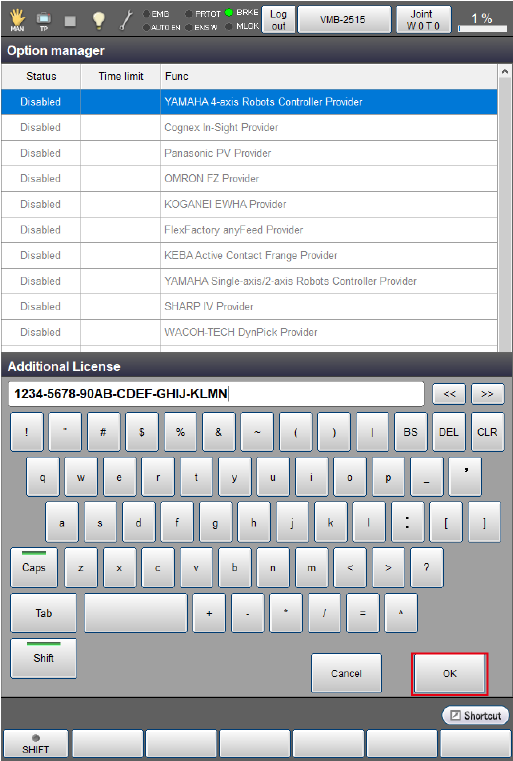
If the license key is successfully authenticated, the license is enabled.
For how to remove a license and details of the buttons on the option manager window, refer to “Displaying and Adding/Deleting Function Extension Screen”.
Registering with WINCAPSIII
Operation path: [Tool] menu - [Controller extension]
1
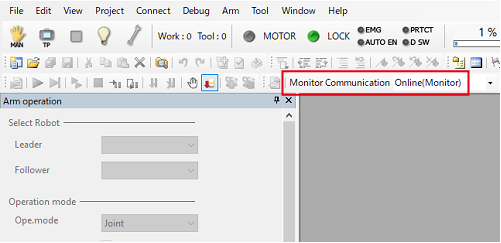
Connect WINCAPSIII and the robot controller, and switch to the Online (Monitor) mode.
2
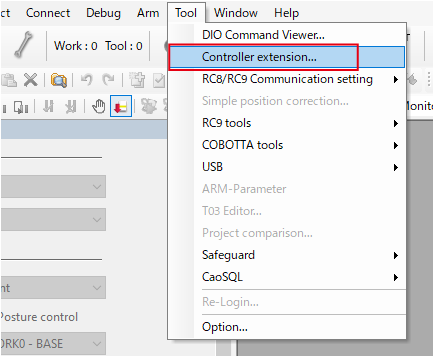
Click [Controller extension] in the [Tool] menu.
3
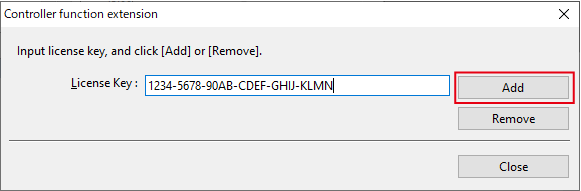
The license window will appear. Enter the license key printed on the license certificate.
4
Click [Add].
If the license key is successfully authenticated, the license is enabled.
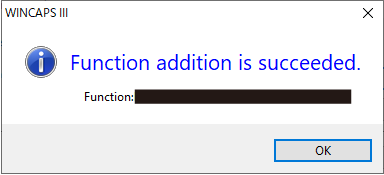
- To remove a license, enter the license key and then click [Remove].
- A license can be registered and removed regardless of the user permission given to a logged in account.
ID : 10619