
 HOME
HOME
ID : 11070
Field network slave terminal
To set parameters for the field network slave terminal, use WICNAPSIII.
1
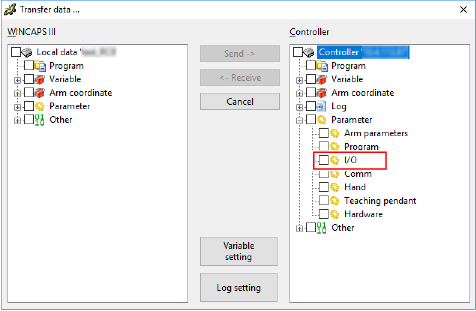
Transfer "I/O" data from the MC9 series controller to WINCAPSIII. If WINCAPSIII has already received MC9 series controller's I/O data, go on to the next step.
For details on how to transfer data from MC9 series controllerto WINCAPSIII, refer to "Data Transfer". To show "I/O" data, expand "Parameter" in the Controller data list of the [Transfer data] window. (see the figure below)
2
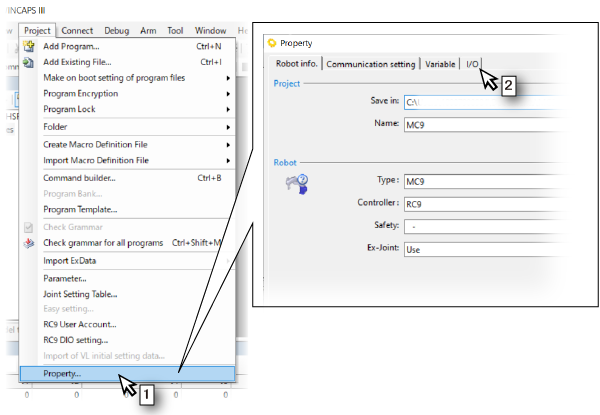
Open the setting window of the field network slave terminal parameters.
- From the [Project] menu, select [Property]..
- On the [Property] window, click the [I/O] tab.
3
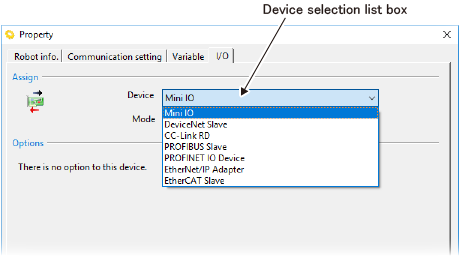
If you added a field network slave terminal into an already existing MC9 series controller, change the device.
From the [Device selection list box], select a field network slave terminal you have just added.
4
Configure the field network slave terminal parameters.
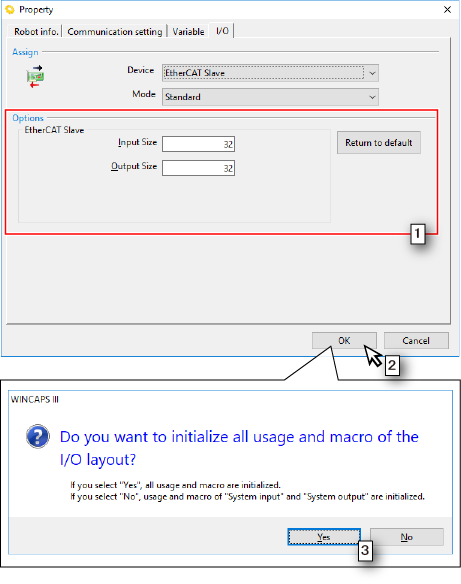
The following figure shows how to configure EtherCAT Slave (EtherCAT bridge terminal).
- Change the content of [Options] according to your application.
- Click [OK] button.
- The window for selecting whether to initialize the I/O allocation will appear. Click either [Yes] or [No].
If you use an EtherNet/IP slave terminal, further requirements and conditions are exist. For details click here.
5
Send your setting data to the MC9 series controller.
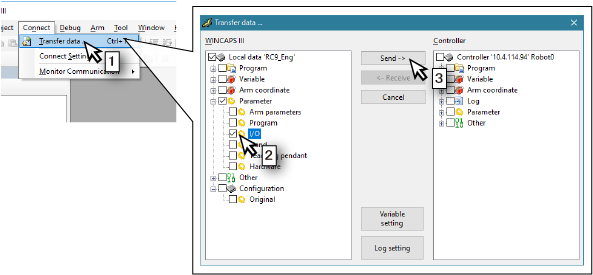
- Select [Transfer data] from the [Connect] menu.
- Open [Parameter] in the [WINCAPSIII] pane and select the check box of [I/O].
- Click the [Send] button.
6
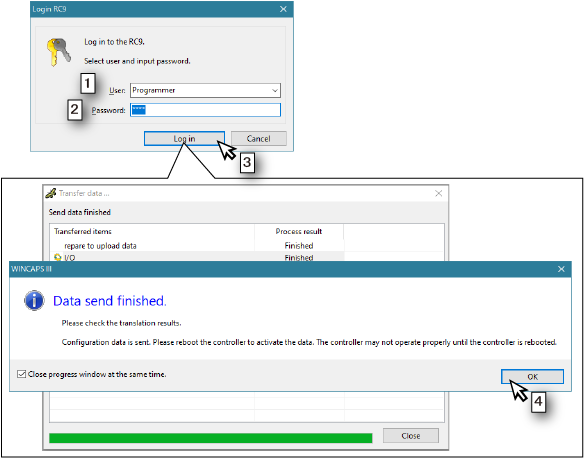
- The [Login RC9] window will appear. Select the user accounts of user level "Programmer" or higher among users set in the MC9 series controller.
- Enter a password.
- Click the [Log in] button.
- When the window that finished sending data is displayed, click the [OK] button.
- Reboot the power of MC9 series controller.
This completes the MC9 series controller setting. If you use a configuration file, such as EDS file, ESI file, refer to the next step.
7
Configuration file is stored in a MC9 series controller. When WINCAPSIII receives "I/O" data from a MC9 series controller, the data is stored in the project folder of WINCAPSIII. The following shows the destination folder path.
If you use a PROFINET RT device terminal by adding it to an existing MC9 series controller, WINCAPSIII will be able to receive a file for PROFINET RT device after performing STEP2 to STEP6. Therefore, after performing STEP2 to STEP6, receive the digital I/O data from the MC9 series controller again.
| ...\"Project Name" | ||||||
| \"Project Name" | ||||||
| \Data | ||||||
| \Controller | ||||||
| \IO | ||||||
| \Profinet | ||||||
|
\GSDML-beckhoff-Conf#el6631-0010.xml (File for PROFINET RT device terminal) |
||||||
| \EthernetIP | ||||||
|
\EL6652-0010_RC9.EDS (File for EtherNet/IP slave terminal) |
||||||
| \Profibus | ||||||
|
\EL6731-0.gsd (File for PROFIBUS slave terminal) |
||||||
| \DeviceNet | ||||||
|
\EL6752-0010S.eds (File for DeviceNet slave terminal) |
||||||
| \EtherCAT | ||||||
|
\Beckhoff EL66xx.xml (File for EtherCAT bridge terminal) |
||||||
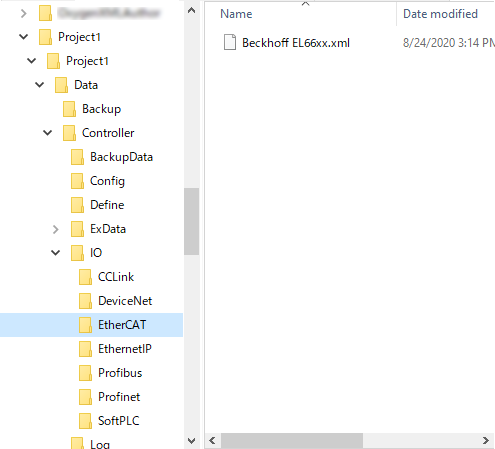
For example, a file for EtherCAT bridge terminal which project name is "Project1" will be stored in the following folder.
ID : 11070