HOME
HOME
Creating Monitoring Models
Create a monitoring model with Arm modeling of WINCAPSIII, and then output the data to the controller.
Modeling Procedure
1
Create a model with Arm modeling of WINCAPSIII.
2
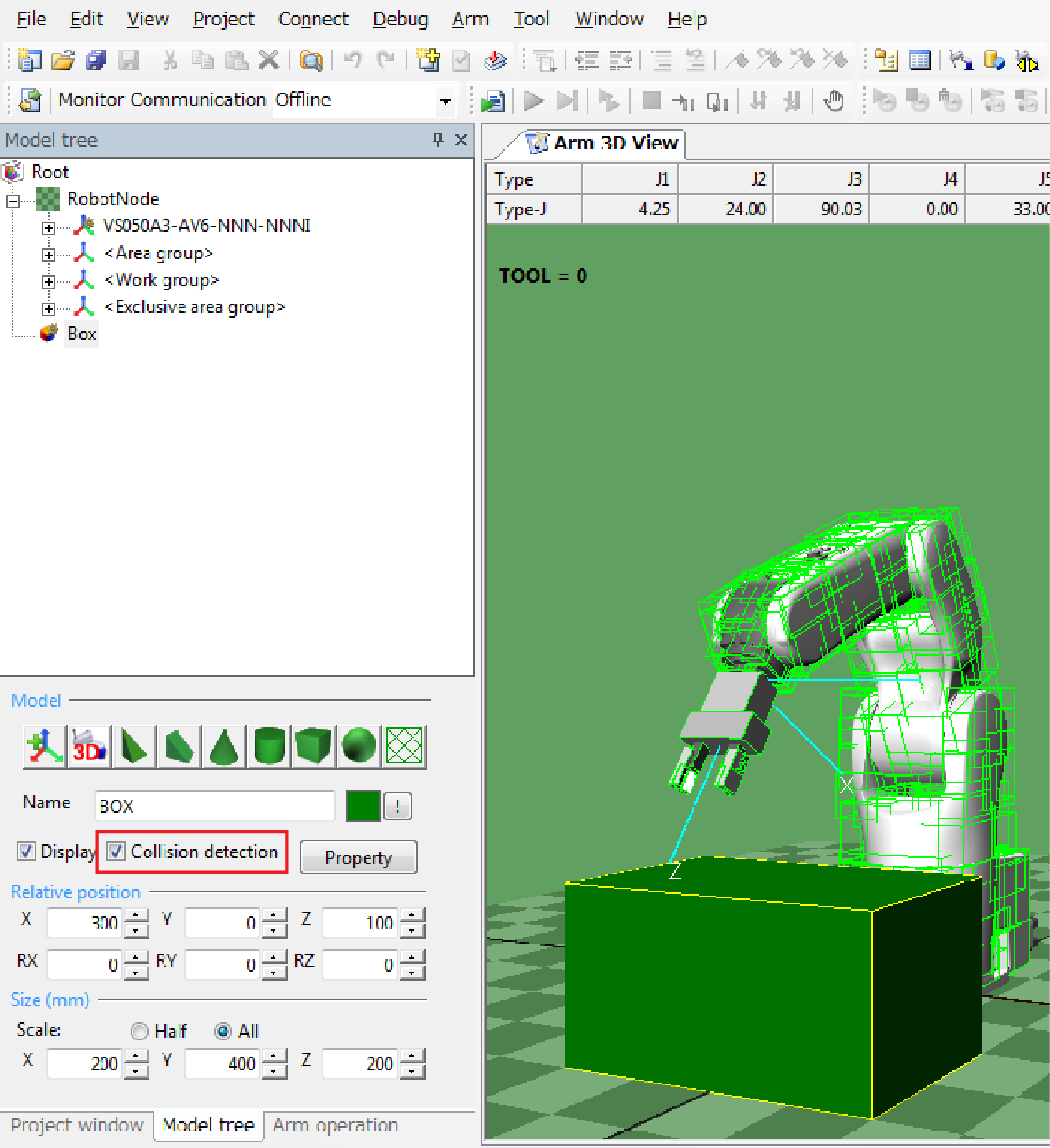
Select a target object, and then select the checkbox of “Collision detection”.
3
Click [Property] to open Mode Setting window. Select the checkbox of Virtual fence.
Selecting the checkbox of Display detection area will display the monitoring models.
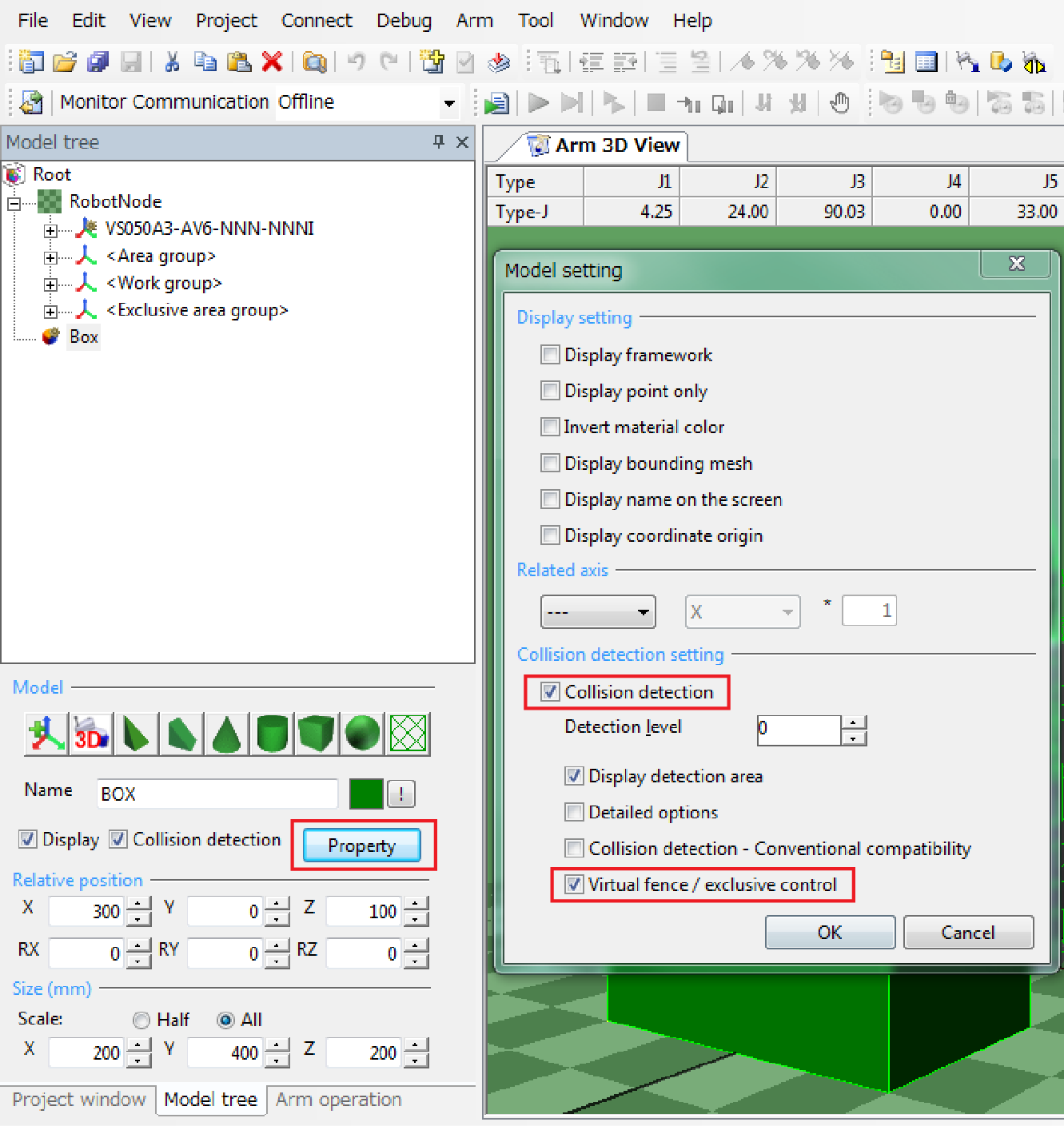
Collision detection for robot is always enabled.
4
Select the detection level.

Selecting high level will realize precise monitoring though; if too high level is selected, processing time will take long, leading to the process time delay error.
5
Perform STEP2 to STEP4 for all models to be monitored.
6
Convert virtual fence data that has just created from STEP 1 to 5 to controller-processable format, and then save it.
[Menu] - [Arm] - [Export virtual fence / exclusive control data]

You can check the exported virtual fence data by selecting the menu [Arm] - [Display virtual fence / exclusive control data].
7
Send the data to the controller.
For information on how to establish communication between WINCAPSIII and robot controller, please refer to "Communications Settings" and "Data Transfers" in "WINCAPSIII GUIDE".
Reboot the robot controller after sending the data.
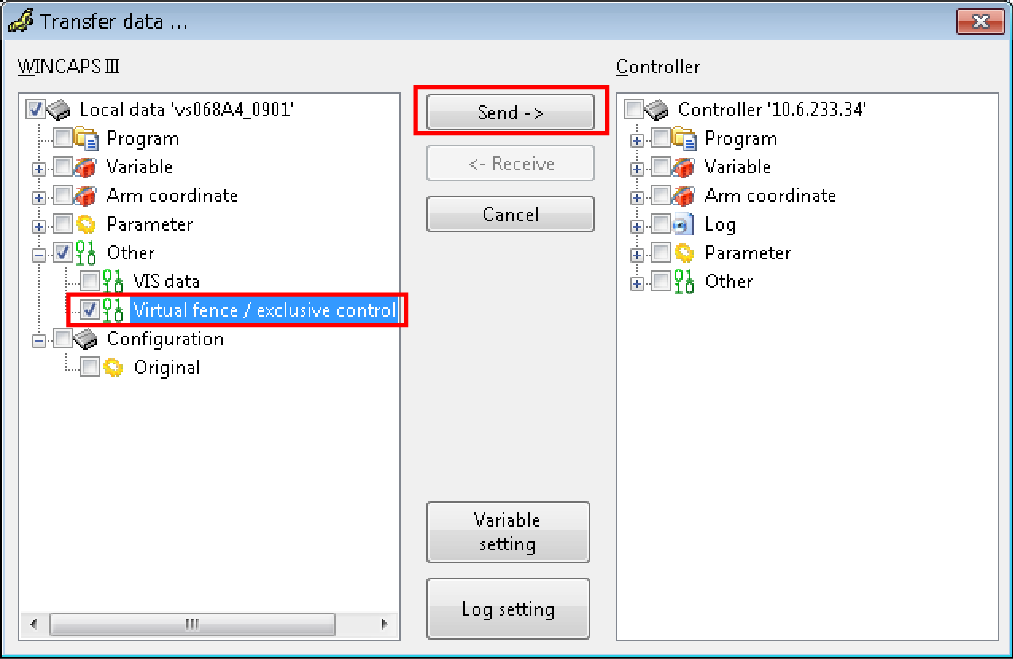
To perform this step, the robot controller and WINCAPSIII must be connected with a cable.
For information on how to connect, please refer to "Link with Robot Controller" in "WINCAPSIII GUIDE".
8
With a teach pendant, open the Arm window.
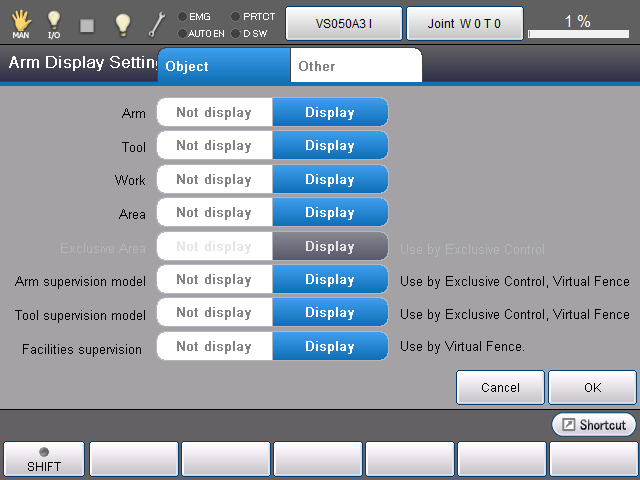
To display a monitoring model, from the Arm Display Setting window, set desired objects (Arm, Tool, Work, and Area) to "Display", from the Virtual Fence Setting window, set "366: Virtual fence setting" to "1: Enable", and then reboot the controller.
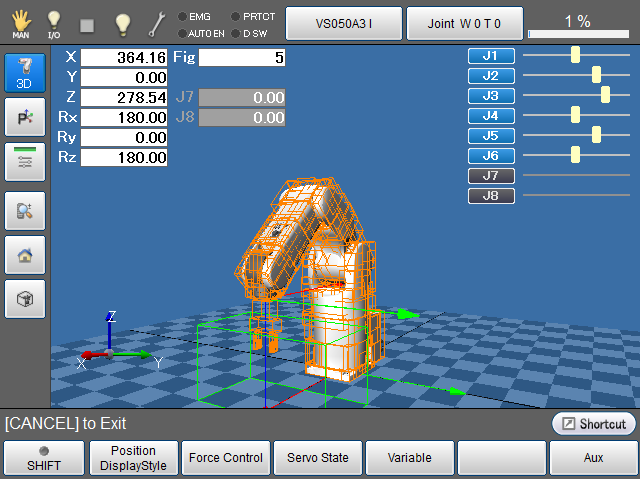
Displaying / Hiding the Monitoring Models
Monitoring models are displayed/hidden by the following entry.
Operation path : Basic screen - [F2Arm] - [F6Aux] - [F7DisplaySettings]
Select [Display] or [Not display], and then press [OK].