
 HOME
HOME
Using Debugging
This function is available for the RC8 robot controller Ver1.7.* and higher.
In addition to monitor functions, programs in the robot controller can be executed on your PC for debugging.
Initiating Debugging
First the robot controller must satisfy the following conditions.
- Executable Token of the robot controller must be [Any] or [Ethernet].
- RC8 controller must be set to AUTO mode.
How to Start
On the Connect menu, point to Monitor Communication, and then click Debugging (online) to initiate debugging.
Debugging function is activated.
A status bar appears to display the current debugging status, and the debugging starts.
A stop button is displayed independent from WINCAPS III.
Status bar

Stop button

Termination of Debugging
From the menu bar, click Connect, point to Monitor Communication, and then select Offline.
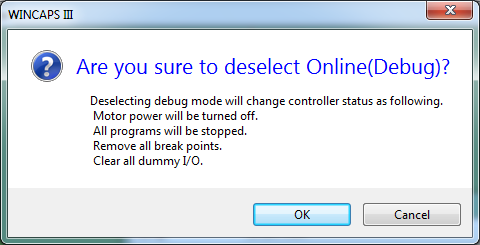
Once the following dialog box appears, click OK.
Side Effects
Switching to offline operation triggers the following cleanup operations.
- Stopping PAC programs
- Turning off motors
- Stopping supervisory tasks
- Closing teach pendant (TP) panels
- Clearing all breakpoints
- Clearing all dummy I/O settings
When connection for online operation is complete, WINCAPS III windows automatically display robot controller internal data.
Automatic Aborting of Debugging
WINCAPS III and the robot controller automatically switch to offline operation if any of the following situations arises.
- Someone switches the pendant's mode selector switch away from its AUTO position.
- They detect severance of the link between them.
- They detect severance of the robot controller's link with the teach pendant or mini-pendant.
- The robot controller loses power.
- A password-protected screen saver kicks in.