
 HOME
HOME
ID : 9687
Displaying the Trace Log
You can monitor the trace log by pressing the [trace] button on the programming window.
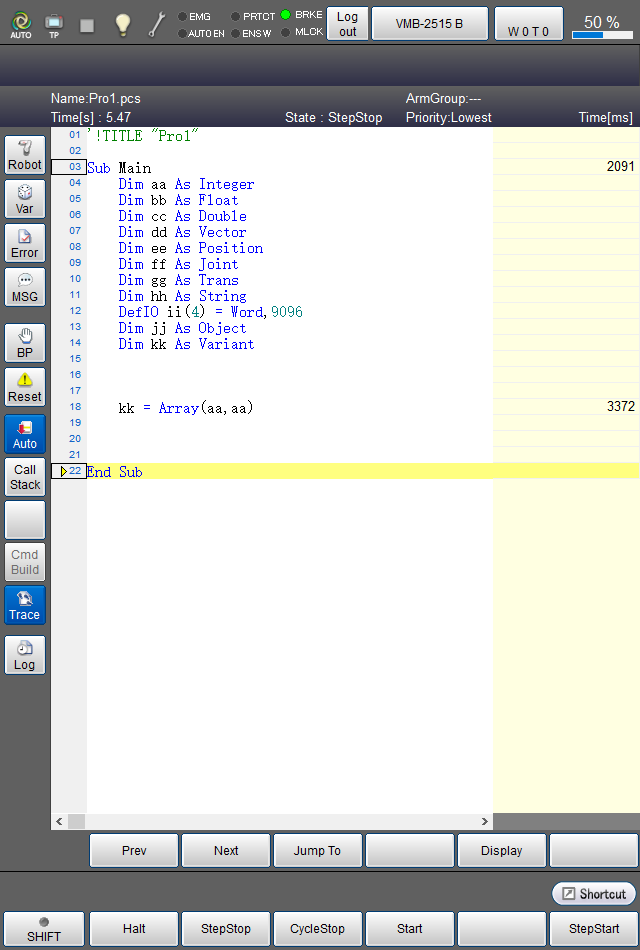
Time [ms] shows an execution time of each line from the start to the end of the trace log.
To specify the start line and the stop line of the trace log, use SysLog.Trace.Start command and SysLog.Trace.Stop command, respectively; Or you can set the start and stop line by using [Log] button on the smart TP, as shown below.
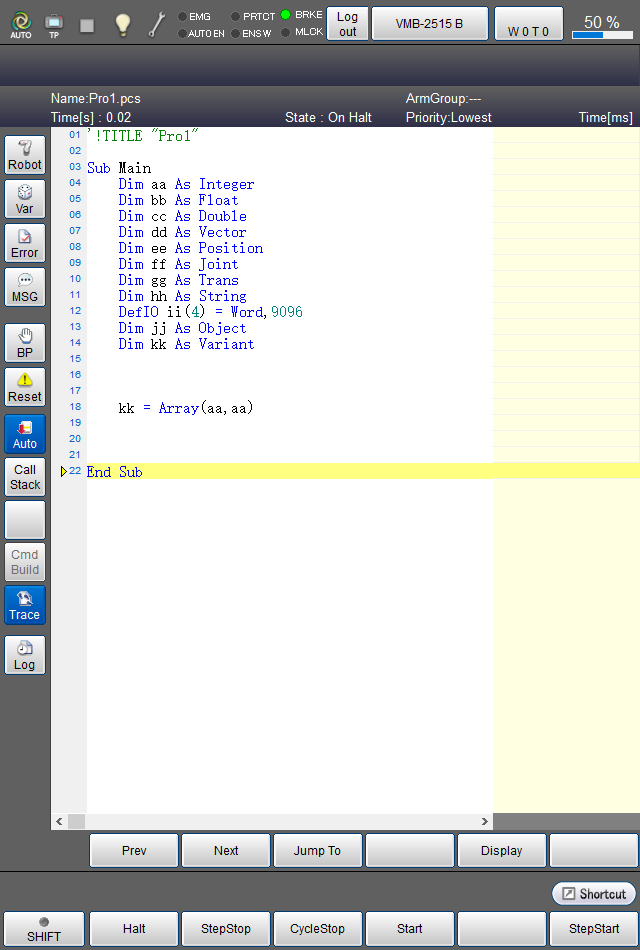
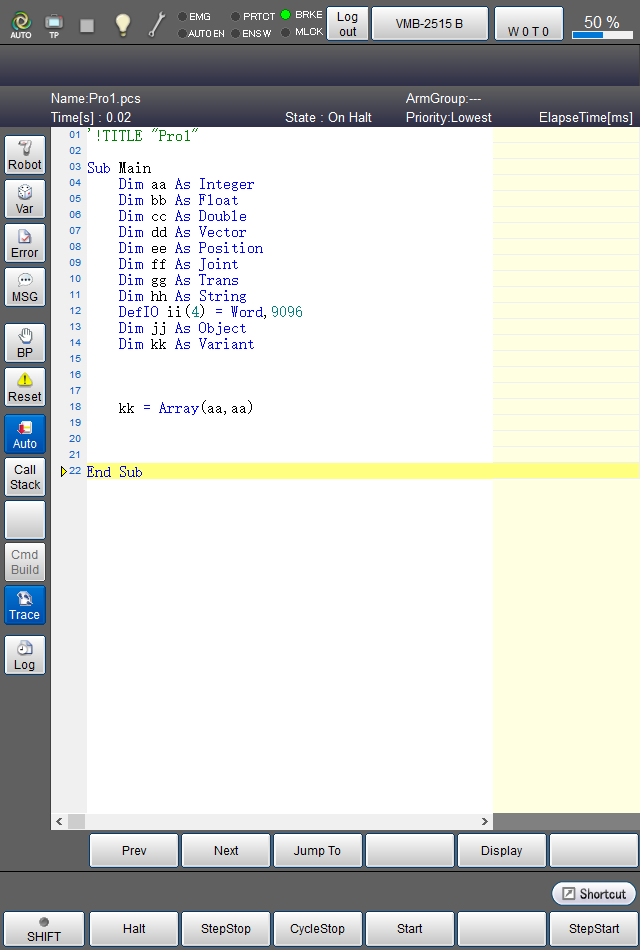
Pressing the [Display] button will change the indication of Time [ms], which is on the upper-right of the window, to ElapseTime[ms].
ElapseTime[ms] column indicates an elapsed time of each line from the start of the trace log when the line starts.
Log Setting by Means of the Log Button
This section shows how to set the start line and the stop line of the trace log by pressing the [Log] button on the programming window of the smart TP, without SysLog.Trace.Start and SysLog.Trace.Stop command.
Select a line you intend to set to the start line (or the stop line), and then press the [Log] button on the window. A dialog box is displayed. Select a desired operation from the dialog box, and then click [OK].
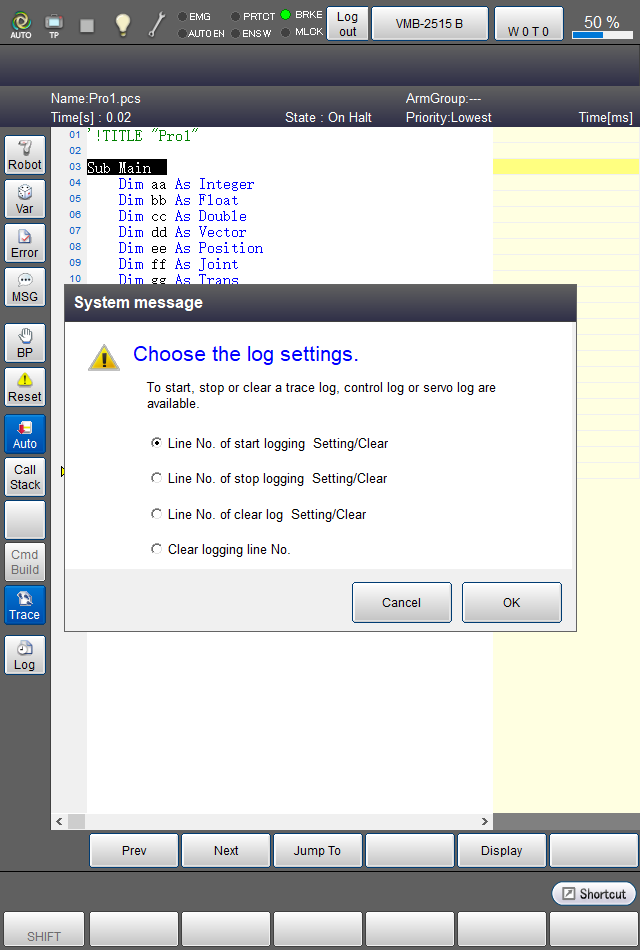
You can perform the setting of Trace log, Control log, and Servo log at the same time.
The below shows the screen when the third and the twenty-second lines are set to the start and the stop lines, respectively, and then the program is executed.
ID : 9687