
 HOME
HOME
ID : 9780
Displaying and Changing Mode Selection Window
Operation path: [Move mode] button on the smart TP
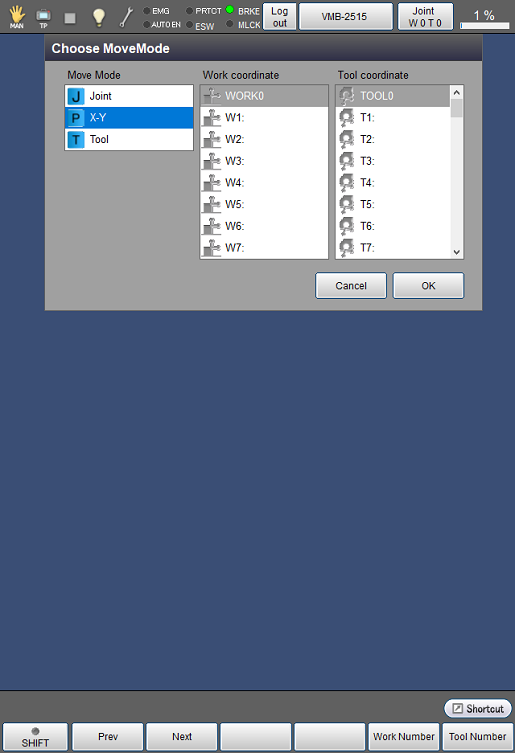
Tap [Move mode] button on the smart TP to display the following [Choose MoveMode] window.
Select items to set for "Move Mode", "Work coordinate", and "Tool coordinate".
After selecting the item, tap [OK] to change it.
The currently selected motion is displayed on the left side of speed bar.
| Available function keys | |
|---|---|
| [F1 Prev] | Display the previous page of the currently selected section. |
| [F2 Next] | Display the next page of the currently selected section. |
| [F5 Work Number] |
Select work coordinates number. Enter the work coordinates number to use with numeric keypad, and tap [OK] to select the number. |
| [F6 Tool Number] | Enter the tool coordinates number to use with numeric keypad, and tap [OK] to select the number. |
| Keys other than function keys | |
|---|---|
| [J] Joint | Able to operate each axis respectively. |
| [P] X-Y | This key allows to drive the robot arm based on base coordinates and work coordinates. |
| [T] Tool | This key allows to drive the robot arm based on tool coordinates. |
ID : 9780