
 HOME
HOME
ID : 9654
Teaching
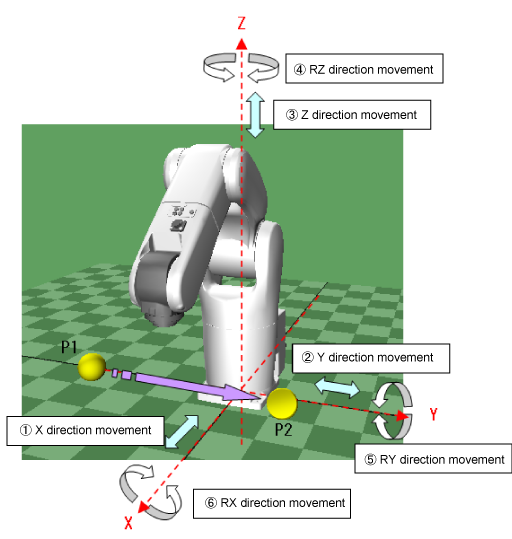
This section describes the method to teach robot the position variables "P1" and "P2" in the manual mode.
Teaching Robot Position (P1)
Tap [F2 Arm] on the Smart TP to display information on each axis of the arm.
With keep pressing down the enabling switch, tap the motion direction keys to move the robot to the position to be set as P1.
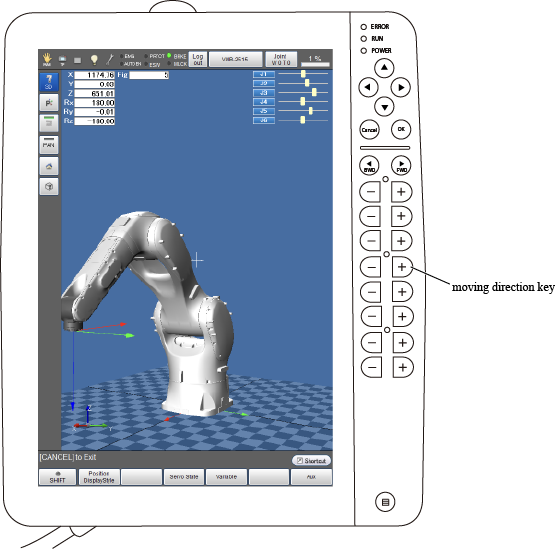
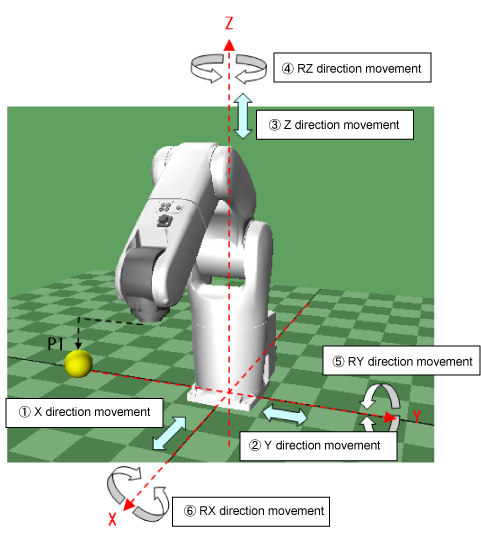
Saving the Teaching Value in Variable P1.
Follow the procedure below to save the teaching value in "VarName P1".
1
Press [F4 Variable].
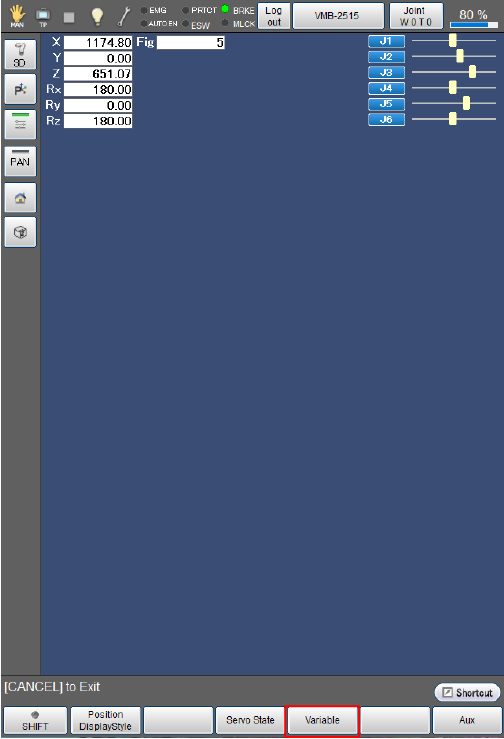
2
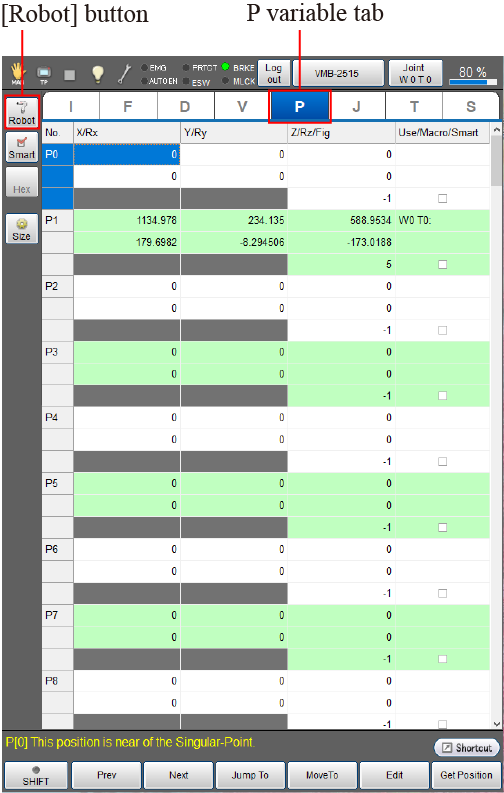
Select variable type in the variable window.
This procedure is for saving position in P variable; hence, press [P variable tab] on the screen.
3
Select the variable name "P1".
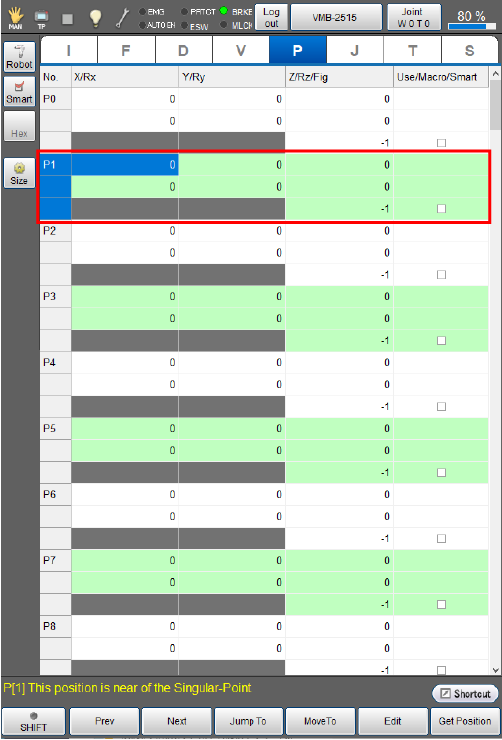
12 types of data per one variable will be displayed in P variable screen as shown in the figure.
If one of 12 types of data is highlighted when selecting VarName "P1", this means that VarName "P1" is selected.
4
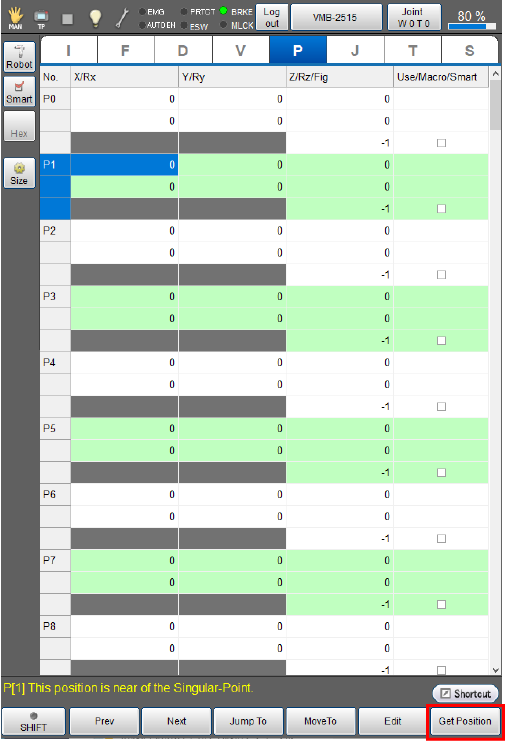
Press [F6 Get Position].
5
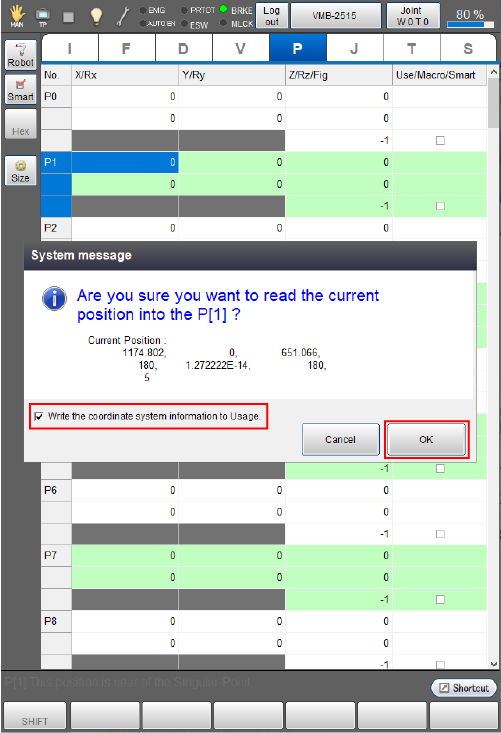
Check the system message. If you agree the message, select a checkbox of "Write the coordinate system information to Usage." and then press [OK].
- If any data is already written in the Usage cell, a new coordinate system information will overwrite it.
- When a controller is rebooted, the check box of "Write the coordinate system information to Usage" remains selected.
- To clear a coordinate system information in a Usage cell, select desired Usage cell, and press [F5 Edit].
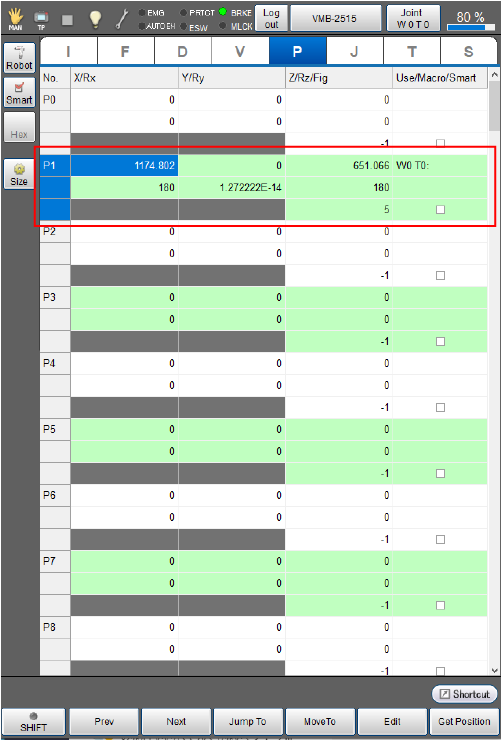
The current position is loaded as variable P1. Coordinate system information is written in Usage (Use/Macro/Smart) cell.
Teaching Robot Position (P2) and Saving it to [VarName P2]
1
Tap the [Cancel] key one time to display the [Arm] window.
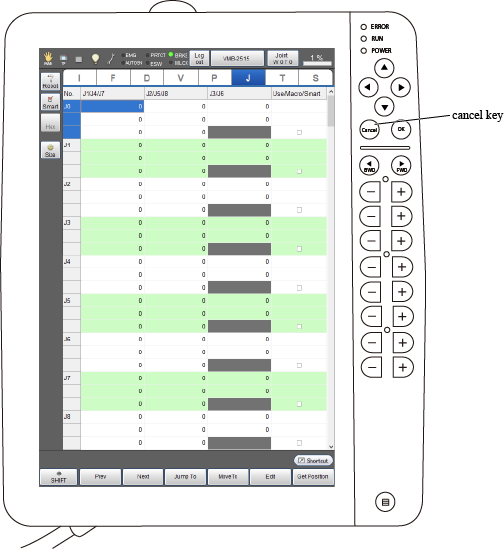
2
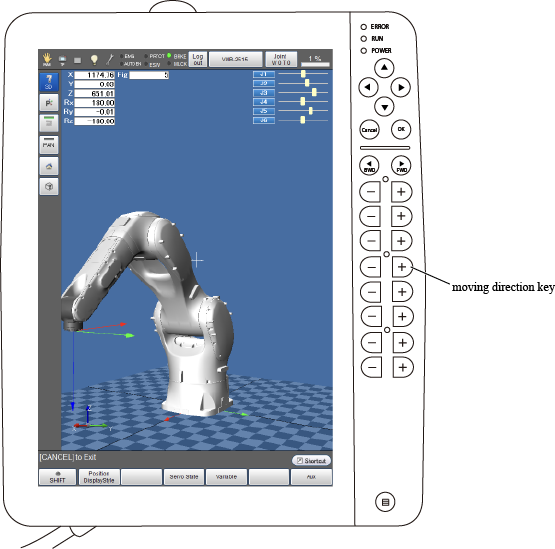
With keep pressing down the enabling switch, tap the motion direction keys to move the robot to the position to be set as P2.
3
Save the current robot position to the variable name "P2" by the same procedure of P1 position saving.
Now, teaching of P1 and P2 is completed.
For information about how to move to the taught position, refer to "Move to the Position Specified by Variable".
ID : 9654