
 HOME
HOME
ID : 9644
Easy Setting (Smart TP)
Robot can exert its highest performance with the settings optimized for the operation environment. With this Easy Setting, users can easily complete the robot settings suitable for the actual operation environment.
For details about operation procedure in WINCAPSIII, refer to "Easy Setting (WINCAPSIII)".
Items
- Floor-mount or Overhead-mount
- Temperature setting
- Mass of payload [g]
- Payload center of gravity X [mm]
- Payload center of gravity Y [mm]
- Payload center of gravity Z [mm]
- Payload moment of inertia Ix [kgcm^2]
- Payload moment of inertia Iy [kgcm^2]
- Payload moment of inertia Iz [kgcm^2]
Operation Procedure
1
Easy Setting window appears at the controller startup.
This window shows items to be set and the current values. Press [F2 Next] after the check.
To perform Easy Setting with WINCAPSIII, press [F4 Stop].
2
Configure the [Floor mount/overhead mount setting] and [Temperature setting]
- Installation condition : Select the installation condition in the text box, and then press [OK].
- Ambient temperature : Select the text box, enter a value, and then tap [OK].
When you complete the setting, press [F2 Next].
Pressing [F1 Back] in each setting window will go back to the previous setting window.
3
Specify [Mass of payload] and [Payload center of gravity].
- Mass of payload : Enter a value in the text box, and then press [OK].
- Payload center of gravity : Select a text box, enter a value of the payload center of gravity position for X, Y, and Z, and then press [OK].
When you complete the setting, press [F2 Next].
4
Specify [Payload moment of inertia].
Select a text box, enter a value for both X- and Y-axis rotation, and then press [OK].
For details, refer to "About Calculation of Edge Load Inertia".
When you complete the setting, press [F2 Next].
This completes the settings.
Cancel of Easy Setting
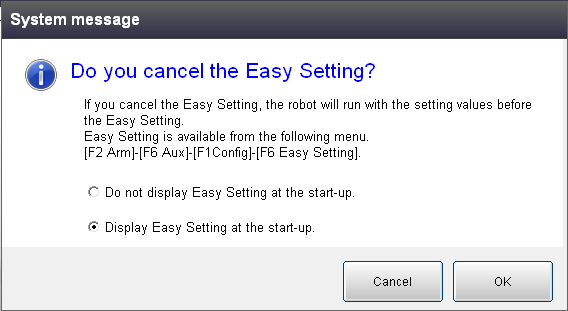
Pressing [F4 Stop] in each setting window will display the system message window that asks whether to cancel the Easy Setting. To cancel the Easy Setting, press [OK] in the window. Once it is canceled, all the setting values you have made will not be saved.
In this system message window, you can select whether the Easy Setting dialog is displayed at the next startup.
If Easy Setting is started from the Menu, when you press [F4 Stop], the system message window does not show the selection that asks whether the Easy Setting dialog is displayed at the next startup.
Change of Settings
To change the settings you have done, press [F2 Arm] - [F6 Aux] - [F1 Config] - [F6 Easy Setting].
ID : 9644
- Related Information
- Floor-mount or Overhead-mount Setting
- Payload Estimation Function