
 HOME
HOME
ID : 9667
Simulation with Smart TP
This method enables to simulate the robot motion of created programs by using the smart TP, without moving the actual robot.
1
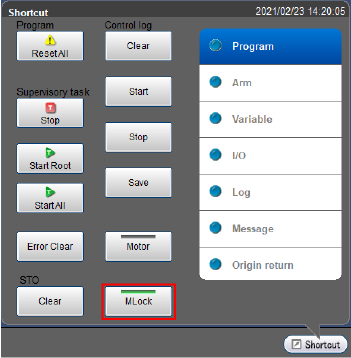
From the shortcut menu, tap the [MLock] button to set the robot in machine lock.
The [MLock] lamp turns on.
2
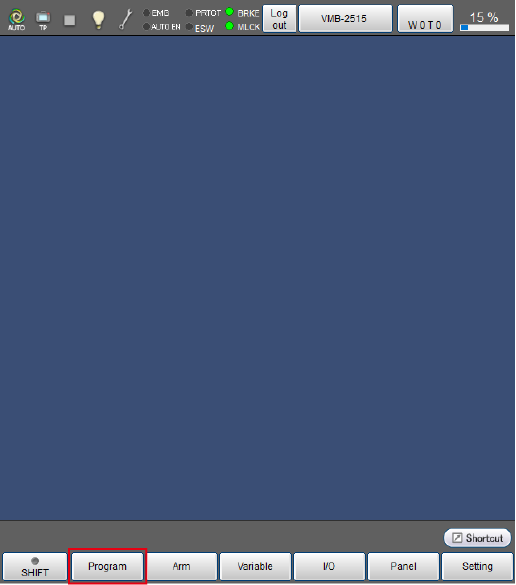
Press [F1 Program].
3
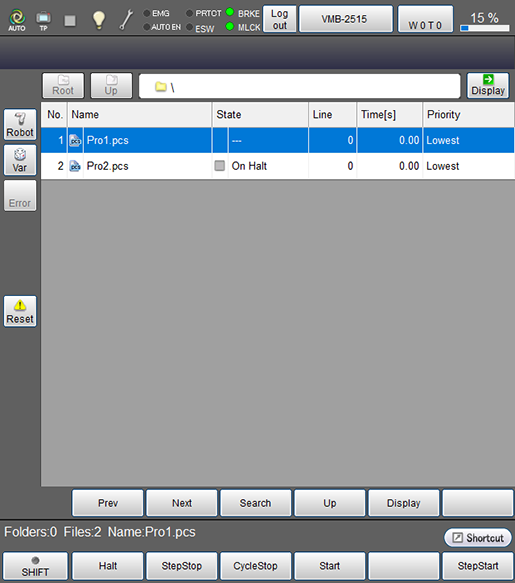
Select the program to be started.
The selected program will be highlighted.
4
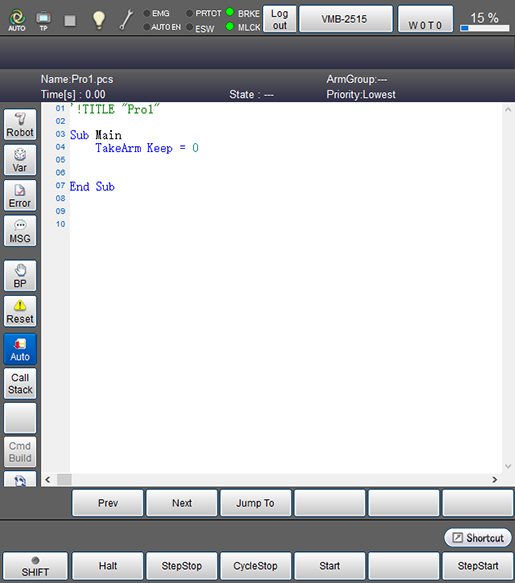
Press [Display] to display the program.
5
Press the [Robot] button on the left side of the window to display the arm view.
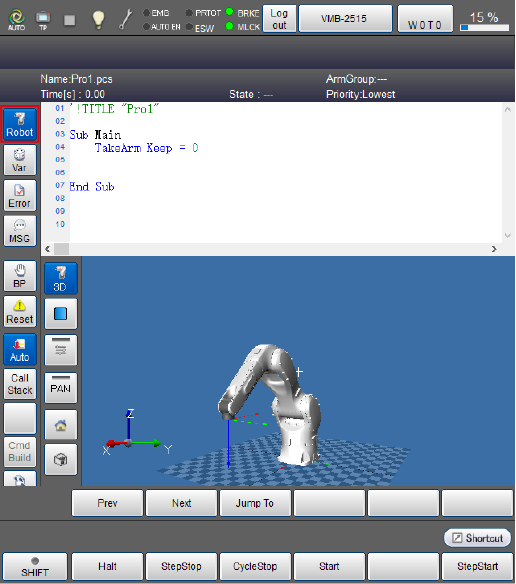
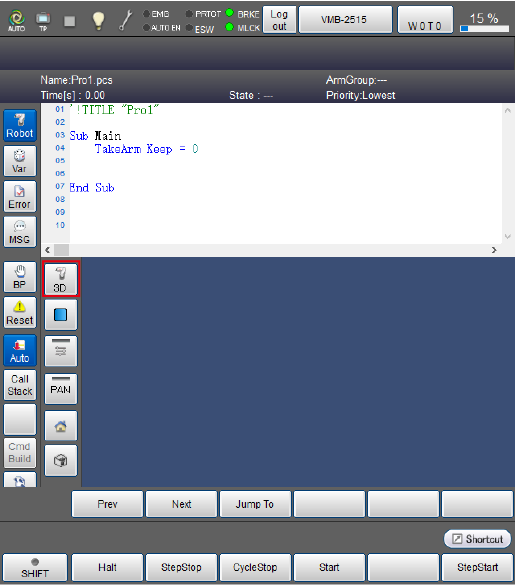
If the robot image does not appear, press the [3D] button.
6
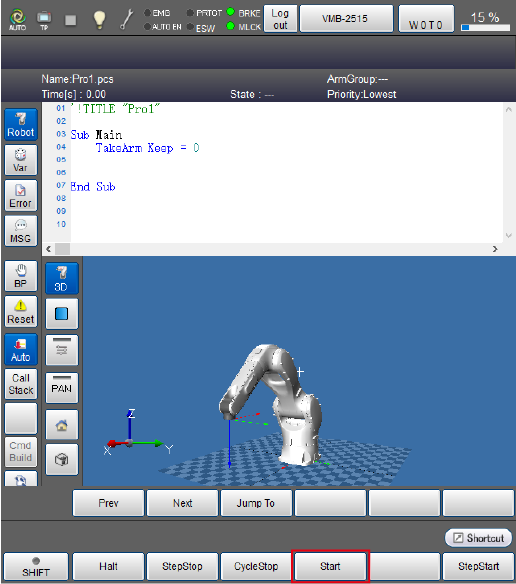
Select [Start] button.
7
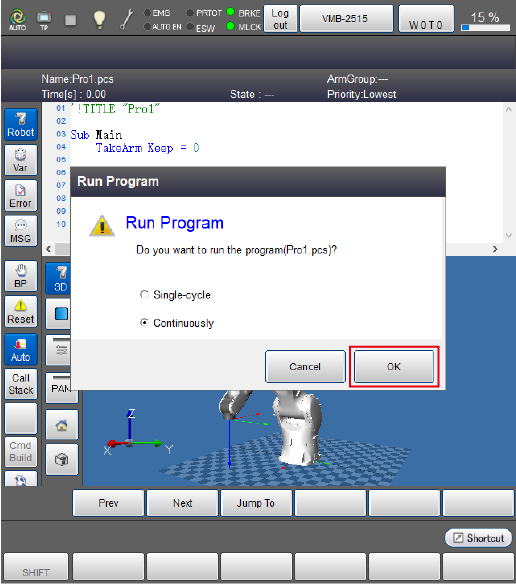
The system message will appear. Select a starting method and then press [OK]. In this example, select [Continuously].
8
The robot image in the arm view moves along with the program.
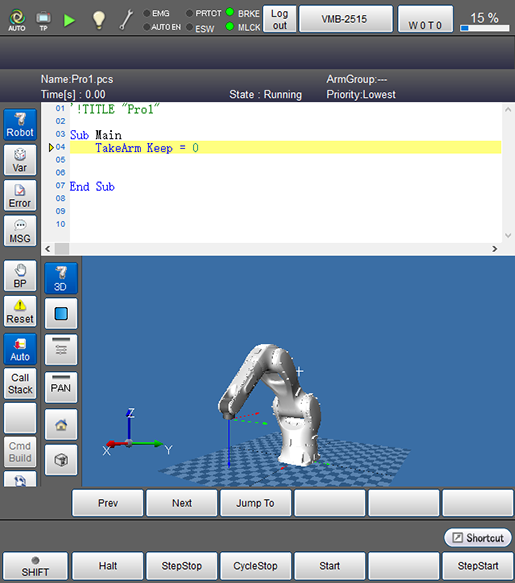
There are three ways to stop the robot motion.
To reset the program which is under execution, press [RESET] button.
- Halt :
Executing the halt immediately interrupts the running task program selected or all running task programs midway the moment [F1 Halt] or [STOP] button is pressed, respectively. - Step Stop :
Executing the step stop interrupts the running task program midway after executing the step in which the step stop key is pressed. - Cycle Stop :
Executing the cycle stop stops the robot after executing the last step of the task program. This is used when the robot is continuously started.
ID : 9667