
 HOME
HOME
ID : 9683
Displaying Program List Window (Program Check)
Operation path : Basic screen - [F1 Program]
Display the registered program list display.
Press [F1 Program] in program check to display the following [Program list] window.
In program check, you can switch between the window for editing program and the window for starting program by the Change menu on the upper right of the window.
Edit
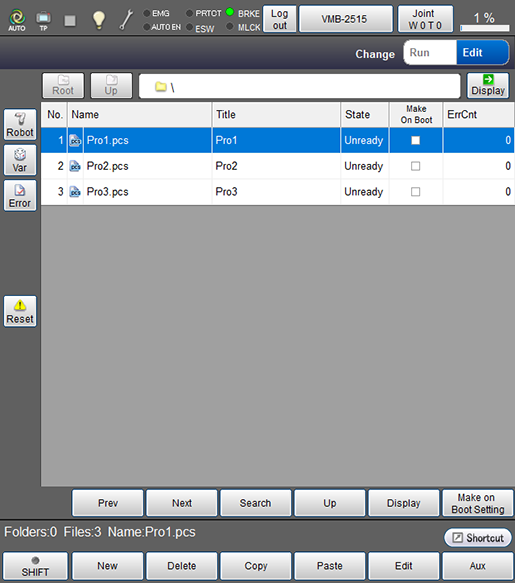
| Available function keys | |
|---|---|
| [F1 New] (*1) | Display the screen to create new program. Enter program name, and press [OK] to display contents of new program. The pre-prepared sample programs including "Pick & Place" and "Palletizing" can be also selected and used. New folders and new header files are also created in the screen to create new program. |
| [F2 Delete] (*1) | Deletes the selected folder or file. |
| [F3 Copy] (*1) | Copy the selected file. |
| [F4 Paste] (*1) | Paste the copied file. |
| [F5 Edit] | Select program in the program list, and press [Edit] to display contents of selected program. Then, edit the program. |
| [F6 Aux] | Change settings associated with start and stop of program and supervisory task. |
| [F9 Encrypt/Decrypt] (*1) | Encrypt and decrypt the selected file. |
| [F10 FileLock/Unlock] (*1) | Prevent users from editing specified program. Use a password to lock/unlock. |
| [F11 Rename] (*1) | String input window will be displayed. Enter new file name, and press [OK] to change the file name. |
| [F12 Check Syntax] (*1) | System message to select either "This program only" or "All PRE-CHECK-enabled in the project" will be displayed. Select either of them, and press [OK] to execute the syntax check for the target program. |
Start Menu
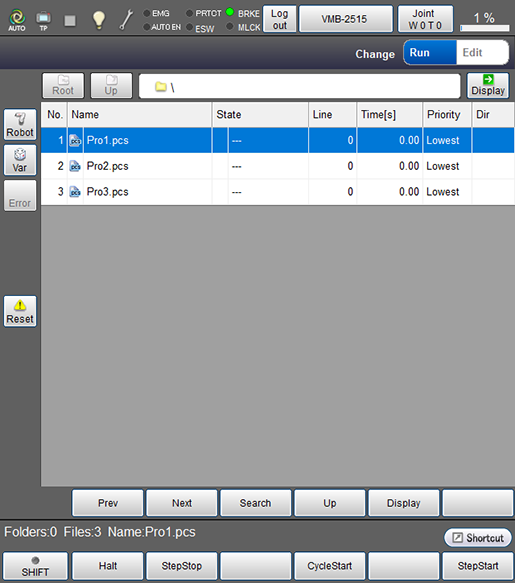
| Available function keys | |
|---|---|
| [F1 Halt] (*2) | Halt the program being executed. |
| [F2 StepStop] (*2) | Step stop of the program being executed. |
| [F4 CycleStart] (*2) | Single-cycle start of the program being executed. |
| [F6 StepStart] (*2) |
Execute step feed start of the selected program. |
| [F7 Reset Program] (*2) | [Reset Program] window opens. Select either "Only this program" or "All programs", and press [OK] to reset the target program. |
| [F9 Priority] (*2) | System message to set the priority will be displayed. Select either of lowest, low, normal, high, and highest, and press [OK] to change the priority of the selected program. |
| [F11 Display] | Display contents of the selected folder and file. |
| Keys other than function keys | |
|---|---|
| Robot |
Display 3D image of the robot during the machine lock. For information about operation keys, refer to " Displaying Current Position Information and 3D Image of Robot ". |
| Var |
Display a static variable monitoring window. For details, refer to "Static Variables Monitoring Function". |
| Error (*3) | Display syntax error log information. |
| Reset | [Reset Program] window opens. Select either "Only this program" or "All programs", and press [OK] to reset the target program. |
| Root | Move to the highest folder hierarchy. |
| Up | Move to the folder hierarchy that is one higher than the current one. |
| Path | Enter path in the displayed file path input screen, and press [OK] to move to the specified file path. |
| Display | Display contents of the selected folder and file. |
| Prev | Display the previous page of the currently displayed program list. |
| Next | Display the next page of the currently displayed program list. |
| Search |
Display file name search window. Enter file name, and press [OK] to search the entered file name. |
| Up | Move to the folder hierarchy that is one higher than the current one. |
| Display | Display contents of the selected folder and file. |
| PRE-CHECK of programs (*3) | This process executes PRE-CHECK of programs. A PRE-CHECK-enabled program is compiled at the time of controller startup. Since the program is pre-checked (compiled beforehand), it performs quicker at the first time of controller startup. However, if there are too many PRE-CHECK-enabled programs, it takes long time to activate the controller. Select one of the following options then press [OK].
For the operation procedure, refer to "PRE-CHECK of the Program" in Basic of Robot Motion Creation. |
(*3) : It can be used only in the editing window.
ID : 9683