
 HOME
HOME
ID : 9672
Editing Contents of Folder and Program
Operation path : [F1 Program] - [F5 Edit] or [Display key on the screen]
Display contents of folder and program.
Also edit contents of the program.
When you press [F5 Edit] or [Display] key on the window, contents of folder or the following contents of program will be displayed.
- When [Shift] is not pressed.
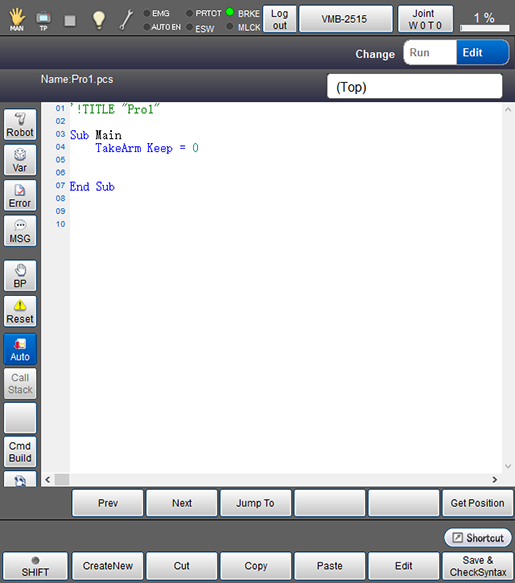
- When [Shift] is pressed.
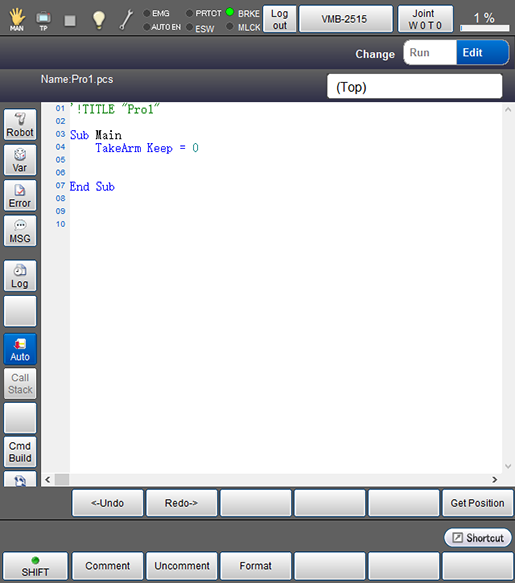
| Available function keys | |
|---|---|
| [F1 CreateNew] (*) |
Add new line to program. Select location for the line to be added in advance. Numeric keypad will be displayed. Enter the program to add, and press [OK] to move to the entered line. |
| [F2 Cut] (*) |
Cut the selected lines. Select lines to cut, and the press [F2:Cut]. The lines will be able to be pasted to a specified position. |
| [F3 Copy] (*) |
Copy the selected line. Select the line to copy, and press [Copy] to copy the selected line. |
| [F4 Paste] (*) | Paste the cut/copied lines. To paste, select a line, and press [F4:Paste]. The cut/copied lines will be inserted below the selected line. |
| [F5 Edit] (*) |
Select line to edit, and press [F5 Edit] to display the line editing window. Enter item to edit, and press [OK] to reflect the edited contents. |
| [F6 Save & CheckSyntax] (*) |
Save the program. Press [Save] to display the change confirmation dialog, and then press [OK] to save it. Error message will be displayed if there is syntax error when saving the program. Correct the error, and save the program again. |
| [F7 Comment] (*) | Select the line to comment out in the program, and press [Comment] to comment out the selected line. |
| [F8 Uncomment] (*) |
Cancel to comment out for the line that is commented out in the program. Select the line to cancel to comment out, and press [Uncomment] to cancel it. |
| [F9 Format] (*) |
Perform code formatting on the entire file. Indent width becomes consistent by code formatting if indent width is not consistent in each line. |
| Keys other than function keys | |
|---|---|
| Robot |
Display 3D image of the robot. For information about operation keys, refer to "Displaying Current Position Information and 3D Image of Robot". Button turns blue while robot button is pressed. |
| Var | Display a static variable monitoring window. |
| Error | Display syntax error log information. |
| MSG | Output message. |
| BP |
Set breakpoint. System message [BreakPoint Setting] will be displayed. Select either [Set BreakPoint] or [Clear all BreakPoints in the project] in the message, and press [OK] to set or cancel the break point. If the breakpoint is set in null line, proess does not stop at the breakpoint. |
| Reset | [Program reset] window opens. Select either "Only this program" or "All programs", and press [OK] to reset the target program. |
| Auto | Switch the auto scroll settings ON and OFF. When this option is ON, the button lights blue. This option is ON under normal state.In ON state, the cursor in the editor follows the currently running line. By that, user can check which line is executed on the screen. If this option turns OFF, the cursor in the editor can move anywhere within the displayed file. By that, arbitrary line can be displayed.
|
| Call Stack |
Display a history of program call. This item is available in Auto mode. |
| Cmd Build | With this function, some commands are automatically entered. You can enter necessary parameters at a time. |
| Trace | Display trace log to record the flow and timing of program execution. |
| Log |
In this button, start, stop and clear of trace log, control log and servo log are available. To set the log, choose one of the items below and click [OK]
|
| Prev | Display the previous page of the currently displayed program. |
| Next | Display the next page of the currently displayed program. |
| Jump To |
Move to the specified line. Numeric keypad will be displayed. Enter the line number with numeric keypad, and press [OK] to move to the specified line. |
| Get Position button (*1) | Read the coordinates of the current robot position. |
*1: This allows you to obtain the current position into a variable, also if immediate values are used, write the current position's value over the values written in a program.
- For variables
If variables are used, values are stored in the variables.
It is impossible to obtain the current position if any of variable, function, or macro definition is used as an index of P-type, J-type, or T-type.Move P, P[0]Move P, P[aaa] 'Impossible to obtain the position
- For immediate values
If values are written in a command, these values will be replaced by the current position's values.
It is impossible to obtain the current position if any of variable, function, or macro definition are used as elements of P-type, J-type, or T-type.Move P, P( 446.7207, 275.725, 329.036, 180, -0.0122849, -148.3163, 5 )Move P, P( aaa, 275.725, 329.036, 180, -0.0122849, -148.3163, 5 ) 'Impossible to obtain the position
ID : 9672