
 HOME
HOME
ID : 9755
Display Setting for Pendant
Operation path: [F6 Setting] - [F3 Pendant and Panel] - [F2 Pendant Setting]
Set character size and font to display on the smart TP screen.
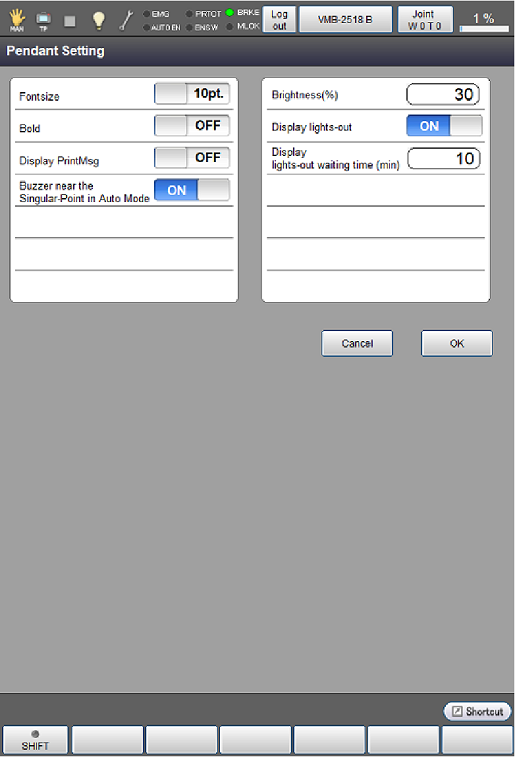
Tap [F2 Pendant Setting] to display the following [Pendant Settings] window.
The setting can be changed by directly touching ON / OFF characters (point size character for font size) of each item.
Change each setting, and tap [OK] in [Pendant Settings] window to confirm the changed setting.
| Keys other than function keys | |
|---|---|
| Fontsize | Select the display font size of the smart TP (10 point or 12 point). |
| Bold | ON state makes the display font style bold. |
| Display PrintMsg | Display or hide the dialog at the PrtMsg command execution. (Display: ON, Hide: OFF) |
| Buzzer near a Singular-Point at AutoMode | Turn on (sound) or off (mute) the beep sound which sounds when the robot passes through the vicinity of the singular point in Auto mode. In the Manual mode or the Auto mode(when select program check option), beep sound is always ON regardless of this setting. |
| Brightness (%) | Adjust the Smart TP screen brightness (0 to 100). To reflect the change in the brightness setting, you need to unplug the Smart TP cable and plug it back, or restart the robot controller. (*1) |
| Display lights-out | Selecting ON enables and OFF disables the display lights-out. |
| Display lights-out waiting time (min) | Set the start timing of the display lights-out. Specify the length of time before display lights-out starts after the last display operation by minutes. (1 to 9999) |
(*1) The default screen brightness is 30%. In case of increasing the brightness, the surface temperature of the display rises. Please be careful, because Smart TP may become the high temperature, depending on ambient temperature.
ID : 9755