
 HOME
HOME
ID : 10271
TP PANEL GUIDE
TP Panel is a feature that allows you to create a screen that displays only information necessary for the following operators on Smart TP. This will help prevent them from misoperating Smart TP.
- Operators who log in to an account granted only user permission for “Operation”
- Operators who do not log in
Data of TP Panel
Data of TP panel are files with ".pns" extension.
TP panel files consist of script, controls (parts) to be allocated and other data.
TP panel files are only created by WINCAPSIII,
and its bundled application PanelDesigner enable to create and place controls (parts).
Forms of scripts are the same as Pac Script. The script can be edited by PanelDesigner and TP.
Display of TP Panel
To open TP panel, following two methods are available.
- Click the TP Panel button on the start window.
- In TP panel setting window, select "Show" in the "Show Automatically Setting” window. "Main.pns" will be displayed instead of the start window when the controller is turned ON.
TP panel task cannot be started by means of pressing "Start" button with selecting a program or Run statement execution of user tasks.
Initially displayed TP panel file is always "Main.pns" in the root (Source files). You can change the display to other TP panel files by describing PageChange statement in the TP panel task.
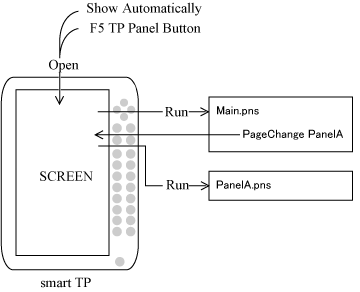
"SCREEN" is a task to administrate TP panel display.
Close TP Panel
To close TP panel, press the key which is set in the "Close Mode” of "TP panel setting window". TP panel tasks are also closed.
The Character of TP Panel Tasks
TP panel behaves similarly to the supervisory task.
- Able to execute regardless of the operation mode.
- Task stops at error level5 or higher and does not stop at level4 or less.
- Cannot obtain the control of axis.
Characteristic behavior of the TP panel task.
- Can not be started from other user tasks and supervisory tasks.
- Can not be stopped or paused from other user tasks and supervisory tasks.
- In order to change the page, use PageChange statement.
- TP panel task does not create a task when TP panel task is closed. TP panel task is not accessible from other tasks.
Switching the operation mode from Manual to Auto can start the robot motion, depending on the program.
Before using TP Panel, carry out a risk assessment to ensure safety.
Error of TP Panel Task
When an error occurs in TP panel task, TP panel task stops but the display remains as-is. Close TP panel display and redisplay.
Form of TP Panel Program
TP panel program uses PacScript form to describe the following element.
- Control (part)
- The part to be placed on the TP panel screen. There are many types of controls (parts), such as Label, Button, and so on. Control name can be customized. Panels are also recognized as control (parts), but can not be named arbitrarily.
- Property
- Attribute value of controls (parts). Property controls size, position, value and other necessary attributes for each controls (parts).
- Event (Action source code)
- In this element, user can describe procedure depend on the action of controls (parts). Event are set for each action, such as Button clicked, Button pressed, Time has passed, and others.
ID : 10271
- Related Information
- Panel Designer Overview
- TP Panel Object Reference