
 HOME
HOME
ID : 10964
Link Information Setting
The RC9 series robot controller always monitors the motion speed of the robot joints being driven and limits it to a maximum of 250 mm/sec in Manual or Teach check mode.
When driving auxiliary axes also in Manual or Teach check mode, the controller applies the same speed limit to them.
If the link information is set up between robot joints and auxiliary axes, the controller can always monitor and limit the total motion speed of the linked joints to a maximum of 250 mm/sec. Note that the total motion speed differs from the actual composite speed since the controller does not take the motion directions of individual joints into account.
Link Info
"Link info" defines whether or not robot joints and auxiliary axes (J7 and J8) affect each other when they are being driven.
If the link info is set up, the linked joints are mutually affected; if not, they are driven independently.
All of robot joints are configured in a batch so that all of them are either linked or not.
An example of the link info setup window is given below.
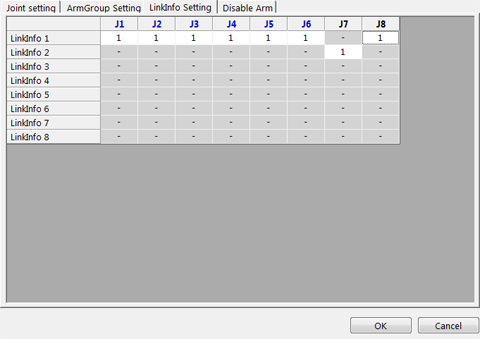
[1]: Linked, [0]:Not linked
In the above example,
Link info 1 links the robot joints J1 to J6 and Auxiliary axis J8 together so that the robot joints and J8 are mutually affected in motion.
Link info 2 does not link Auxiliary axis J7 with any joints so that J7 affects neither robot joints nor J8 in motion.
Configuration Samples of Robot Joints and Auxiliary Axes
Given below are configuration samples and their link info to be set up.
< Configuration Sample 1 > Link Robot Joints and Auxiliary Axes (J7 and J8) Together
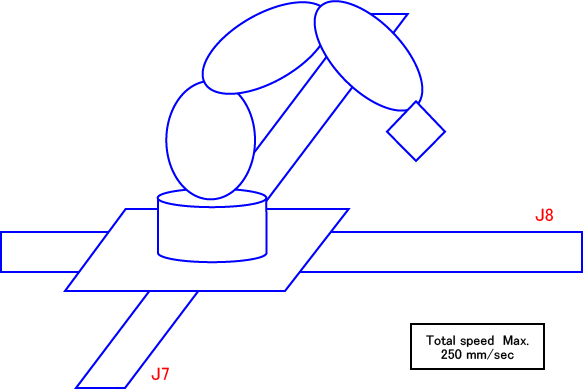
In the configuration shown above, the motions of the auxiliary axes J7 and J8 affect those of the robot joints, so link the robot joints and the auxiliary axes together.
The speed limit applies to the total motion speed.
- Link info setup sample (6-joint robots)

< Configuration Sample 2 > Link Robot Joints and Auxiliary Axis (J7) Together
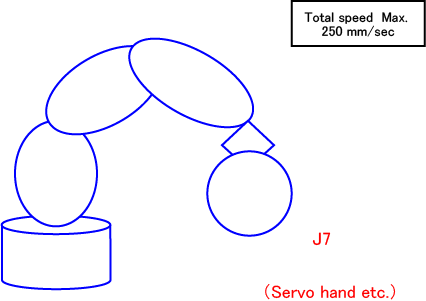
In the configuration shown above, the motions of robot joints affect that of Auxiliary axis J7, so link the robot joints and J7 together.
The speed limit applies to the total motion speed.
- Link info setup sample (6-joint robots)

< Configuration Sample 3 > No Link between Robot Joints and Auxiliary Axes, but Link Auxiliary Axes J7 and J8 Together
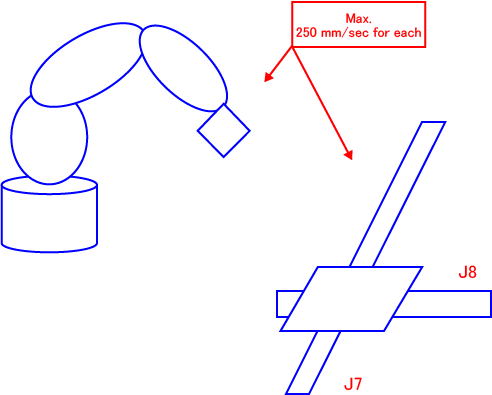
In the configuration shown above, the motions of the auxiliary axes J7 and J8 do not affect those of the robot joints, so do not link the robot joints and the auxiliary axes together. But, the motions of J7 and J8 are mutually affected, so link them together.
The speed limit applies to each of the robot joints and the auxiliary axes (J7 and J8) independently.
But, for J7 and J8, it applies to the total motion speed of them.
- Link info setup sample (6-joint robots)

< Configuration Sample 4 >No Link between Robot Joints and Auxiliary Axes and between Auxiliary Axes J7 and J8
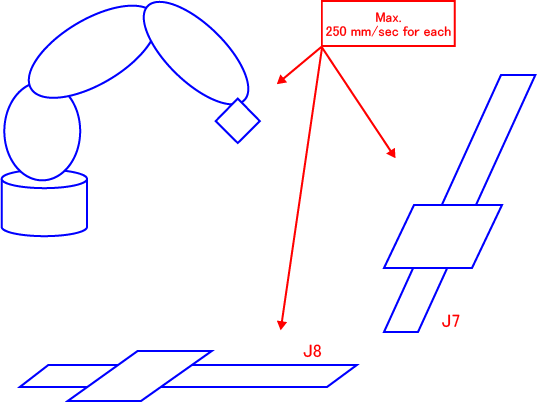
In the configuration shown above, the motions of the auxiliary axes J7 and J8 do not affect those of the robot joints, so do not link the robot joints and the auxiliary axes together. Neither do the motions of J7 and J8 mutually, so do not link them together.
The motion speed limit applies to each of the robot joints, J7, and J8 independently.
- Link info setup sample (6-joint robots)

Set Up Link Information
1
Operation path: Top screen - [F2 Arm] - [F12 Maintenance] - [F10 Joint Settings] - [F3 LinkInfo]
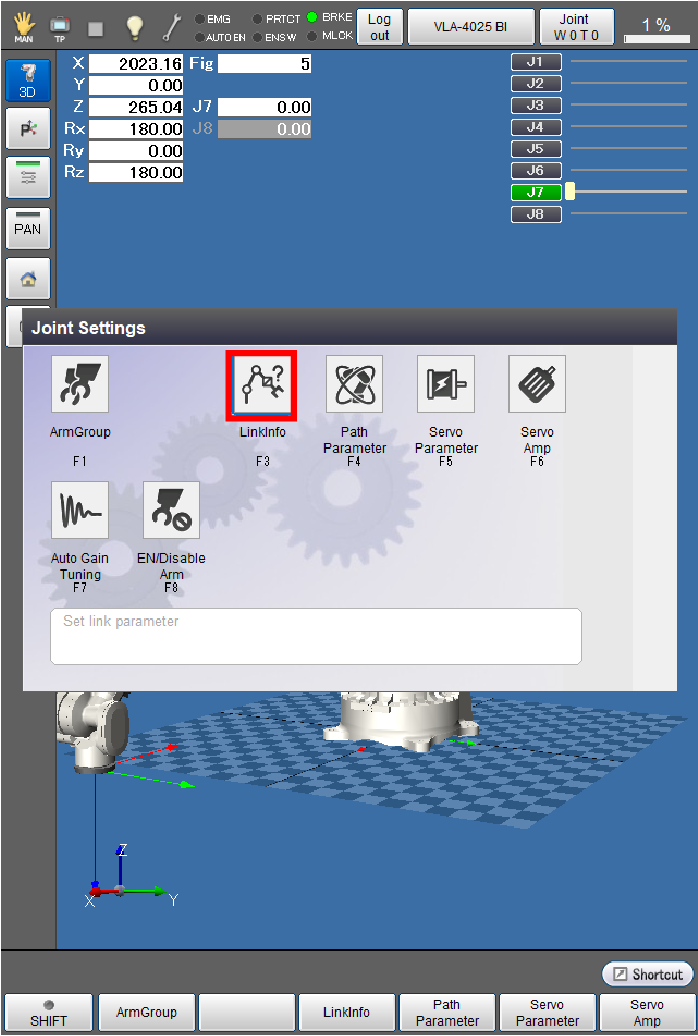
The [Link information setup] window appears as follows.
2
Select a joint that you would like to change the link information, then press [F5 Edit].
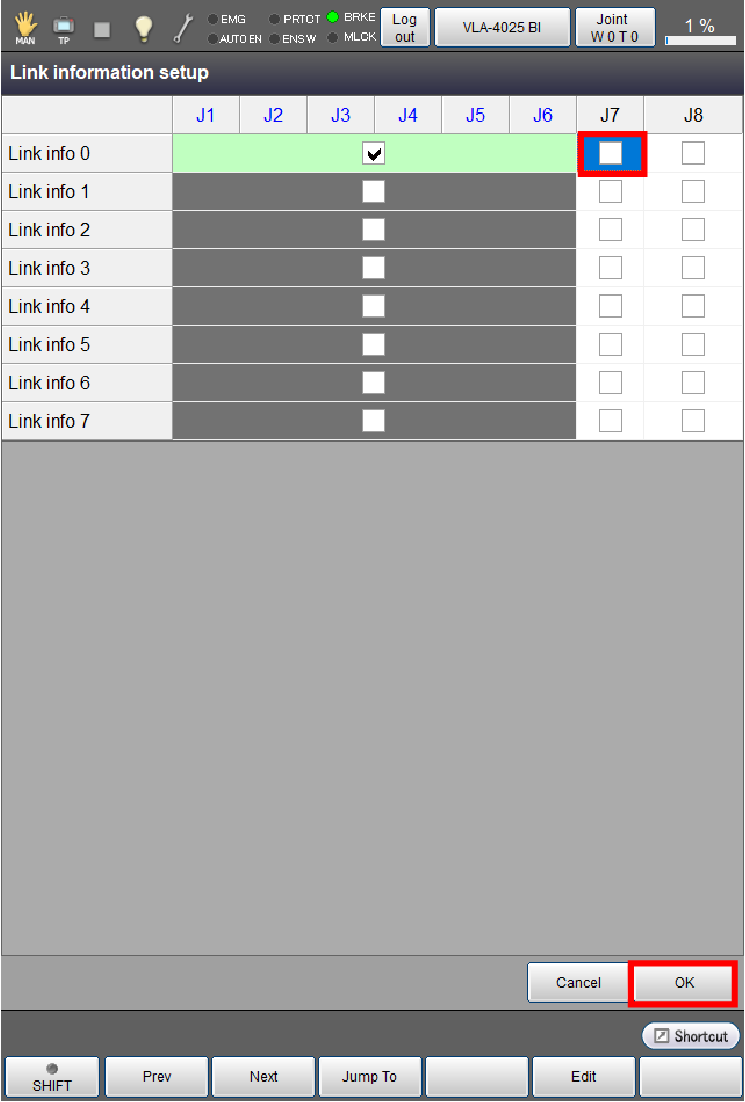
3
A system message appears as follows. Press [OK] to confirm the change.
To discard the change, press [Cancel].
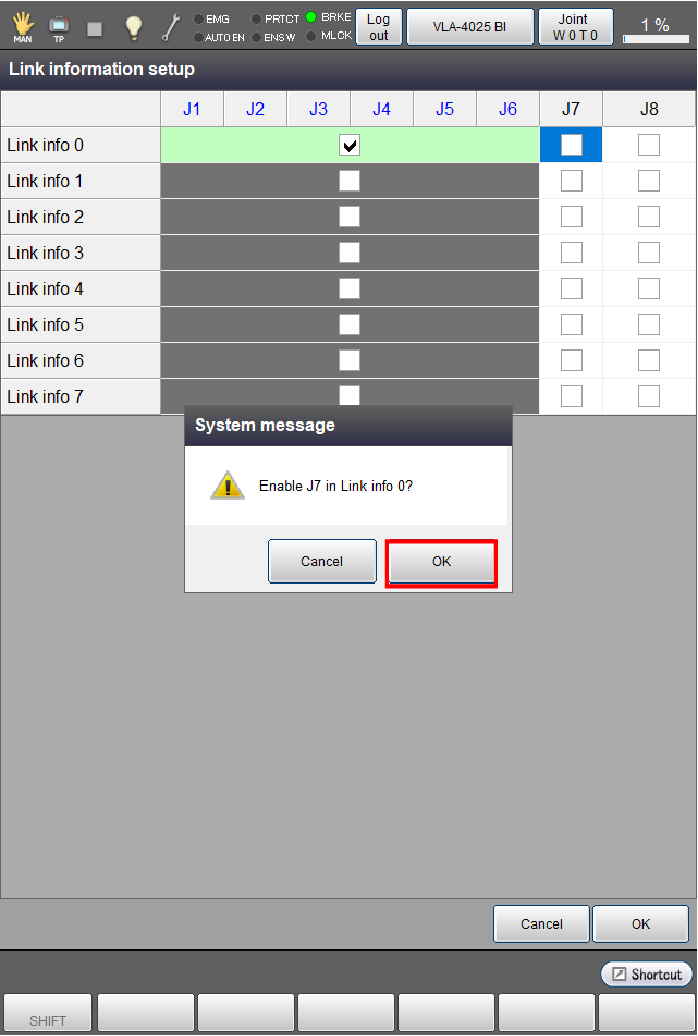
The check box of the selected joint will be ticked.
4
Once all the change has been done, press [OK].
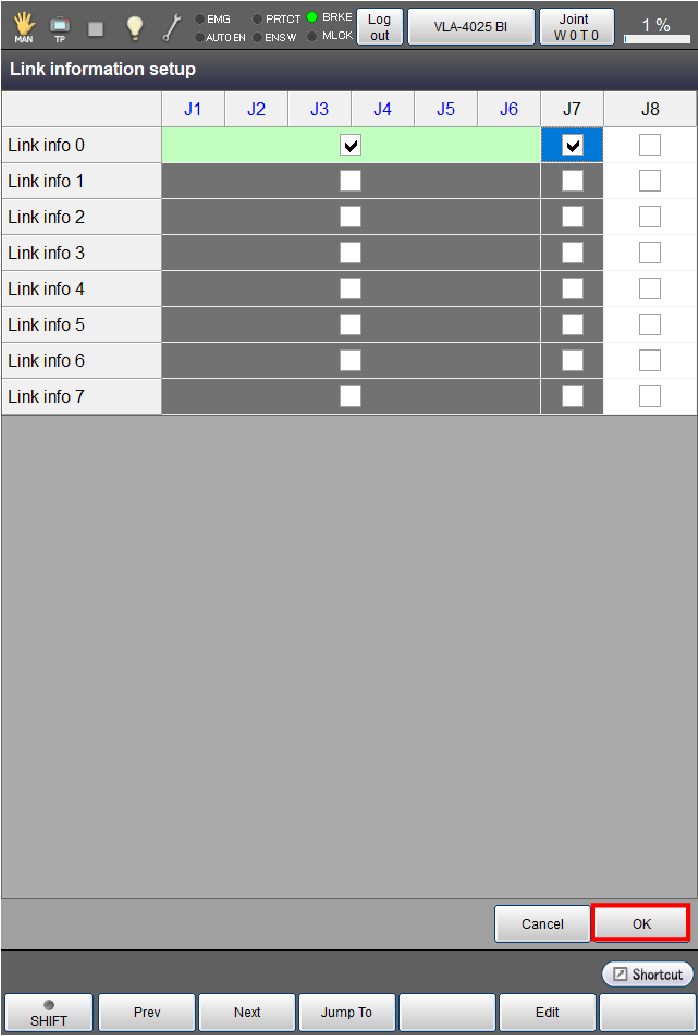
Pressing [OK] displays the message indicating that safety parameters will be changed.
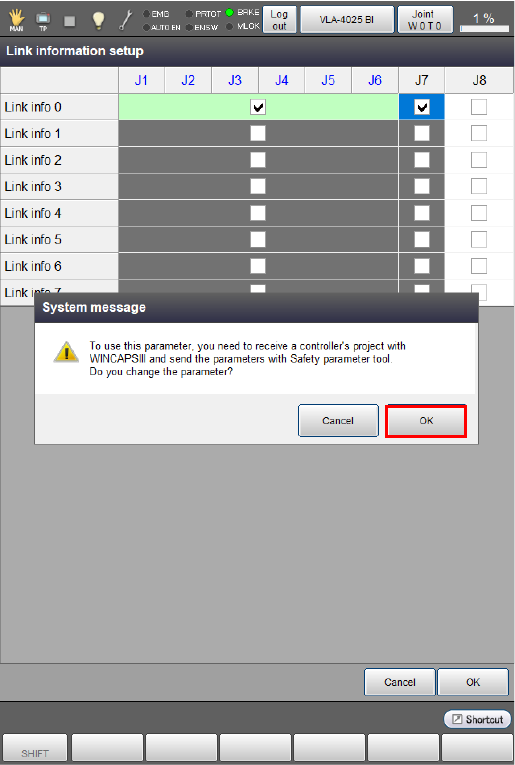
Check the message and then press [OK] again.
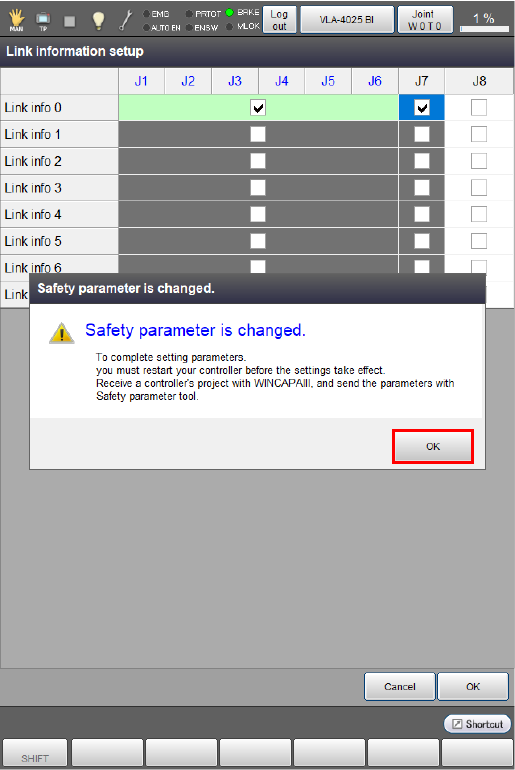
Check the message and then press [OK] again.
This will save the setting and take you back to the [Joint Settings] window.
Resend the safety parameters and then restart the controller.
Notes for setting up Link Info
- The newly configured link info goes into effect when the controller is restarted.
- All of robot joints are configured in a batch so that all of them are either linked or not.
-
For the auxiliary axis to be selected for Link Info, you need to set [Axis characteristics] to "Enable" on the [Servo Amp] parameter setting window beforehand.
Operation path : Top screen - [F2 Arm] - [F12 Maintenance] - [F7 Joint Settings] - [F5 Servo Parameter]
For details on how to set link information, refer to “Servo Parameter Setting”.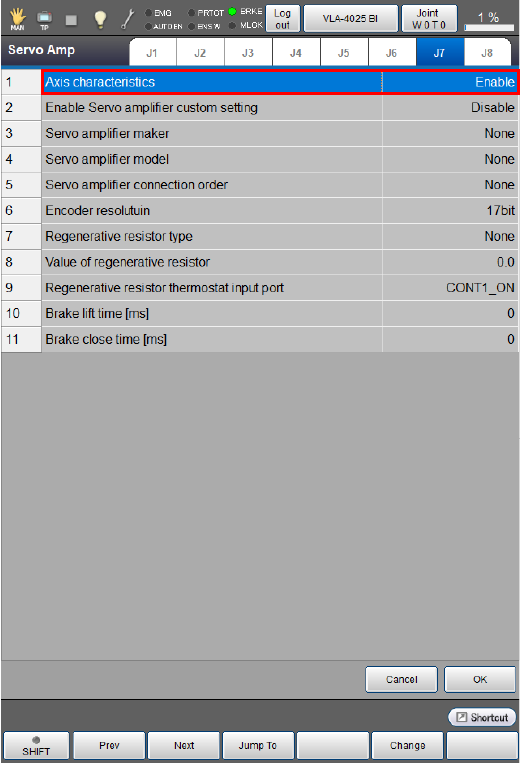
ID : 10964