
 HOME
HOME
ID : 11191
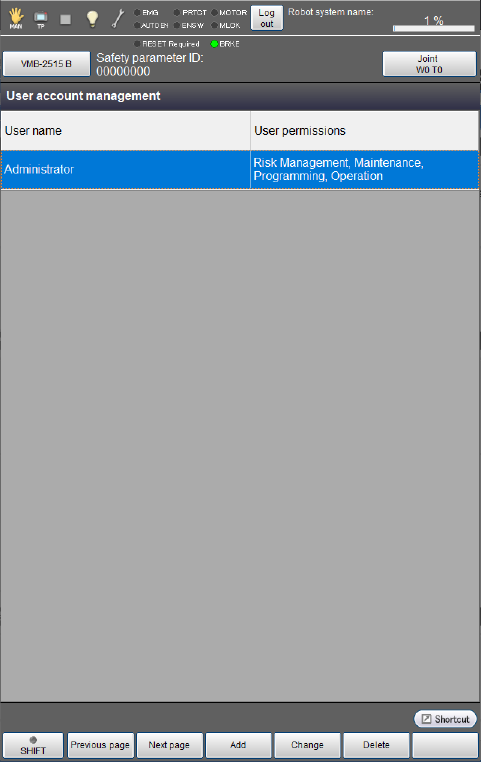
User Account Management
Operation path: [F6 Setting] - [F1 User account management]
Manage the user account.
Operations available depending on the name and permission of a user permission differ between the robot controller software version "1.3.*" or higher and "1.2.*" or lower.
If the software version is "1.2.*" or lower, refer to here.
How to Add an Account
Operation path: [F6 Setting] - [F1 User account management] - [F3 Add]
Enter the following, and tap [OK] to create a new account.
| User ID | Create a user ID with letters and numbers between 4 to 20 characters. IDs are case-sensitive. Available signs are “@ (at sign)” and “_ (understrike)” only. |
|---|---|
| Password | Create a password with numbers between 4 and 20 digits. |
User permission |
Select a user permission. |
Available operations differ depending on the user permission.
| User permission | Details | Mode Switching |
|---|---|---|
| Operation (*1) |
|
Not available |
|
Programming (restricted) |
|
Available |
| Programming |
|
Available |
| Maintenance |
|
Available |
| Risk Management |
|
Available |
*1: If a user permission is not specified, the "Operation" permission will automatically be given to an account.
* 2: Deleting the extension function, permitting the version upgrade, editing the encoder reference position/resetting the encoder, specifying the CALSET-related settings, service function
*3: Changing the settings that can be configured in the Risk Management screen.
How to Change an Account
Operation path: [F6 Setting] - [F1 User account management] - [F4 Change]
You can change the user ID and password for the logged-in account.
An account granted the Risk Assessment permission can change the user IDs, passwords, and user permissions of all accounts.
How to Delete an Account
Operation path: [F6 Setting] - [F1 User account management] - [F5 Delete]
You can delete an account.
The currently logged in user account cannot be deleted.
Programming (restricted)
Programming (restricted) is a user permission with which some of the functions available with the normal "Programming” permission are not available.
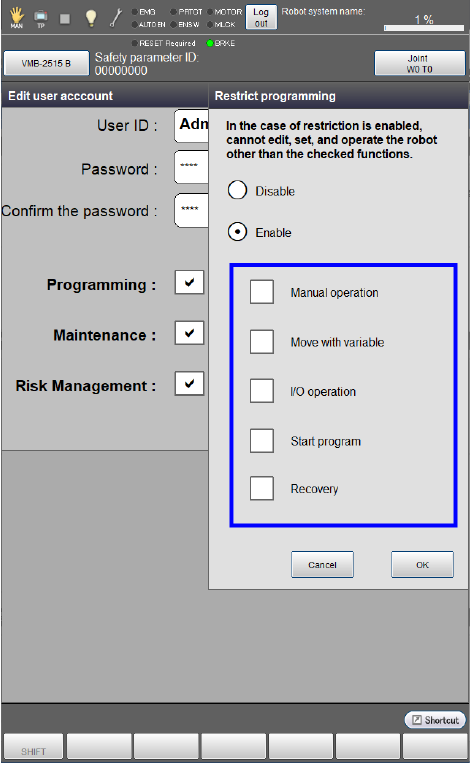
When specifying the Programming (restricted) permission, you can choose whether to permit the use of the following five robot motion–related functions or not.
- Manual operation
- Variable move
- Turning on/off the I/O function
- Program start functions (Program Start, Cycle Start, Step Start, Continuous Start)
- Shifting to a Recovery State
Use this feature if you want to permit an operator to use only some of the functions available with the "Programming” permission such as the manual operation and variable move.
Users who operate a robot must be limited to only those who have taken the training required to operate a robot safely. For more information about "Users", visit this link.
Setting Method
1
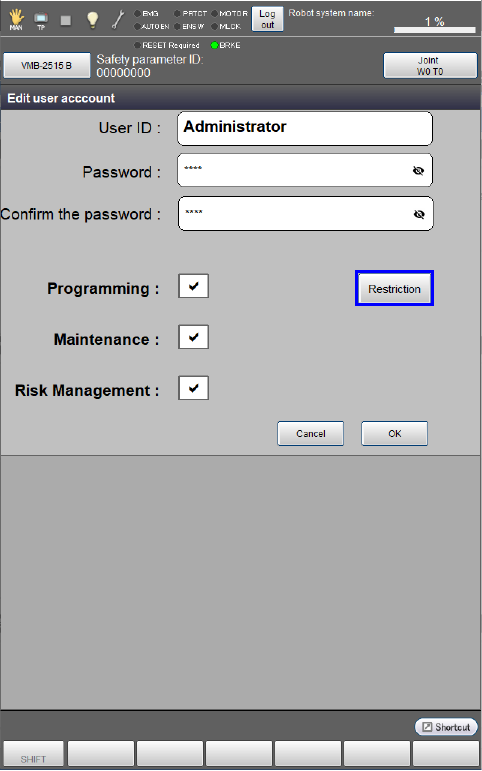
In either [Add user account] or [Change user account information], select [Programming] and press the [Restriction] button enclosed by the blue square.
2
Select “Enable” in the “Restrict programming” tab.
Check a function to permit in the blue square below.
Functions checked here will be available to the user account.
For details of operations available with the Programming (restricted) permission, refer to here.
Default Account
Set a password when turning on the robot controller for the first time.
Delete this account if it is unnecessary.
The following are the user ID and user permission of the default account
| Account name | User permission |
|---|---|
| Administrator |
|
Functions Configurable with Each User Permission
Available operations differ depending on the user permission given to a user account.
For details of the functions configurable with each user permission, refer to the following PDF files.
ID : 11191
- Related Information
- User Account Management (Ver 1.2.* or Lower)