
 HOME
HOME
ID : 9738
Displaying the result of I/O Bit Calculation
Operation path: [F4 I/O] - [NumDisp] button on the I/O monitor
To display the I/O bit calculation result, tap [NumDisp] button on the I/O monitor.
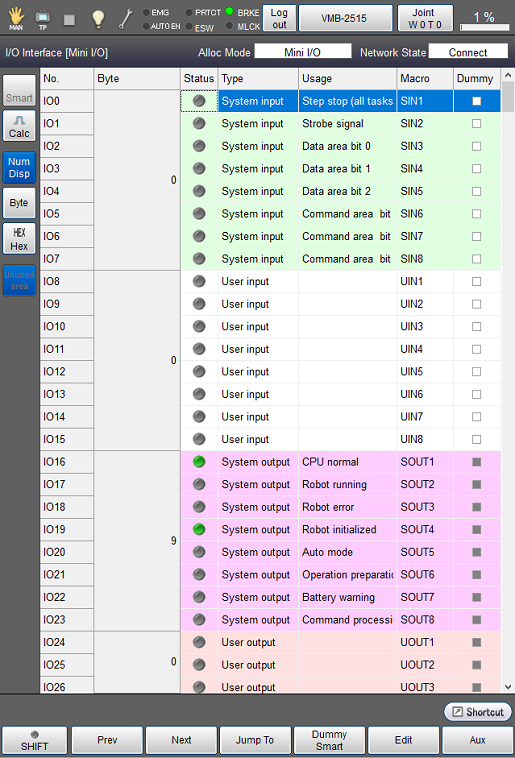
| Available function keys | |
|---|---|
| [F1 Prev] | Display the previous page of the currently displayed I/O information. |
| [F2 Next] | Display the next page of the currently displayed I/O information. |
| [F3 Jump To] | Displays numeric keypad. Enter I/O number with numeric keypad, and tap [OK] to move to the target I/O number. The selected I/O number will be highlighted. |
| [F4 Dummy Smart] (*) |
Set dummy input on/off for the selected I/O number when "Dummy Smart" is checked. Set Smart input on/off for the selected I/O numberwhen the "Smart" is checked. |
| [F5 Edit] (*) |
When tapping the button, numerical keypad appears which enables to edit the numeric value. |
| [F6 Aux] | Display auxiliary functions menu for I/O. |
| Keys other than function keys | |
|---|---|
| [NumDisp] | Perform I/O bit calculation. When tapping the button, this function is enabled and the button turns blue color, and the I/O bit calculation result appears on the I/O monitor. |
| [Byte] | Switch the display style of I/O bit. (The display style of the I/O bit changes "Byte → Word → Short → Integer → Single → Byte (repeat this cycle)"). |
| [HEX Hex] | Display the calculation result in hex number. When tapping the button, this function is enabled and the button turns blue color, and the I/O bit calculation result is displayed in hex notation. |
ID : 9738