
 HOME
HOME
ID : 9736
Displaying and Operation of I/O
Operation path: Top window - [F4 I/O]
Display and set I/O monitor.
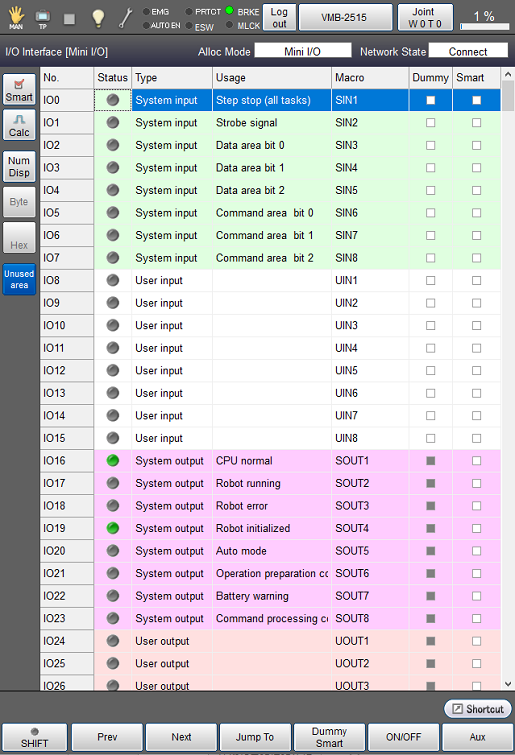
Press [F4 I/O] to display the following [I/O Interface] window.
When you turn the I/O on or off, the output signal of the robot also turns on or off.
Before operation, make sure that changing I/O state will not cause the serious injury or damages for personnel and devices.
For details of operation, refer to the "Operation Using the Smart TP" of Basic of Robot Motion Creation.
| Available function keys | |
|---|---|
| [F1 Prev] | Display the previous page of the currently displayed I/O information. |
| [F2 Next] | Display the next page of the currently displayed I/O information. |
| [F3 Jump To] | Displays numeric keypad. Enter I/O number with numeric keypad, and tap [OK] to move to the target I/O number. The selected I/O number will be highlighted. |
| [F4 Dummy Smart] (*) |
Set dummy input on/off for the selected I/O number when "Dummy" is checked. Set Smart input on/off for the selected I/O number when the "Smart" is checked. |
| [F5 ON/OFF] (*) | Switch on/off the selected I/O number. |
| [F6 Aux] | Display auxiliary functions menu for I/O. |
| [F7 Reset BusOff] | Clear the bus-off state on DeviceNet communication. Once a confirmation message appears, tap [OK]. This button is displayed only when DeviceNet is used. |
| Keys other than function keys | |
|---|---|
| [Smart] | Display I/O number whose check box for "Smart" is checked. |
| [Calc] | Perform I/O bit calculation. |
| [NumDisp] | Perform I/O bit calculation. When pressing the [NumDisp] button, this function is enabled and button turns blue color. When this [NumDisp] button is enabled (blue color), the [Ununsed area] button status cannot be changed. |
| [Byte] | Switch the calculation method of I/O bit. This can be switched while the [NumDisp] button is blue. |
| [Hex] | Display the calculation result in hex number. This can be switched while the [NumDisp] button is blue. |
| [Unusedarea] | Display unused I/Os. When pressing the [Unused area] button, this button turns blue color and the function is enabled. This is enabled (blue color) at the default setting. When the [Unused area] button is disabled, the [NumDisp] button status cannot be changed. |
ID : 9736