
 HOME
HOME
ID : 11085
Project Setting
When operating a customer-prepared robot by MC9 series using the Kinematics Configuration, edit a WINCAPSIII project by RC9 Kinematics Configuration Tool.
Kinematics Configuration Tool is automatically installed when WINCAPSIII is installed.
Procedure
1
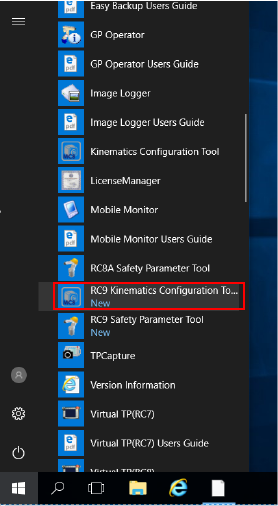
Start up Kinematics Configuration Tool.
Operation path: PC [Start] button - [DENSO ROBOTICS] - [RC9 Kinematics Configuration Tool]
2
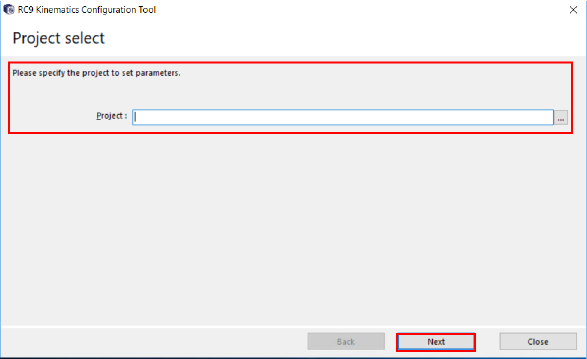
Select a project that you have obtained from MC9 series for Kinematics Configuration, then press [Next].
3
Select a robot type that you want to operate and press [Next].

For more information about available robot types, refer to "Robot Type".
4
Specify arm length depending on the robot type you have selected, and press [Next].
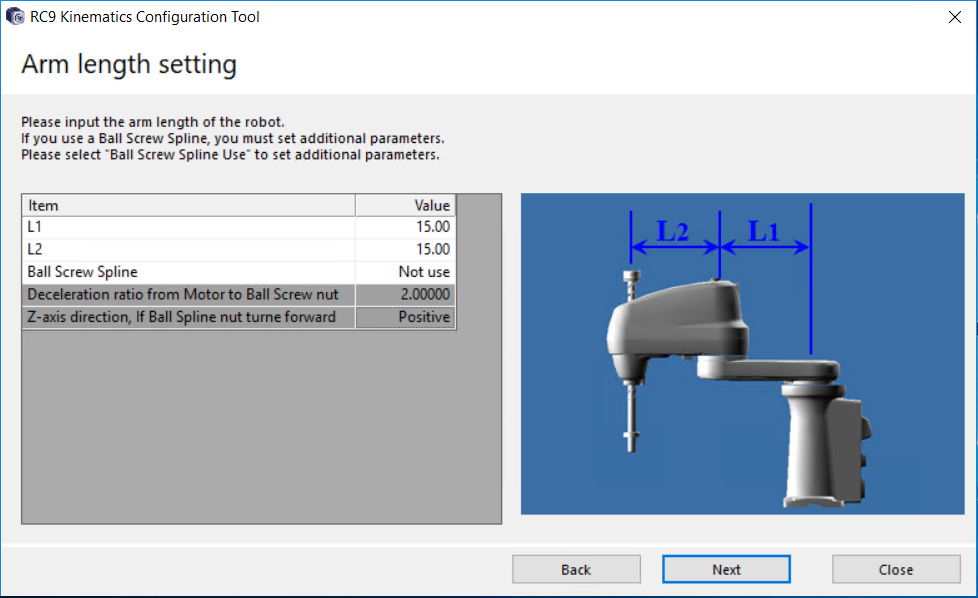
- The values of arm length to be set are limited. For each item of arm length, refer to "Arm Parameter Settings".
- When a ball screw spline shaft is used to the linear motion axis on 4-axis robot, or when the 5th-axis motion interferes with the 6th-axis motion under 6-axis robot use, additional parameter settings are required. For details, refer to "Additional Setting of 4-axis or 6-axis Robot".
5
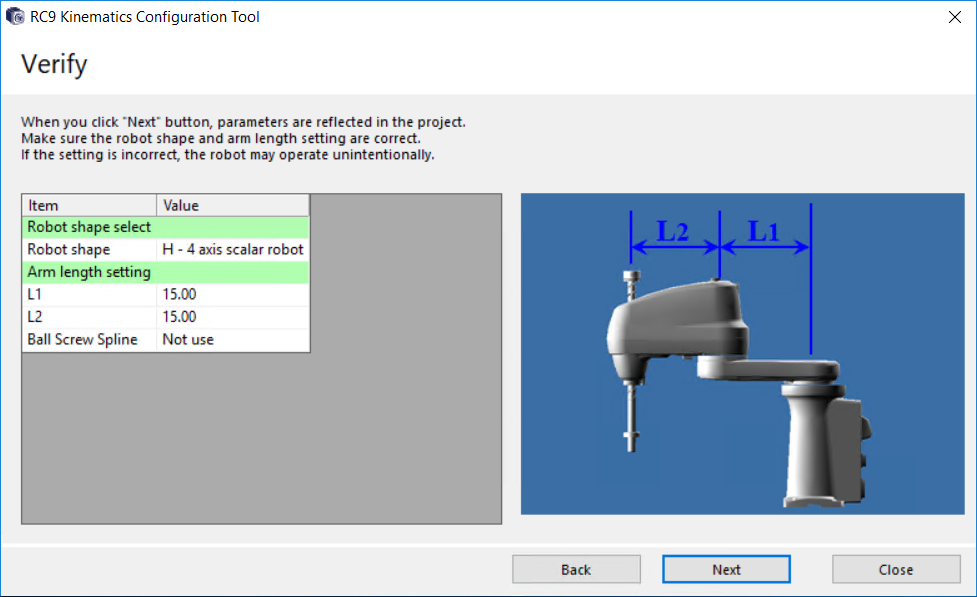
Confirm your settings on the screen and press [Next].
If the settings are incorrect, the robot may operate unintentionally.
Ensure settings are correct.
6
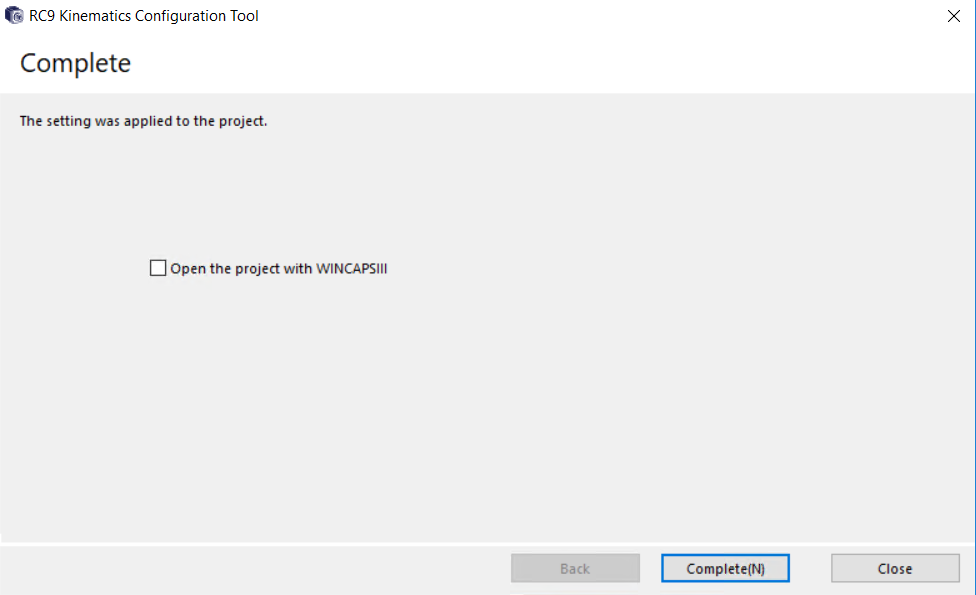
Press [Complete(N)] to complete Kinematics Configuration for the project.
Check "Open the project with WINCAPSIII” and press [Complete] to start WINCAPSIII.
ID : 11085