
 HOME
HOME
ID : 11087
Parameter Transfer
After setting a project in Kinematics Configuration, open the project in WINCAPSIII and send necessary parameters to the controller.
Use the smart TP to check if the parameters have been sent correctly.
1
Send the data to the controller.
Send only the parameters in the project to MC9 series.
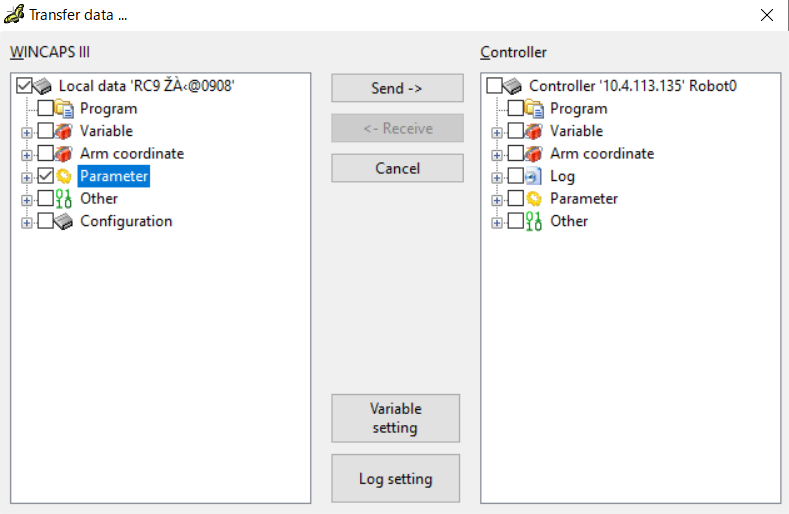
Select [Transfer data] in the [Connect] menu to display the [Transfer data] dialog.
In the [Transfer data] dialog, check parameter boxes and press the [Send] button.
For details, refer to "Communication Setting" or "Data Transfer" in WINCAPSIII GUIDE.
After sending the data, restart the controller.
To perform this step, the robot controller and WINCAPSIII must be connected with a cable.
For how to set up the communication, refer to "Link with Robot Controller" WINCAPSIII GUIDE.
2
Open the Arm window on the smart TP.
Selecting the robot type button at the top of the screen will display your selected robot type.
If that selected robot type is not shown, configure again with Kinematics Configuration Tool.
Robot types are able to be shown only if the controller is MC9 series and the license is valid.
ID : 11087