
 HOME
HOME
ID : 11094
Configuration of the RC8 Series Robot Controller
How to Configure the RC8 Series Controller
The RC8 series controller with the following specifications cannot be connected to MC9 series.
- Safety Motion
- Dual Arm
1
Add the following option and license to the RC8 series robot controller to be connected to MC9 series.
- EtherCAT Slave board
- EtherCAT Slave Motion license
For how to install the extension board and details of its function, refer to the following user manuals in RC8 USER MANUALS.
- ETHERCAT SLAVE BOARD MANUAL(ID : 5783)
- ETHERCAT SLAVE MOTION MANUAL(ID : 2956)
2
Configure the robot and auxiliary axes that are connected to the RC8 series controller.
After the configuration, check if the robot and the auxiliary axes can operate manually as intended.
For details of the RC8 series controller configuration, refer to RC8 USER MANUALS.
Example
- START UP MANUAL(ID: 5193)
- EXTENDED-JOINT MANUAL(ID: 4868)
- SELECTIVE EXTENDED JOINT (ETHERCAT) MANUAL(ID: 2946)
When the MC8 controller is connected to MC9 series, Kinematics Configuration is not adjustable through the MC8 series controller.
Set MC9 Kinematics Configuration through MC9 series.
3
After configuring the RC8 series robot controller, specify the parameters for connecting it to MC9 series.
Setting through the teach pendant
1
Open the [SlaveMotion Settings] screen.
To perform this operation, set the user level to “Maintainer”.
For how to specify the user level, refer to ID 1772 of RC8 USER MANUALS.
Operation path : [Top Screen] - [F6: Setting] - [F5: Communication and Token] - [F5: SlaveMotion Settings]
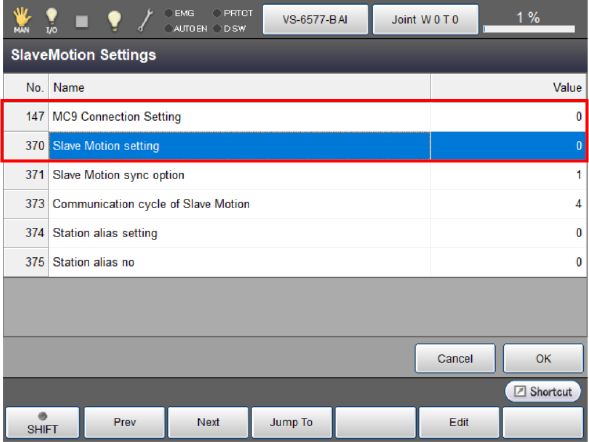
2
Set [147:MC9 Connection Setting] and [370:SlaveMotion Setting] to [1:Enable], then press [OK].
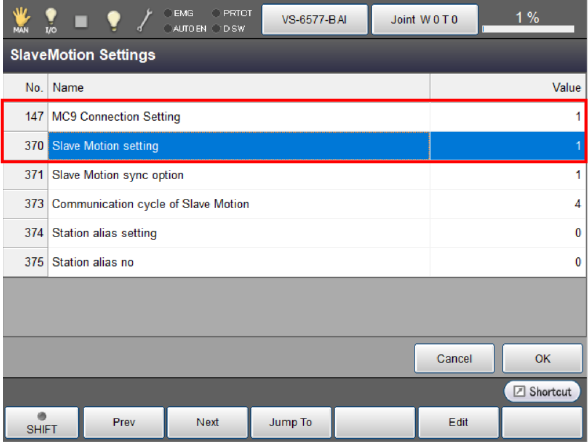
After completing the setting, restart the controller.
Setting through WINCAPSIII
1
Open the project of an RC8 compatible robot that you intend to configure.
Open the [Parameter] screen in the project, then open the VCR parameter window.
Operation path: [Project] - [Parameter] - [VRC]
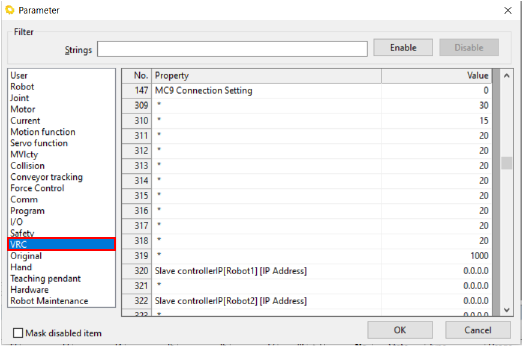
2
Set [147:MC9 Connection Setting] to [1:Enable], then press [OK].
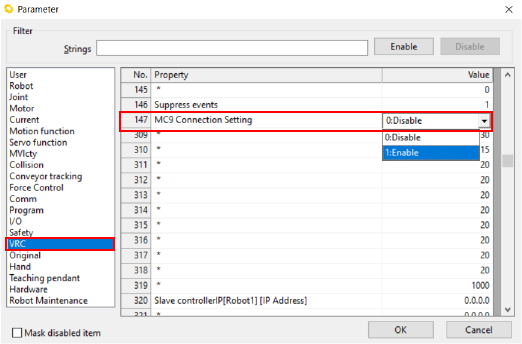
3
Set [370:Slave Motion setting] to [1:Enable], then press [OK].
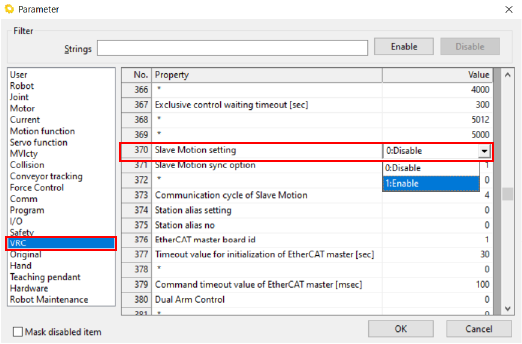
After adjusting the parameters, send them to the RC8 series controller.
For details, refer to ID 4409 and ID 4410 of RC8 USER MANUALS.
After the transfer is complete, restart the controller.
After configured for connection to MC9 series, the RC8 series controller will experience a level 5 error when connected to the teach pendant or the mini pendant, disabling the functions other than the emergency stop input function of those pendants.
ID : 11094
- Related Information
- Hand I/O Configuration for the RC8 Series Robot Controller