
 HOME
HOME
ID : 9697
Displaying and Setting the Arm Auxiliary Functions
Operation path: [F2 Arm] - [F6 Aux]
Display the menu to set various configurations required to move robot, "Tool coordinates" and "Work coordinates", and "Area".
Press [F6 Aux] to display the following [Auxiliary Functions - Arm] window.
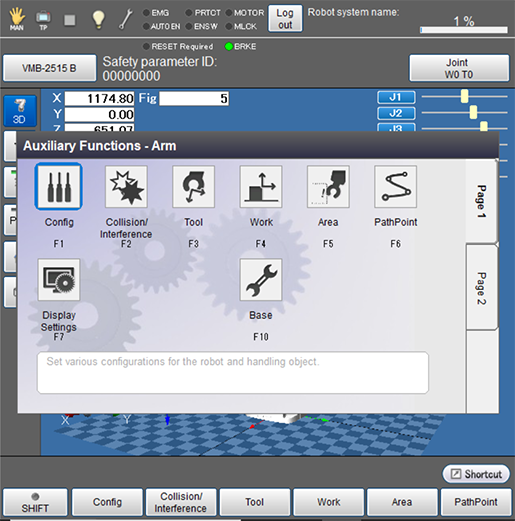
| Available function keys | ||
|---|---|---|
| Page 1 | [F1 Config] | Displays the [Config] window. Set various configurations required to move robot, including mass of payload of the robot. |
| [F2 Collision/Interference] | Configures/performs the collision/interference settings or operations. | |
| [F3 Tool] |
Displays the [Define Tool Coordinate] window where you can specify a Tool coordinate system. |
|
| [F4 Work] | Displays the [Define Work Coordinate] window where you can specify a Work coordinate system. | |
| [F5 Area] | Displays the [Define Area] window where you can set the domain of "area". | |
| [F6 PathPoint] | Set path points. | |
| [F7 Display Settings] | Set the items displayed in the [Arm] screen. | |
| [F10 Base] | Displays the [Base setting] window (Ver.1.3.*or higher) where you can set the robot base position viewed from the world coordinate system. | |
| Page 2 | [F6 Fig auto correction] | Switches the settings of Auto Fig Correction used when Get Position is executed. |
ID : 9697
- Related Information
- Displaying and Setting the Configuration
- Displaying and Setting the Collision/Interference Functions
- Displaying and Setting Tool Coordinates
- Displaying and Setting Work Coordinates
- How to Display and Set Areas
- Path Points Setting Window
- Changing the Arm Display Settings
- Display and Adjust the Base Setting