
 HOME
HOME
ID : 9729
Displaying and Changing Variable Screen
Operation path: Top window - [F3 Variable]
Display and change the value of variable.
Tap [F3 Variable] to display the following [Variable] window.
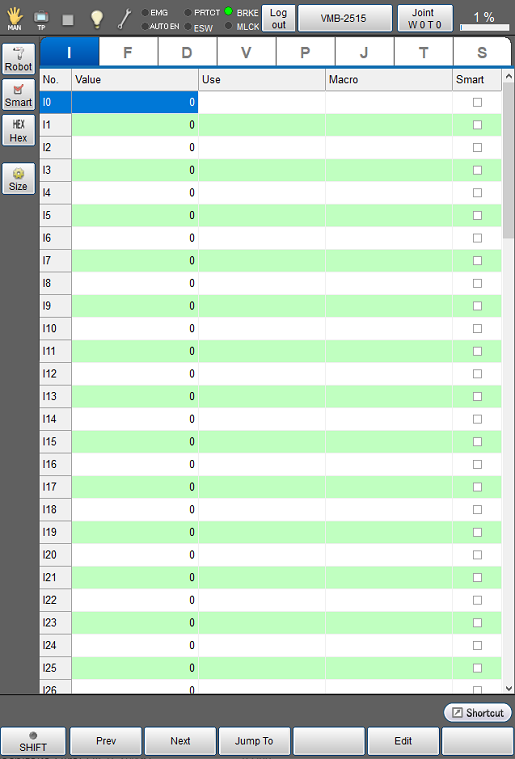
Tap the variable tab to display the target variable.
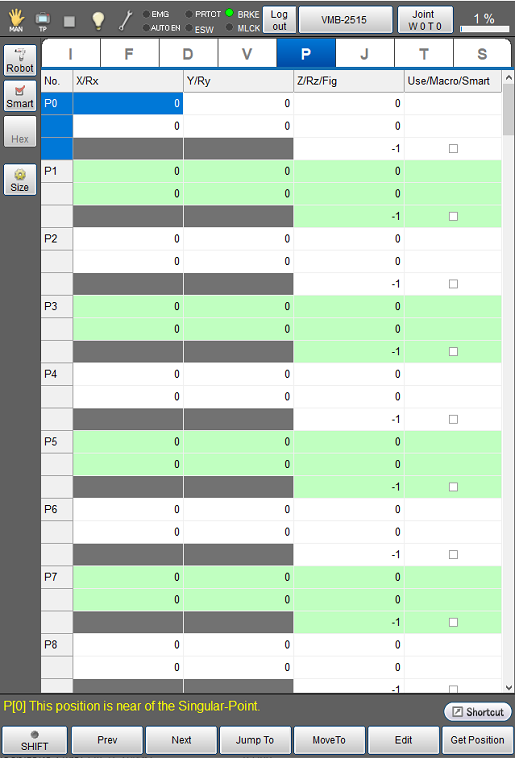
| Available function keys | |
|---|---|
| [F1 Prev] | Display the previous page of the currently displayed variable page. |
| [F2 Next] | Display the next page of the currently displayed variable page. |
| [F3 Jump To] |
Select the variable number to display in variable tab, and tap [Jump To] to display numeric keypad. Enter variable number with numeric keypad, and tap [OK] to move to the target variable number. Some elements for the selected variable number will be highlighted. |
| [F4 Move To] (*1) | Specify the variable number, and then manually move the robot to the registered coordinate value in the specified variable number. This operation is available only for J-, T-, and P-type variable. |
| [F5 Edit] (*2) |
Select the variable number to change its value, and tap [Edit] to display numeric keypad. Enter the value to set with numeric keypad, and tap [OK] to change the value. This key is also used to change robot figures of T type and P type variables. Select [Fig] column on variable table then tap [Edit] to display [Edit Fig] window. |
| [F6 Get Position] (*2) | Obtain the current position of the target robot and save the position data to the specified variable. This operation is available only for J-, T-, and P-type variable. |
| [F8 Copy] (*1) |
Copy value of variable. Select the variable number to copy, and tap [Copy] to copy the variable. |
| [F9 Paste] (*2) |
Paste the copied variable. Select the variable number to paste, and tap [Paste] to paste it. |
| [F10 Switch Display] |
Display [Option] window. In [Option] window, display can be switched to [Smart display], and also switched between decimal and hexadecimal displays per variable. |
| [F11 Robot] | Display the current position information of robot on the right side of screen. |
| [F12 Aux] |
Display [Menu] window. Set variable size for each variable. Select [Number of Variables] in [Menu] to display [Variable Size] window. Select variables to change the variable size, and tap [F5 Edit]. Then, numeric keypad will be displayed. Enter the setting value with numeric keypad, and tap [OK] on the numeric keypad to change the variable size. Tap [OK] button in [Variable Size] window to confirm the changed variable size. |
- (*1) This key is available only when the currently logged-in account is granted user permission for "Programming" or "Maintenance".
- (*2) This key is available only when the currently logged-in account is granted user permission for "Programming".
| Keys other than function keys | |
|---|---|
| [Robot] | Display the current position information of robot on the right side of screen. Button turns blue while the button is tapped. |
| [Smart] | In each variable, display only variable number whose checkbox for "Smart" is checked. |
| [Hex] | If hexadecimal value is allowed to be entered in variable, the display can be switched to hexadecimal display by pressing this button. Button turns blue while the button is tapped. |
| [Size] | Set variable size for each variable. Tap button to display [Variable Size] window. Select variables to change the variable size, and tap [F5 Edit]. Then, numeric keypad will be displayed. Enter the setting value with numeric keypad, and tap [OK] on the numeric keypad to change the variable size. Tap [OK] button in [Variable Size] window to confirm the changed variable size. |
| [Variable tab] | Tap the variable tab to display the target variable. |
ID : 9729