
 HOME
HOME
ID : 9776
Program Priority Mode
The program priority mode increases the program processing speed by keeping a certain display of the smart TP.
Starting the Program Priority Mode
The way to start the program priority mode differs depending on the mode start timing; at the smart TP startup, or when the smart TP is already running.
Starting at the Smart TP Startup
1
Operation path: [F6 Setting] - [F2 System info] - [General tab] - [F6 VRC Setting]
Set the [Program priority mode set when starting] on the VRC Setting window to "1:Enable".
2
Restarting the controller with Auto-mode will start the program priority mode from the startup.
Starting When the Smart TP is Already Running.
1
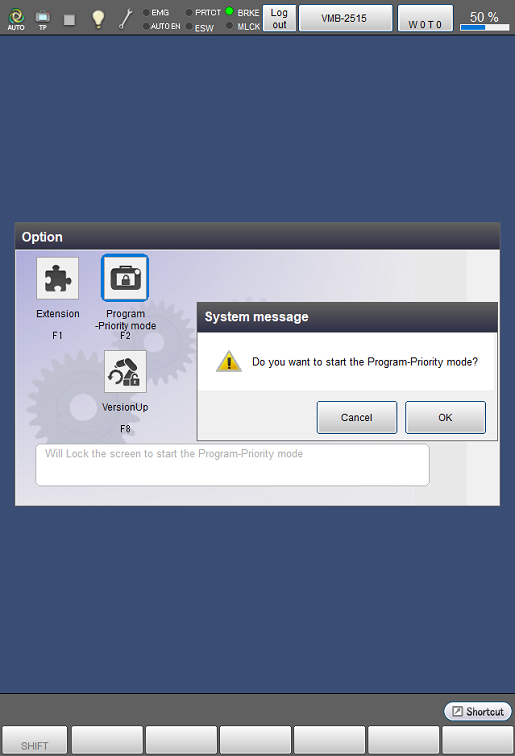
Operation path: [F6 Setting] - [F8 Option]
Press [F2 Program-Priority mode] to display the System message window.
2
Pressing [OK] button under the Auto mode will start the program priority mode.
Display under the Program Priority Mode
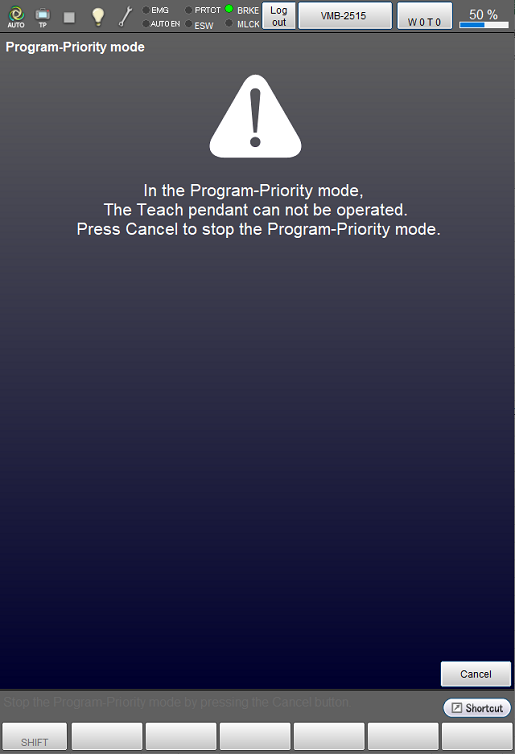
Under the program priority mode, the display of the smart TP is as shown below.
Available keys and a button under the program priority mode are Emergency stop, [Cancel] keys, [MOTOR] button, [LOCK] button, and the Cancel button on the smart TP screen.
How to Release the Program Priority Mode
To release the program priority mode, either
- pressing the Cancel key or the Cancel button on the display, or
- switching to the Manual mode from the Auto mode.
ID : 9776